 Mattermost v11.0 is now available! Learn what's new »


Mattermost is published as an Azure Marketplace solution that provisions a production-ready Mattermost stack in your own subscription using Azure-managed services for compute, database, shared file storage, and load balancing. This option is intended for organizations that want a resilient Mattermost deployment they can scale and operate within their existing Azure tenant.
Prerequisites
An active Azure subscription with the Owner or Contributor role on the subscription (required to purchase and deploy Azure Marketplace solutions), permission to create resource groups, and permission to accept Azure Marketplace billing terms for the offer.
Familiarity with the Azure portal (resource groups, networking, virtual machines, and Application Gateway).
For multi-node deployments (more than one application instance), a valid Mattermost Enterprise license file. The license is optional for single-node deployments.
If you plan to enable HTTPS at deployment time:
A PFX (PKCS#12) certificate bundle and its password.
A custom domain (FQDN) that you will point to the Application Gateway after deployment.
What gets deployed
The template provisions a self-contained, production-ready stack in the resource group you select, including:
Virtual Machine Scale Set (Linux): Runs Mattermost on Ubuntu Pro 24.04 LTS images published by Mattermost. Instance count and VM size are driven by the scaling tier you choose.
Application Gateway with public IP: Acts as the entry point for Mattermost traffic, with optional HTTPS listener (using your PFX certificate) and HTTP-to-HTTPS redirection when HTTPS is enabled.
Azure Database for PostgreSQL Flexible Server: Managed PostgreSQL service that stores Mattermost data, with optional same-zone or zone-redundant high availability, backup retention and geo-redundancy.
Azure Files (NFS) with private endpoint: Shared storage for Mattermost data (uploads, plugins, and other shared files), reachable only from inside the virtual network.
Virtual network and subnets: A dedicated VNet for the deployment, with separate subnets for the Application Gateway, the Mattermost application instances, the database, and the storage private endpoint.
NAT gateway: Provides controlled outbound internet access for the application instances (for example, to fetch packages and the Mattermost configuration scripts).
Private DNS zones: Used to resolve the PostgreSQL Flexible Server and Azure Files private endpoint from inside the VNet.
Step 1: Select a plan and start creation
Open the Mattermost - Azure-Native (VM-based) offer in the Azure Marketplace, click Get it now, select the plan, and then click Create to open the deployment wizard.
Step 2: Basics
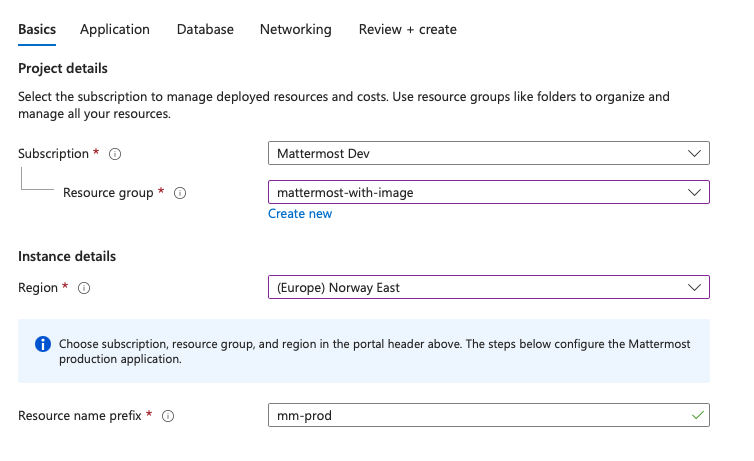
On the Basics tab, configure the following:
Subscription: Choose the Azure subscription where the deployment will live.
Resource group: Select an existing resource group or create a new one. A new resource group keeps the production stack easy to manage and clean up.
Region: Select the deployment region. Choose a region that supports the PostgreSQL Flexible Server SKUs you plan to use, and that has the availability zones you need if you intend to enable PostgreSQL high availability.
Resource name prefix: Short prefix (2–12 lowercase letters, digits, or hyphens) used to name the Azure resources created by the template (for example,
mm-prod).
Step 3: Application
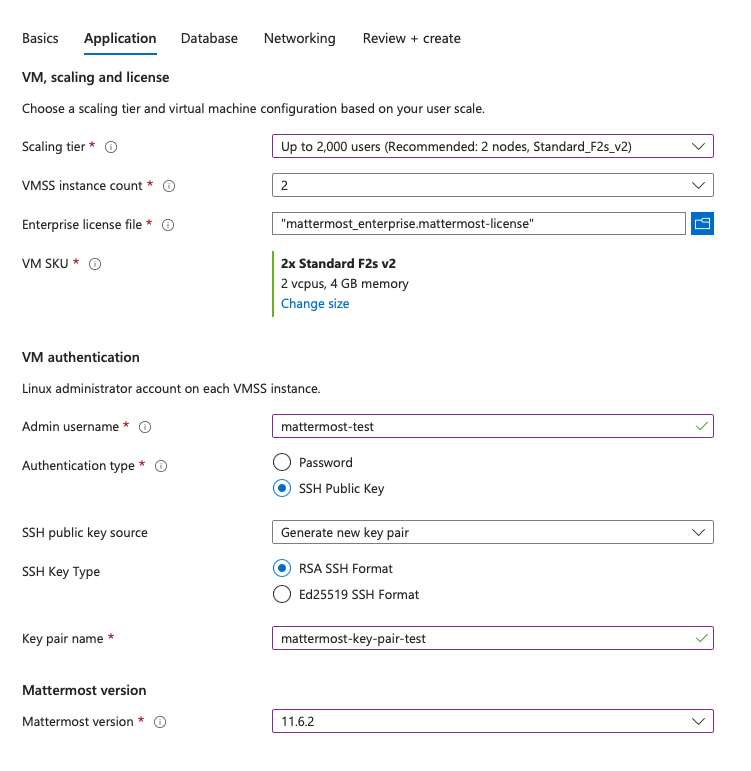
On the Application tab, configure how the Mattermost application is sized and how administrators access the VMs.
Scaling tier: Pick the user scale you are planning for. The wizard uses this to suggest sensible defaults for the VMSS instance count, VM size, and PostgreSQL SKU, and to determine whether read replicas are created for the database. The dropdown shows the recommended node count and VM SKU for each tier. For the underlying sizing rationale, see available reference architectures.
VMSS instance count: Number of Mattermost application nodes (1–5). Defaults to the suggested value for your scaling tier; adjust if needed.
Enterprise license file: Required when the instance count is greater than 1 (multi-node high-availability clustering). Upload your Mattermost Enterprise license file. The license is optional for single-node deployments.
VM SKU: Size of each VMSS instance. The wizard surfaces recommended Linux sizes first; you can select any supported Linux size available in your region.
Admin username: Linux administrator account used to sign in to the VM instances.
Authentication type: Choose Password or SSH public key for Linux sign-in. SSH public key is recommended for production deployments.
Mattermost version: The Mattermost version to install (for example,
11.6.2). See the Mattermost release policy for supported versions.
Step 4: Database
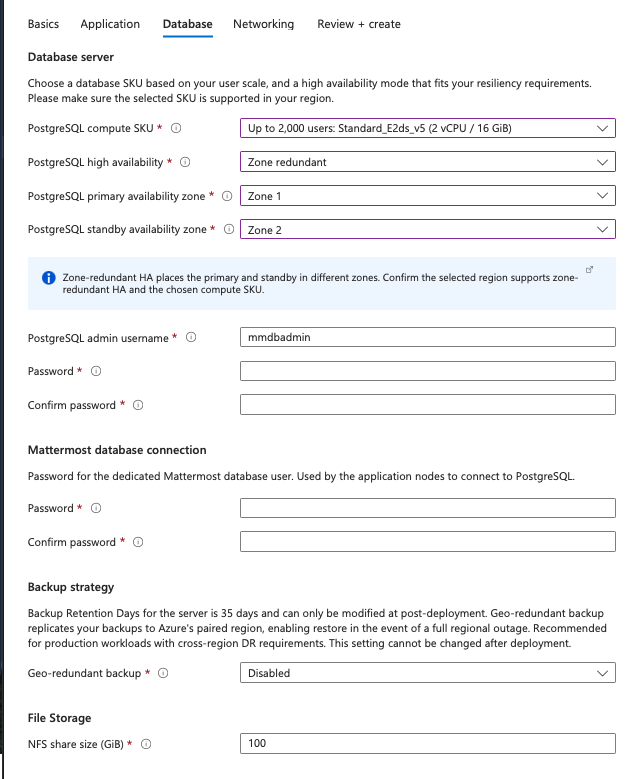
On the Database tab, configure the managed PostgreSQL service and the shared NFS file share.
PostgreSQL compute SKU: Memory-optimized Flexible Server SKU. Defaults to the SKU recommended for your scaling tier; pick a SKU that is supported in your region. Available choices are
Standard_E2ds_v5,Standard_E4ds_v5, andStandard_E8ds_v5.PostgreSQL high availability: Choose how PostgreSQL is made resilient:
Disabled: Single primary instance. Suitable for small deployments.
Same zone: Primary and standby in the same availability zone.
Zone redundant: Primary and standby in different availability zones.
For regional support of Flexible Server SKUs and HA modes, see Azure regions for PostgreSQL Flexible Server.
Primary availability zone and standby availability zone: Shown when HA is enabled. For zone-redundant HA, the primary and standby zones must be different. Pick zones supported in your region for the PostgreSQL SKU you chose.
PostgreSQL admin username and password: Administrator credentials for the Flexible Server. Avoid reserved names such as
azure_superuser. The password must meet Azure Flexible Server password complexity requirements.Mattermost database user password: In the Mattermost database connection section, set the password for the dedicated Mattermost database user that the application nodes use to connect to PostgreSQL. This is separate from the PostgreSQL administrator credentials. The password must meet the same complexity rules as the admin password.
Geo-redundant backup: Replicates PostgreSQL backups to Azure’s paired region for cross-region disaster recovery. This setting cannot be changed after deployment.
NFS share size (GiB): Size of the Azure Files (NFS) share used by Mattermost for shared application data. Minimum 100 GiB.
Note
Backup retention for PostgreSQL is set to 35 days at deployment time. You can change retention from the Azure portal after the deployment completes.
Step 5: Networking
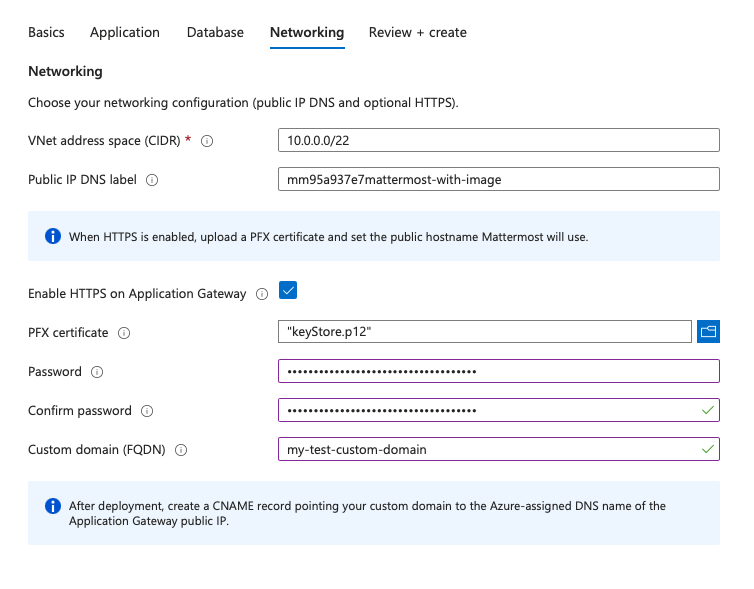
On the Networking tab, configure the virtual network and how Mattermost is exposed to users.
VNet address space (CIDR): The address space for the virtual network created by the template. Defaults to
10.0.0.0/22. Pick a range that does not overlap with other VNets you plan to peer with.Public IP DNS label: You must set a DNS prefix (label) that is globally unique across Azure public cloud; it forms part of your URL and allows public access to your workspace. If the label is already taken, deployment will fail.
Enable HTTPS on Application Gateway: When enabled, the Application Gateway terminates TLS using your PFX certificate and HTTP traffic is redirected to HTTPS. When disabled, Mattermost is served over HTTP on the Azure-assigned hostname (suitable for testing, not recommended for production).
PFX certificate and PFX password: Shown when HTTPS is enabled. Upload your PKCS#12 bundle and provide the password used to protect it.
Custom domain (FQDN): Shown when HTTPS is enabled. The public hostname Mattermost will use (for example,
mattermost.example.com). After deployment, point this hostname to the Azure-assigned DNS name of the Application Gateway public IP (typically using a CNAME record for subdomains).
Step 6: Review and create
Review your settings, accept any Marketplace terms if prompted, then select Create. Provisioning typically takes 20–50 minutes, depending on your PostgreSQL configuration. Allow a few additional minutes after Azure reports the deployment as Succeeded before the application is reachable.
After deployment completes:
In the Azure portal, open the resource group you used.
Open the public IP resource attached to your Application Gateway (often named
<prefix>-ag-pip). Under Essentials, note the DNS name (Azure-assigned FQDN).If you deployed without HTTPS, your site URL is:
http://<dns-label>.<region>.cloudapp.azure.comIf you deployed with HTTPS, create a DNS record that points your custom domain to the Azure-assigned DNS name of the Application Gateway public IP (typically CNAME for subdomains; use your provider’s apex-compatible record type if using a root domain). Once DNS propagates, your site URL is:
https://<your-custom-domain>
Congratulations! You’ve successfully deployed a production-ready Mattermost stack on Azure.
Next steps
For sizing guidance and reference architectures, see high-availability-cluster-based-deployment and server architecture.
For ongoing operations (upgrades, backups, monitoring), follow the standard Mattermost server administration documentation.
Runbooks
Upgrade Mattermost server
The VM scale set runs a Mattermost Marketplace VM image matching the version you selected in Step 3. Mattermost publishes new image versions for each supported release. To upgrade, point the VMSS at a newer image version in your deployment region. Application data stays in PostgreSQL and on the Azure Files share; the upgrade rolls application instances to VMs built from the updated image.
Before you upgrade
Review the important upgrade notes, and prepare to upgrade for the target version.
Confirm PostgreSQL backups are current and that you can restore if needed.
Pick a target version from the Mattermost release policy.
Upgrade steps
Update the VMSS to the new image version:
az vmss update \
  --resource-group <resource-group> \
  --name <resource-name-prefix>-vmss \
  --set virtualMachineProfile.storageProfile.imageReference.version=<new-version>
The VMSS uses a rolling upgrade policy and an application health probe on
/api/v4/system/ping, so instances are replaced in batches while the Application Gateway keeps serving traffic to healthy nodes.Monitor the rollout in the Azure portal: open your VMSS → Instances (or Rolling upgrades) and wait until all instances are healthy and running the new model.
Verify Mattermost: Verify Mattermost uses the new version via System Console → About.