Connect to multiple Mattermost workspaces
Using the Mattermost desktop or mobile app, you can connect to multiple Mattermost servers from a single interface, and manage system permissions.
Add a server
- Web/Desktop
- Mobile
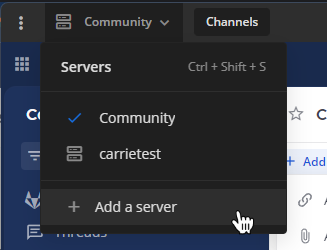
The Server list is located in the top left corner of the window and displays all servers available. Drag to reorder the servers in the list. You can also navigate the server options using keyboard shortcuts.
- Select Add a server.
- Enter the server URL. Server URLs must begin with either
http://orhttps://.
Tip
Can't find your Mattermost server URL? Ask your company’s IT department or your Mattermost system admin for your organization’s Mattermost Site URL. It’ll look something like
https://example.com/company/mattermost,mattermost.yourcompanydomain.com, orchat.yourcompanydomain.com. These URLs could also end in.net.
- Enter the server's Display Name.
- [Desktop only] If your server requires an authentication secret, you'll be prompted to enter it when you connect. Enter the secret provided by your administrator and select OK.
- Select Add.
Tap the Servers  icon located in the top left corner of the window to access all available servers and to add new servers.
- Tap Add a server.
- Enter the server URL. Server URLs must begin with either
http://orhttps://.
- Enter the server's Display Name.
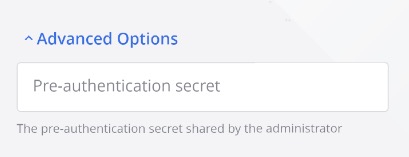
- Optionally toggle the Advanced Options section to enter an Authentication secret. This is an additional security measure that some organizations use. Your system admin can provide you with the secret if required.
- Tap Done.
Edit a server
- Web/Desktop
- Mobile
-
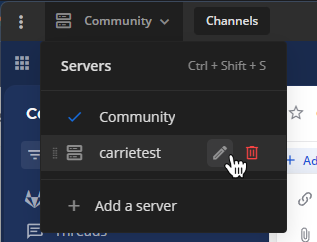
Hover over a server and select the Edit icon.
-
Modify the server's display name or URL, then select Save.
[Desktop only] To update an authentication secret, connect to the server. If the secret has changed, you'll be prompted to enter the new one provided by your system admin.
- Swipe left on an existing server entry to reveal additional options. Tap Edit.
- Modify the server's display name or authentication secret, and then tap Save.
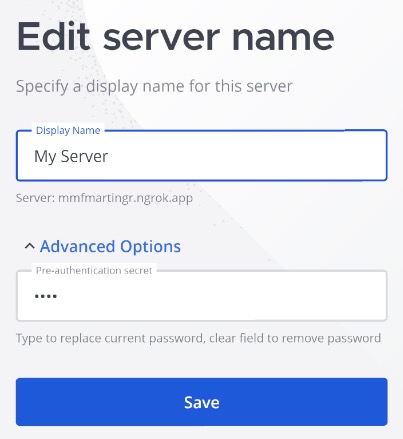
To view or update the authentication secret, expand the Advanced Options section. If a secret is currently configured, it will be pre-filled in the field.
Remove a server
Removing a server from your desktop app doesn't delete its data. You can add the server back any time.
- Web/Desktop
- Mobile
-
Hover over a server and select Remove.
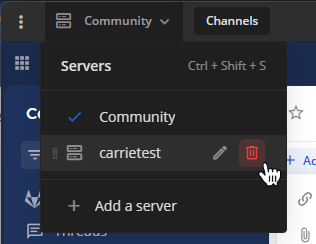
-
Select Remove when prompted to confirm.
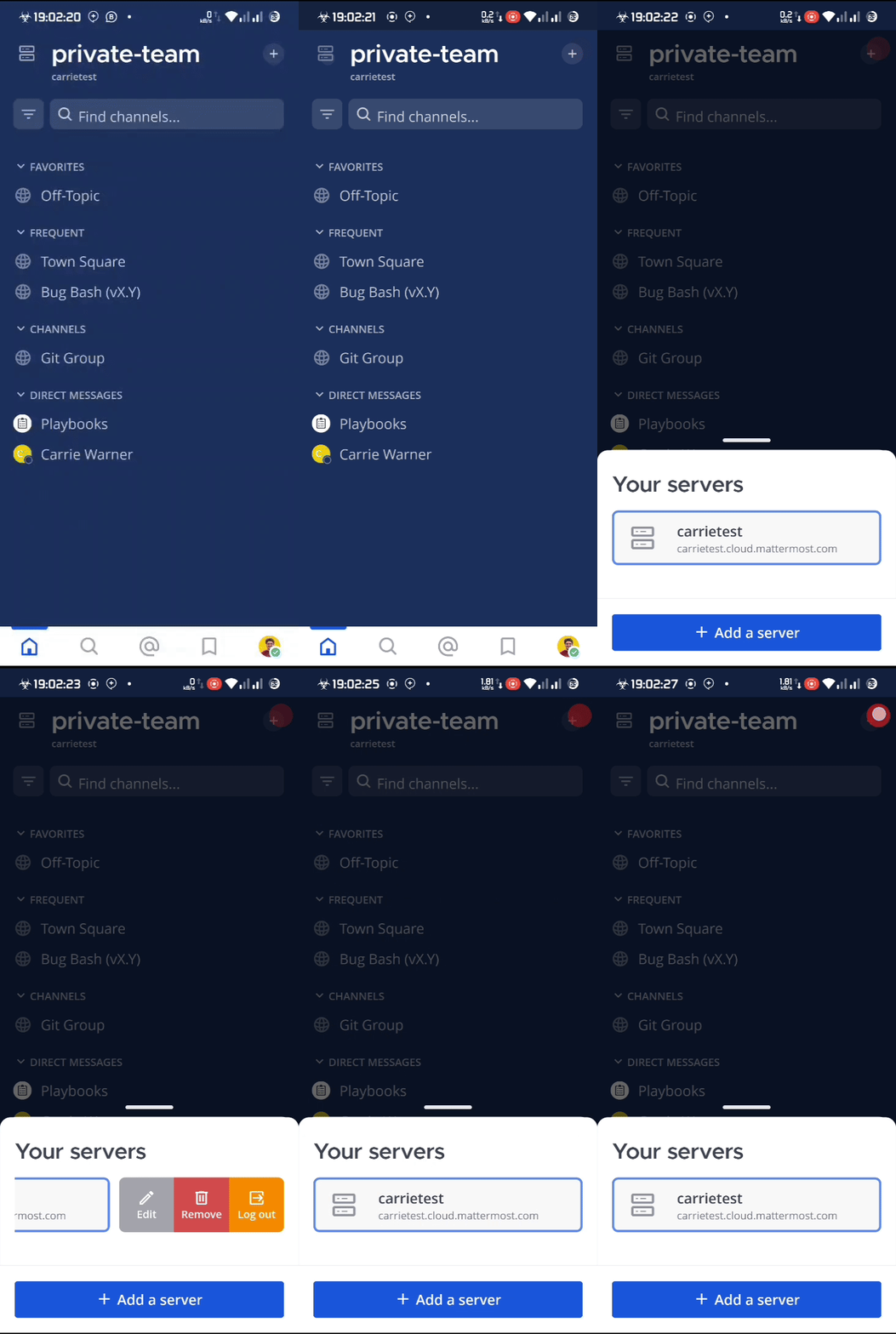
Tap the Servers icon located in the top left corner of the window to access all available servers and to add new servers.
Swipe left on an existing server entry to reveal additional options. Tap Remove.
Switch between workspaces
Select a workspace from the Servers list in the top left of the desktop app. See keyboard shortcuts for more navigation options.
Manage system permissions
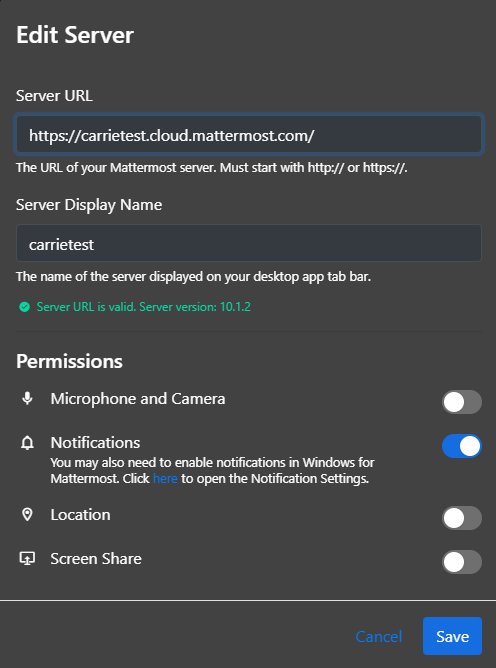
From Mattermost desktop v5.9, you can manage system permissions when creating or managing existing Mattermost server connections, including: microphone access, camera access, notifications, and location.
Granting a system permission sets it to Accept, and revoking it sets it to Always Deny.
Open multiple workspace contexts
From desktop v6.0, you can keep multiple workspaces open at the same time and work across them without constant switching to improve situational awareness and operational efficiency. This capability is especially useful for organizations that operate in distributed or multi-domain environments, as it enhances cross-system interoperability and command-level situational awareness.
Select the New tab  icon at the top of the desktop app to open a new tab for the current workspace. You can drag and drop to reorder the tabs in the main desktop window.
Open internal Mattermost links in a new tab or window by right-clicking on the link and selecting Open in new tab or Open in new window.
- Convert tabs to new windows by right-clicking the tab label and selecting Move to new window.
- Convert pop-out windows back to tabs in the main window by right-clicking on the window title and selecting Move to main window.
- Close pop-out windows by right-clicking on the window title and selecting Close window.