Create channels
Anyone can create public channels, private channels, direct messages, and group messages unless the system admin has restricted permissions to do so using advanced permissions. Enterprise system administrators can also configure channels as read-only.
- Web/Desktop
- Mobile
Create a public or private channel
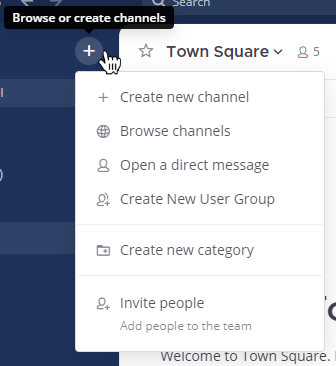
- Select the Add channels button in the channel sidebar, then select Create New Channel. Alternatively, you can select
 at the top of the channel sidebar, then select Create New Channel.
- Enter a channel name.
- Choose whether this is a public or private channel. See the channel types documentation to learn more about public and private channels.
- (Optional) Describe the channel's focus or purpose. This text is visible to all channel members in the channel header.
- (Optional) Assign the channel to a category. When channel category sorting is enabled (the default from Mattermost v11.8), channel admins see a Default category (optional) field when creating or editing a channel. You can select an existing category, type a new category name, or clear the default category from channel settings. Members who join the channel see it under that category in their sidebar. If this option isn't available, you can customize your channel sidebar.
Start a direct or group message
- Select the next to the Direct Messages category in the channel sidebar.

- Select up to seven users by searching or browsing. If your organization uses connected workspaces, you can also select remote users from shared channels for direct and group messages.
Create a public or private channel
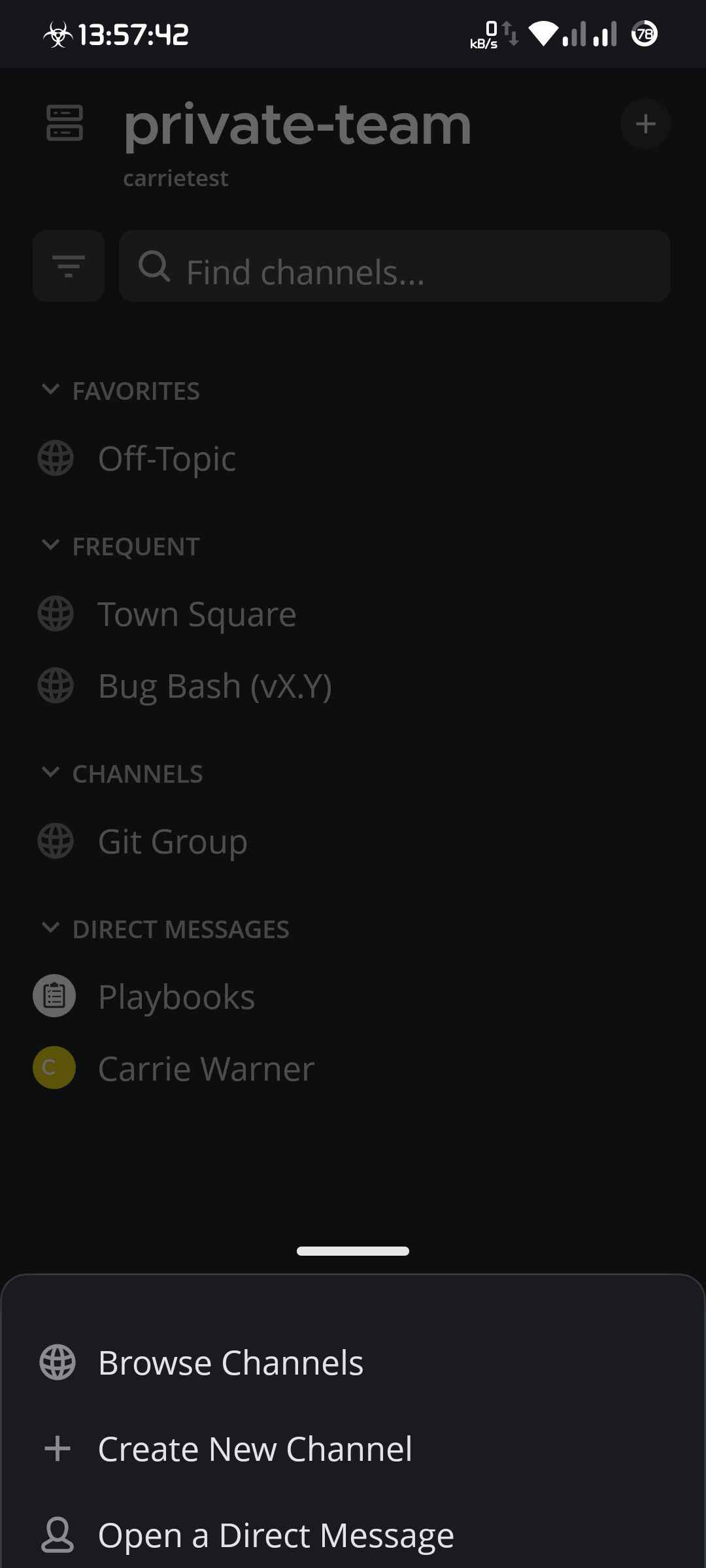
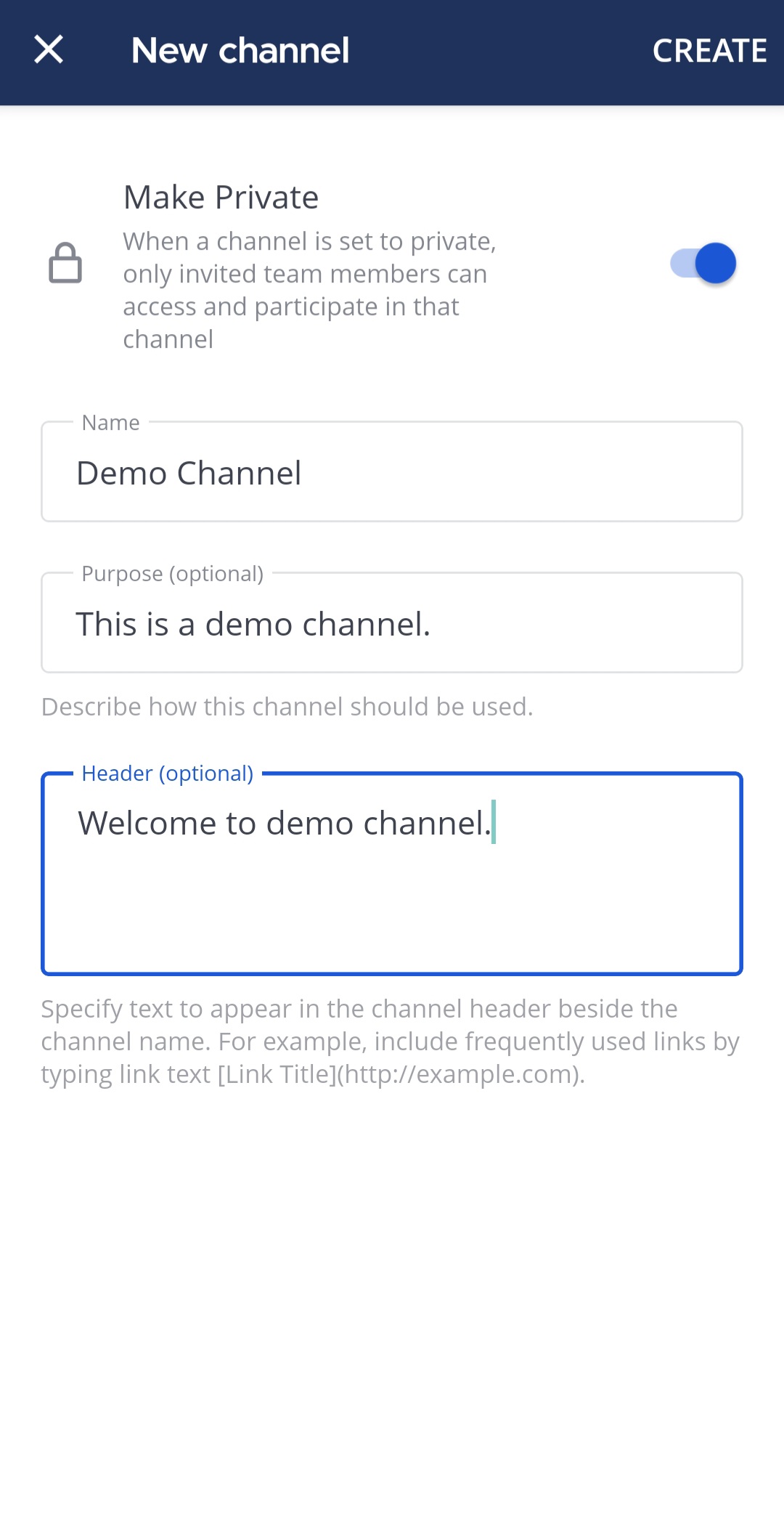
Tap in the top right corner of the app, then select Create New Channel. Channels are created as public by default. If you want to create a private channel, tap the Make Private option.
Start a direct or group message
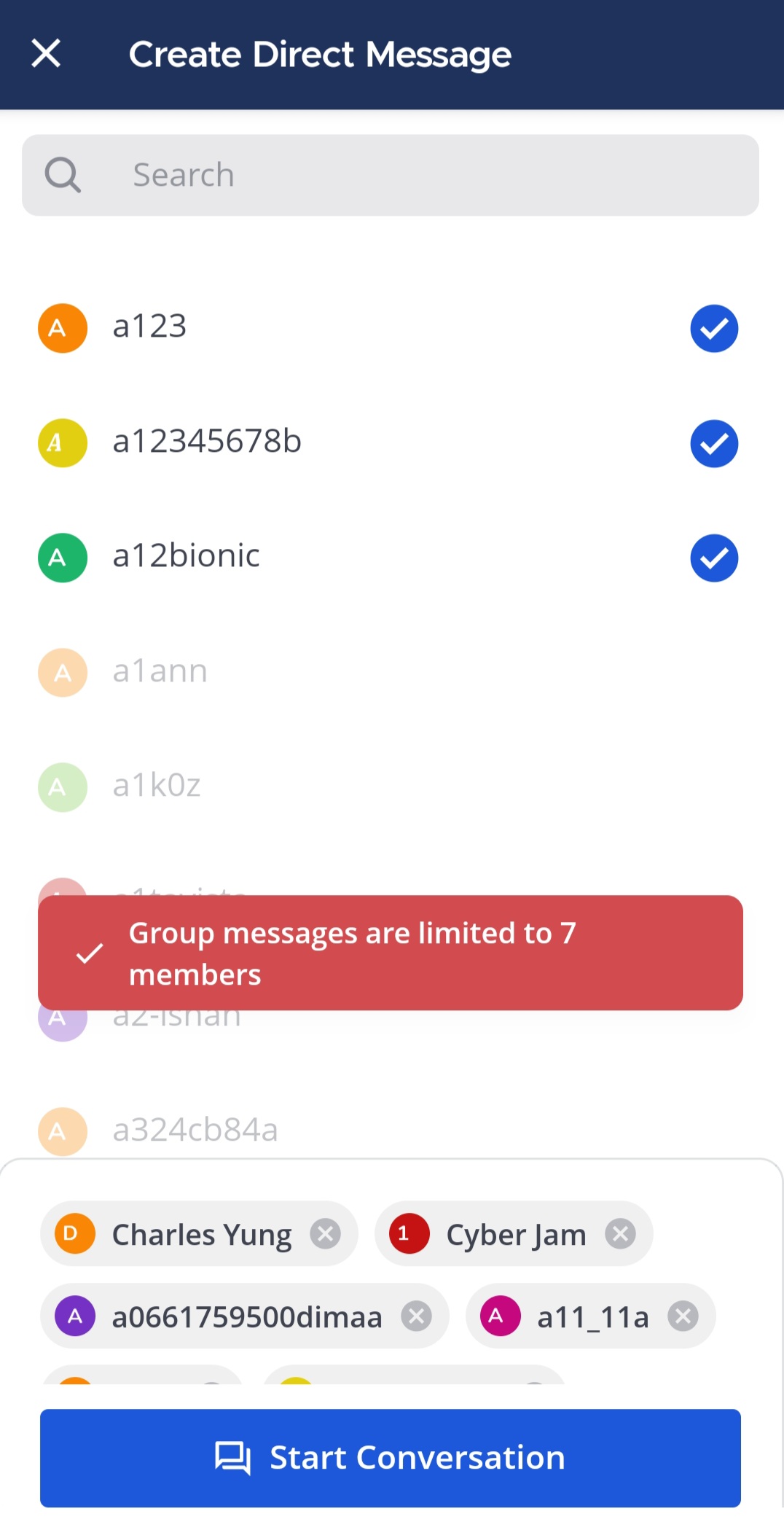
Tap in the top right corner of the app, then select Open a Direct Message. You can select one person for a direct message or up to seven people for a group message. If your organization uses connected workspaces, remote users from shared channels are also available to select. Tap Start to start the conversation.
Add an emoji to a channel name
Channel names can include standard Unicode emojis, which are the emojis that look the same, or similar, across platforms. To add one, position your cursor in the channel Name field where you want the emoji, then open the Unicode emoji picker for your operating system:
- On Windows, press Windows + . or ;.
- On macOS, press Ctrl + ⌘ + Space.
You can add an emoji when you create a channel, or later when you rename the channel.
Prefixing channel names with emojis is a common way to make related channels easy to spot in a long sidebar. See the workspace organization documentation for guidance on applying naming conventions consistently.
Automate with channel actions
The person who creates a channel automatically becomes the channel admin. Channel admins using Mattermost in a web browser or the desktop app can access Channel Actions from the channel name drop-down menu in the center pane to set up automatic actions when users join the channel or post a message to the channel.
Automatic actions include:
- Displaying a temporary welcome message for new channel members.
- Automatically adding the channel to a category in the user's channel sidebar.
- Prompting to run a playbook based on the contents of a message.
The collaborative playbooks must be enabled for channel admins to use channel actions.
Channel name rules
Every channel has a display name that appears throughout the Mattermost interface, and a URL used to reach the channel in a web browser.
- Channel names must be 2 - 64 characters in length.
- Channel names appear in the menus people use to choose which conversations to join, so a descriptive name helps people find the channel.
- Channel URLs can contain only lowercase letters, numbers, hyphens, and underscores, and must be unique within a team. Two channels on the same team can't share a URL.
- If your system admin has enabled anonymous channel and team URLs, available in Mattermost Enterprise Advanced from v11.6.0, URLs are assigned automatically and don't reflect the channel name.
To describe what a channel is for, beyond what its name conveys, see the channel purpose and header documentation. For guidance on naming channels consistently across your organization, see the workspace organization documentation.