Organize conversations using threaded discussions
Threads are a key part of the messaging experience in Mattermost. They're used to organize conversations and enable users to discuss topics without adding noise to channels or direct messages.
Threaded discussions offers an enhanced experience for users communicating in threads and replying to messages that includes a unified threads inbox to read all conversations in one view. Threads improve the ability to process channel content, find, follow, and resume conversations more easily, and keep threaded conversations focused.
Start or reply to threads
Replies to messages are collapsed under the first message of a thread. Open a thread by selecting the message or reply count.
From Mattermost v11.2, when using Mattermost in a web browser, you can open threads in separate browser windows by selecting the New Window  icon in the thread header. This allows you to view and participate in multiple threads simultaneously without losing context.
Follow threads and messages
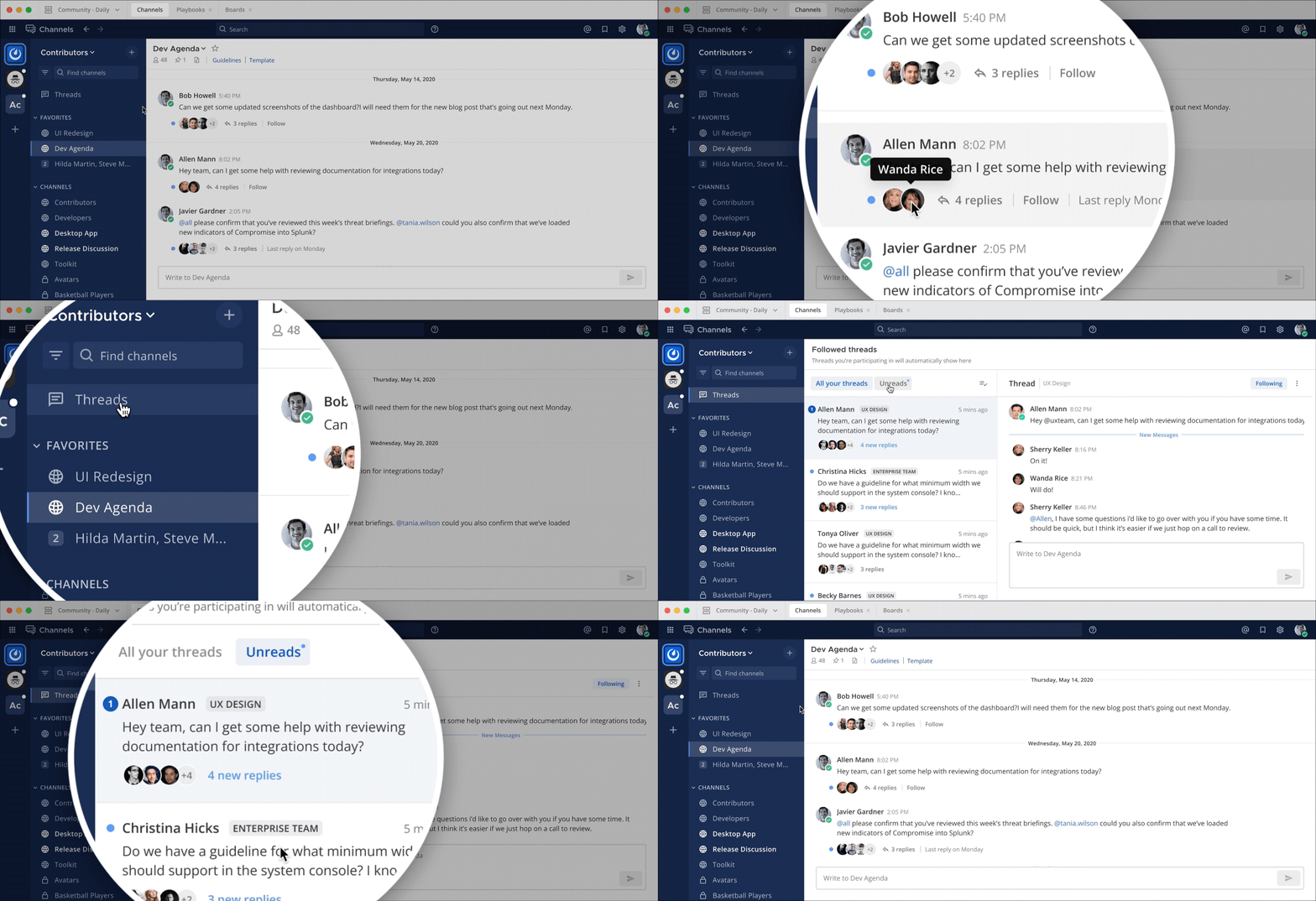
You'll automatically follow every thread you participate or are mentioned in. You can manually follow particular messages and threads so that any reply activity triggers notifications. Follow or unfollow any thread, at any time. In channels, a dot next to thread participants means there are unread replies for the threads you're following.

- Web/Desktop
- Mobile
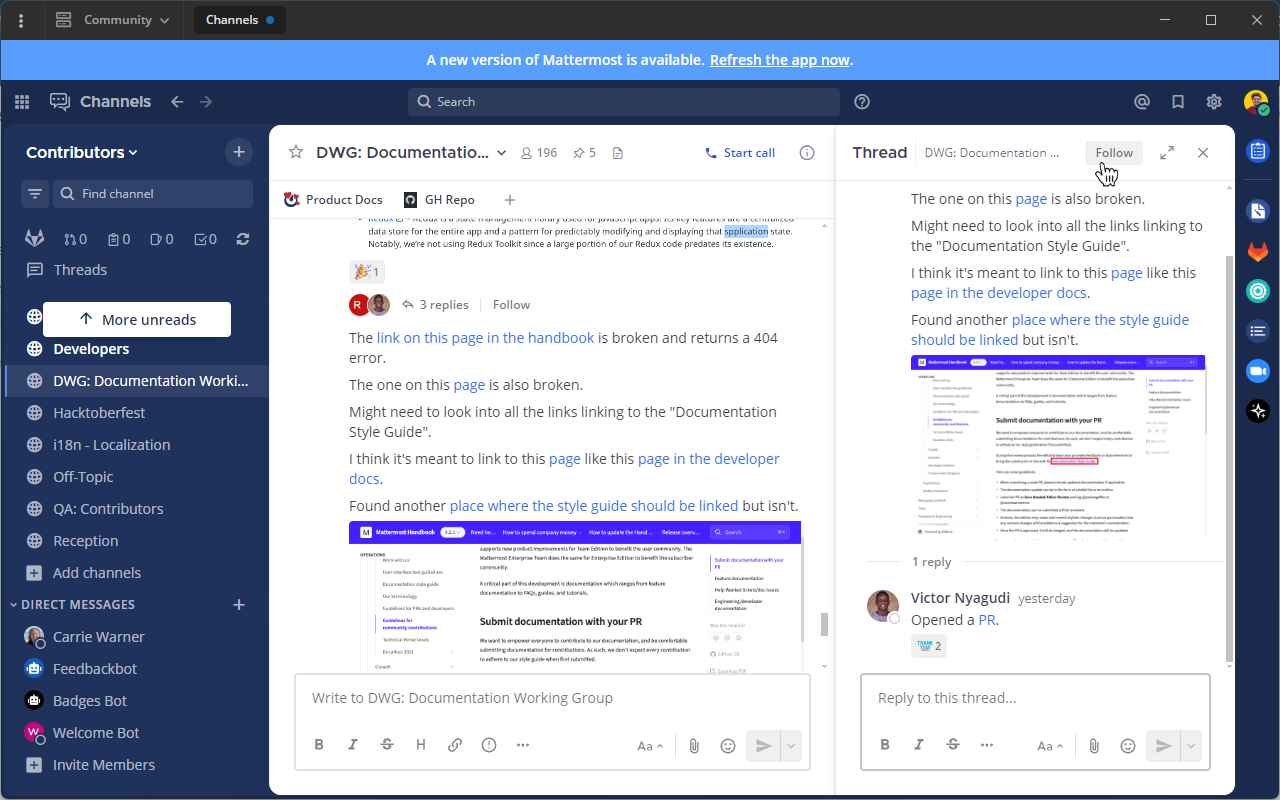
Toggle the thread’s Follow option, or select Follow thread from the More Actions  icon.
icon.
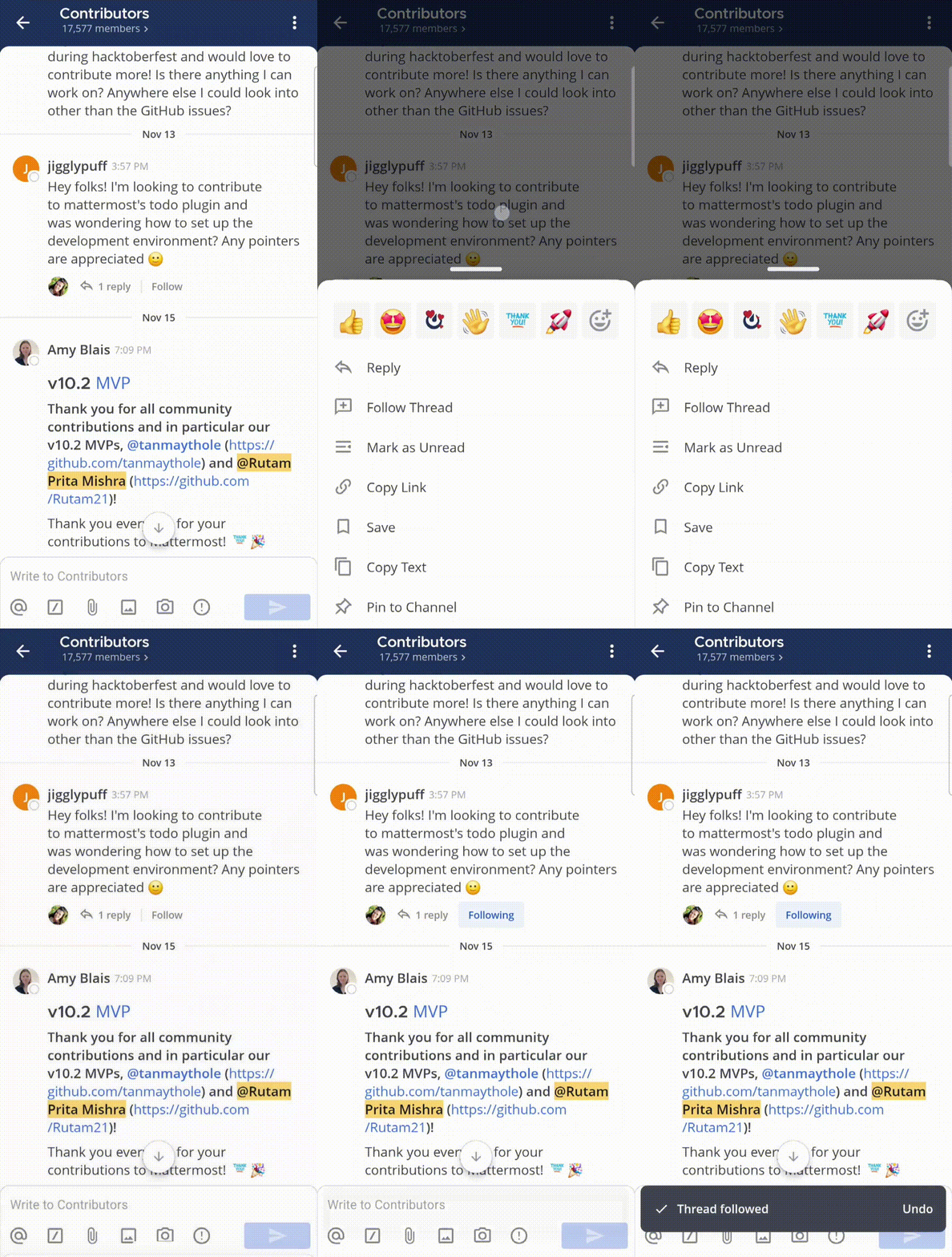
Long-press on a message to access message options, then tap Follow Thread.
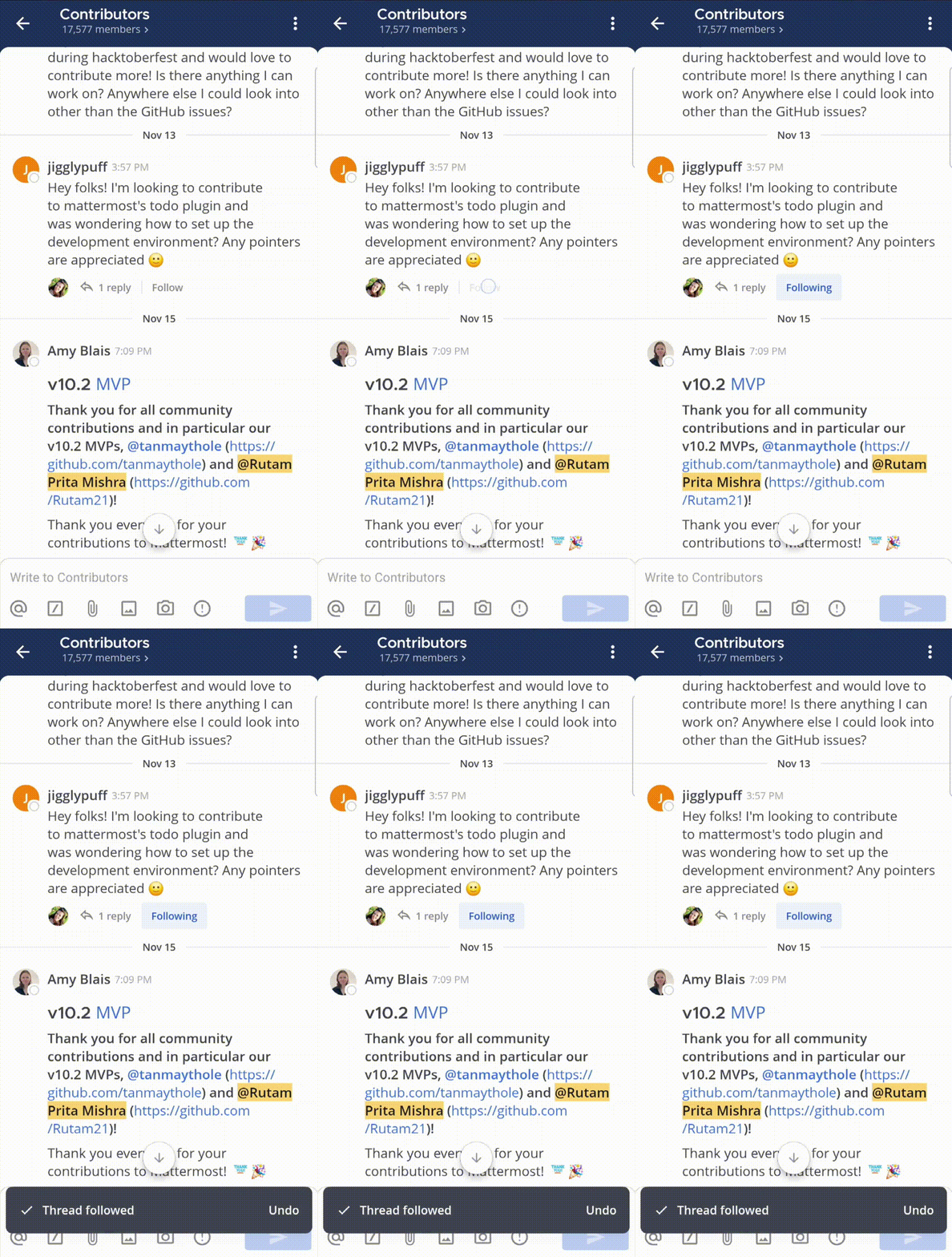
Alternatively, you can also tap on the Follow indicator below a message thread to follow it.
Unfollow threads
If you’re no longer interested in a or message thread, unfollow it to stop receiving notifications. Viewing a thread without responding to it doesn’t automatically follow that thread.
- Web/Desktop
- Mobile
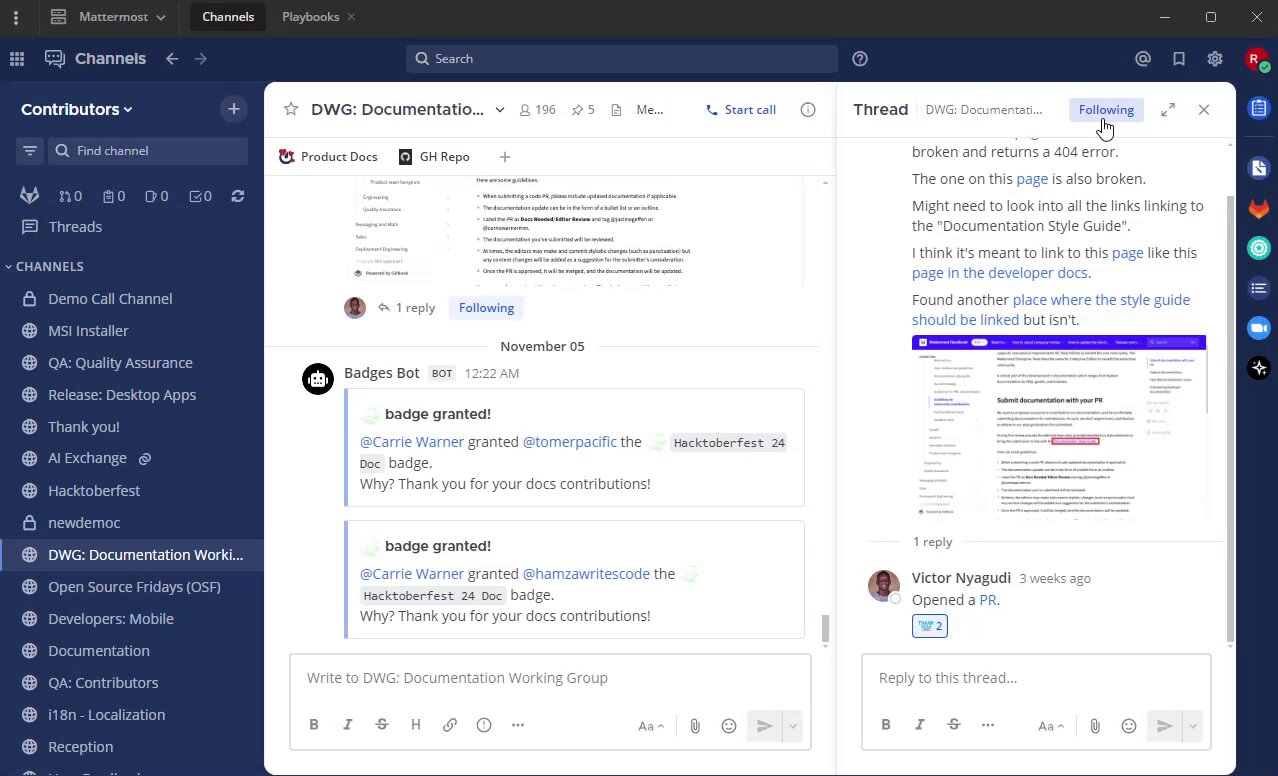
Toggle the thread’s Following indicator, or select Unfollow thread from the More Actions icon to unfollow it.
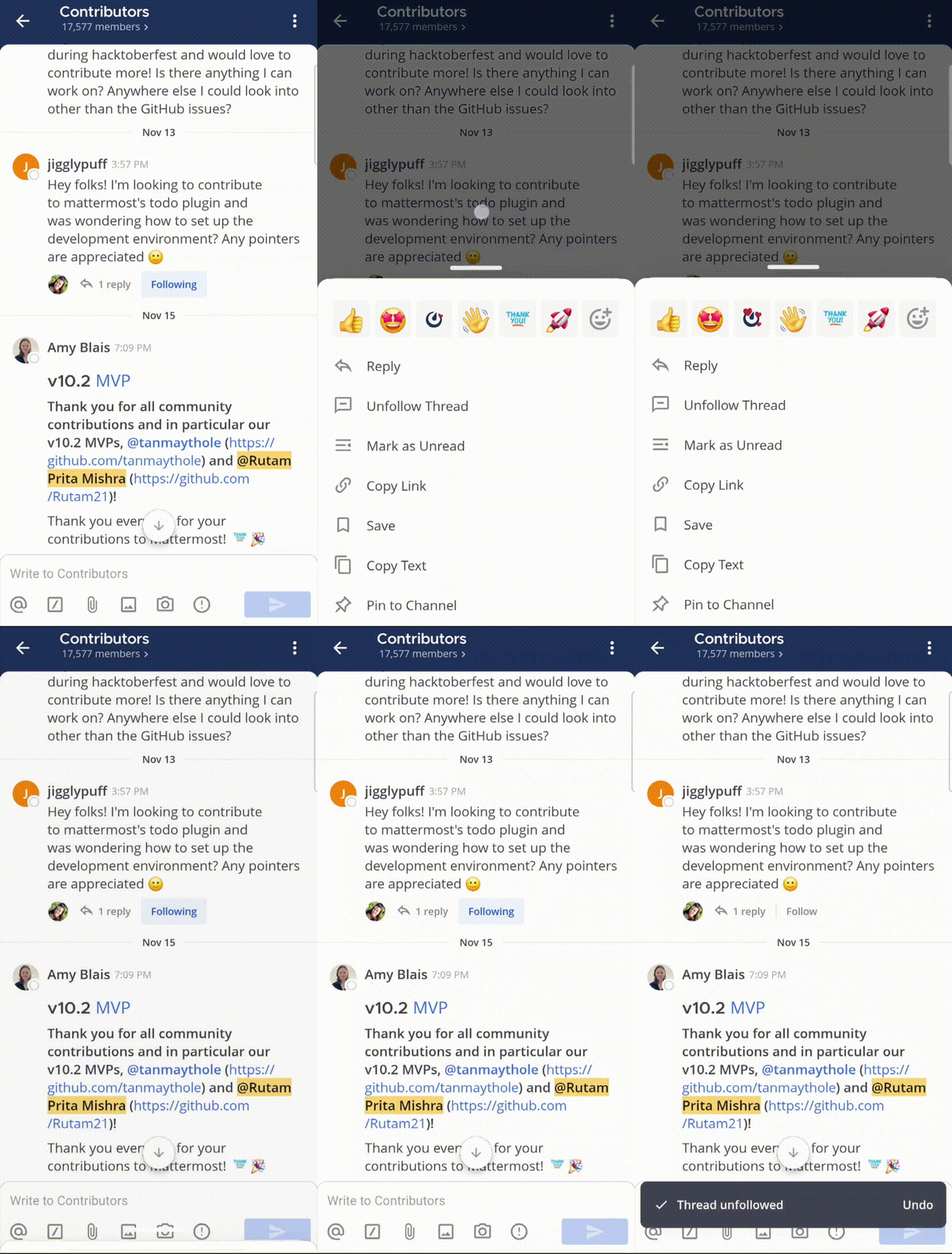
Long-press on a message to access message options, then tap Unfollow Thread.
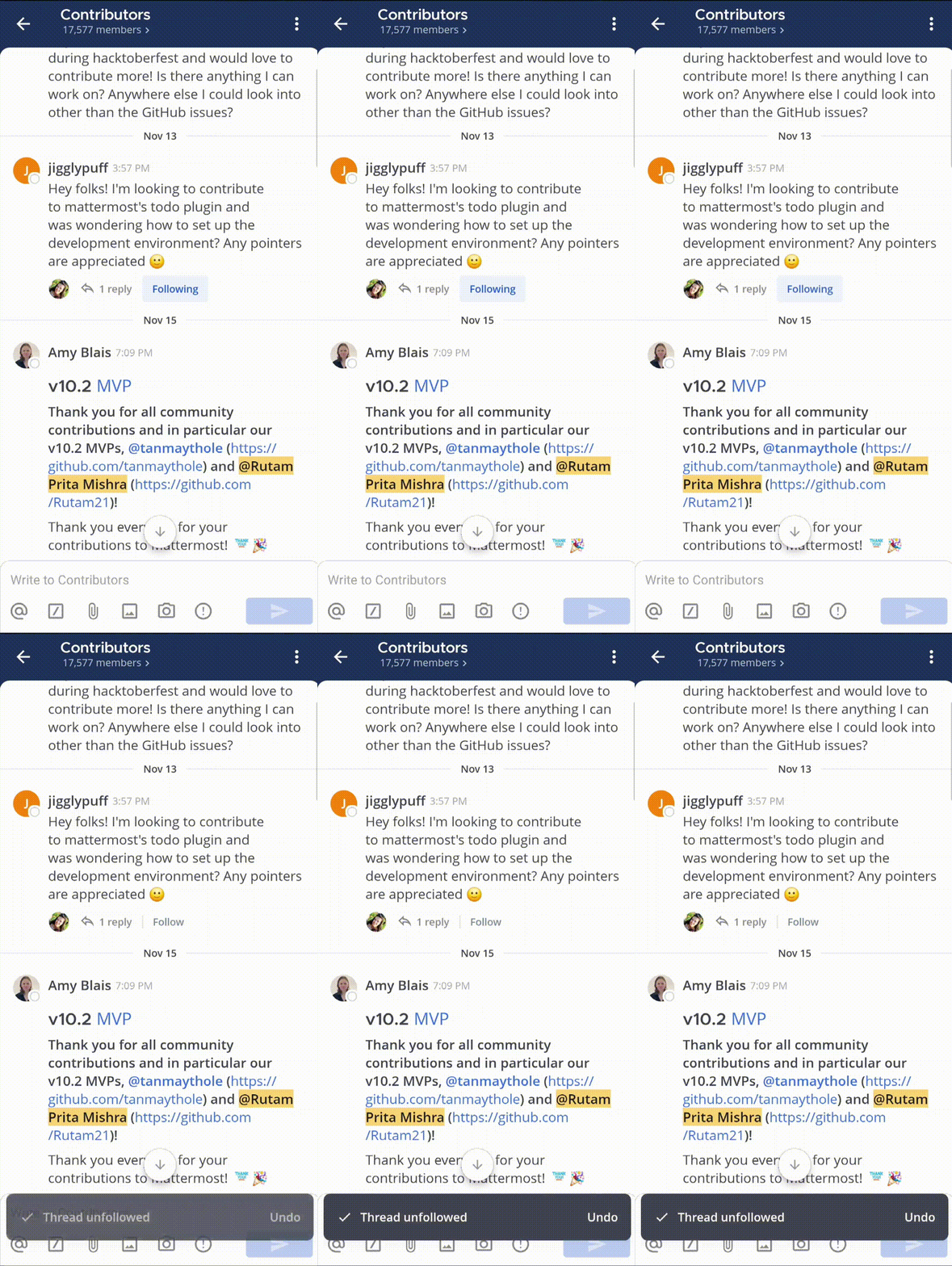
Alternatively, you can tap on the Following indicator below the message thread to unfollow it.
View all threads
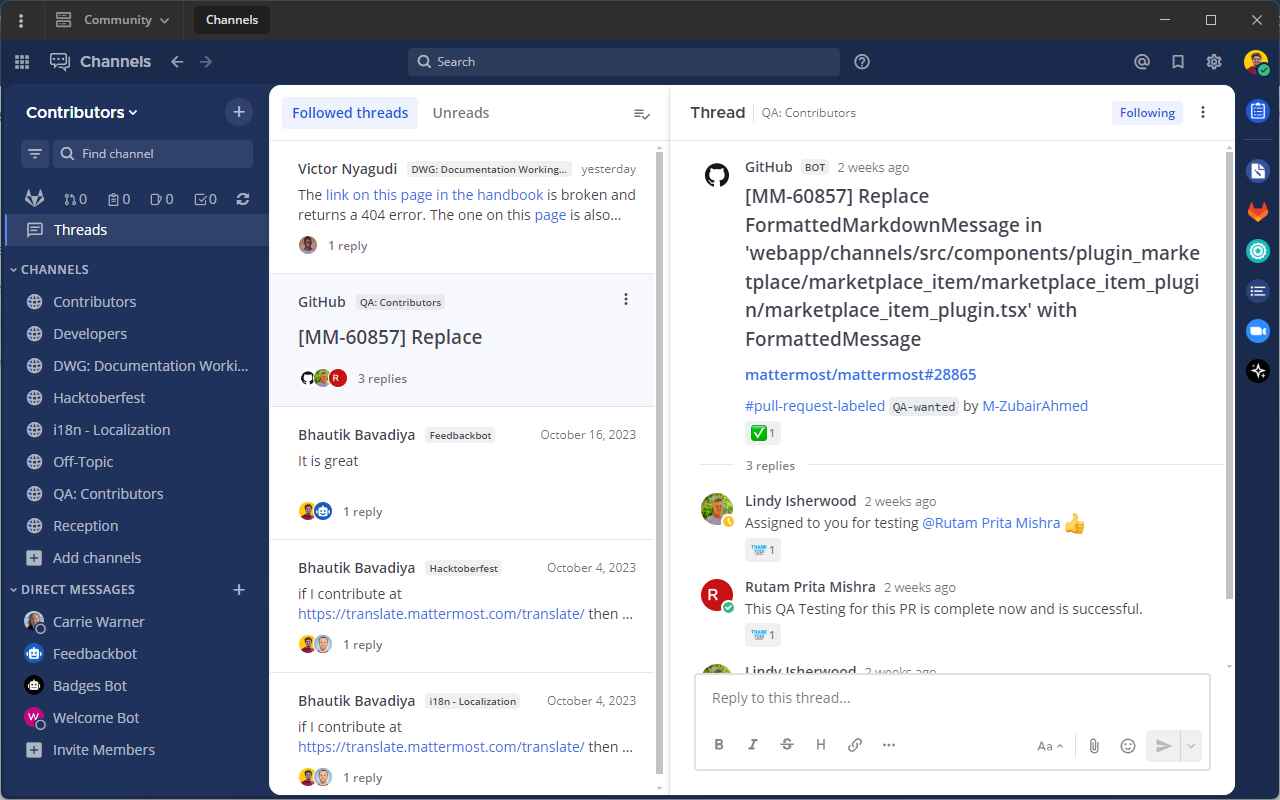
Select Threads at the top of the channel sidebar to see all your followed threads on the currently selected team. Threads with the most recent replies display at the top of the list.
Select Unreads to filter your followed threads by only those with unread replies.
Tutorial video
Known issues
Threaded discussions were released as generally available in Mattermost v7.0, including significant server performance improvements and more flexible configuration options for system admins to enable the feature by default. We highly recommended upgrading Mattermost to take advantage of configuration and performance enhancements.