Troubleshoot notifications
The Mattermost notifications you receive depend on your Mattermost preferences, the Mattermost client you're using, and the operating system (OS) you're running Mattermost on.
Send yourself a test notification
From Mattermost v10.3, you can send yourself a test notification by selecting Settings  , and going to the Notifications options.
Under Troubleshooting notifications select the Send a test notification option. If notifications are working, you'll receive a system-bot direct message in Mattermost confirming that notifications are working.
If you don't receive a system-bot direct message, see the following sections for troubleshooting steps you can follow to ensure you're receiving the notifications you want.
Check your Mattermost preferences
Start by ensuring that your Mattermost preferences have notifications enabled.
- Desktop
- Web
- Mobile
- Select Settings in the top right corner of Mattermost.
- Select Desktop and mobile notifications.
If Send notifications for is set to Nothing, then Mattermost notifications are currently disabled. Select either the All new messages or Mentions, direct messages, and group messages option instead, and save your changes.
- Select Settings in the top right corner of Mattermost.
- Select Desktop and mobile notifications.
If Send notifications for is set to Nothing, then Mattermost notifications are currently disabled. Select either the All new messages or Mentions, direct messages, and group messages option instead.
- Tap on your profile picture in the bottom right corner of Mattermost.
- Tap Settings .
- Tap Notifications.
- Tap Push Notifications.
- Ensure that All new messages or Mentions, direct messages, and group messages option is selected.
- Under Trigger push notifications when…, select Online, away or offline to always receive notifications.
We recommend checking your Mattermost client settings next.
Check your Mattermost client settings
- Desktop
- Web
- Mobile
Ensure notifications are enabled in your Mattermost server connection.
- Select the Mattermost Server option in the top left of the desktop app, then edit the server details.
- Under Permissions, enable Notifications and save your changes.
If you prefer to use Mattermost in a web browser, you must grant notification permissions for Mattermost in the web browser. If you don't, the web browser can block you from receiving Mattermost notifications.
Select the Chrome, Edge, Firefox, or Safari tab below based on your preferred web browser:
- Chrome
- Edge
- Firefox
- Safari
Grant notification permissions for Mattermost in your Chrome web browser.
- From the Chrome menu, select Settings.
- Select Privacy and Security in the left pane.
- Expand Site settings.
- Under Permissions, expand Notifications.
- Enable the Sites can ask to send notifications option, and add your Mattermost workspace URL to the Allowed to send notifications list.
Grant notification permissions for Mattermost in your Edge web browser.
- From the Edge menu, select the Settings and more (...) option.
- Select Cookies and Site Permissions in the left pane.
- Under All Permissions, select Notifications.
- Add your Mattermost workspace URL to the Allow section.
Grant notification permissions for Mattermost in your Firefox web browser.
- From the Firefox menu, select Settings.
- Select Privacy and Security in the left pane.
- Under Permissions, select the Settings option for Notifications.
- Enable notifications for your Mattermost workspace URL in the Permissions list.
Grant notification permissions for Mattermost in your Safari web browser.
- From the Safari menu, select Preferences.
- Select Websites and select Notifications in the left pane.
- Enable notifications for your Mattermost site.
Ensure that your mobile device isn't blocking device settings. Visit the Android or iOS tab below based on your mobile device type.
- Android
- iOS
Ensure that your Android device isn't blocking Mattermost notifications by granting notification permission for Mattermost in device settings.
- Open the Android Settings app, and tap Application Manager.
- Locate Google Play Services and enable notifications for it.
- Locate Mattermost and enable notifications for it.
Also ensure that your Android device isn't set to Do Not Disturb mode which is designed to block notifications. See the Android help documentation to learn more.
Ensure that your iOS device isn't blocking Mattermost notifications by granting notification permission for Mattermost in device settings.
- Open the iOS Settings app and tap Notifications.
- In the list of apps, tap Mattermost.
- Enable the Allow notifications toggle and set Notification Delivery to Immediate Delivery.
Also ensure that your iOS device isn't set to Do Not Disturb mode or a Focus mode designed to block notifications. See the iOS support documentation to learn more.
We recommend checking your operating system settings next.
Check your Operating System settings
The operating system you're running Mattermost on can also block Mattermost notifications. Select the Linux, macOS, or Windows tab based on your operating system:
- Windows
- Linux
- macOS
If you're using Mattermost on a Windows machine, you must enable notifications from Mattermost and turn off both Do Not Disturb mode and Focus Assist. If you don't, Windows can block you from receiving Mattermost notifications.
- Open Windows Settings and go to System > Notifications & actions.
- Ensure that Get notifications from apps and other senders, is enabled.
- Find Mattermost in the list and enable notifications.
Also ensure that Windows’ Do Not Disturb mode and Focus Assist is turned off. See the Windows support docmentation on Do Not Disturb mode and Focus Assist to learn more.
If you're using Mattermost on a Linux machine, you must enable pop-up notifications from Mattermost and turn off Do Not Disturb mode. If you don't, Linux can block you from receiving Mattermost notifications.
- Open Settings, then go to Notifications.
- Enable the Show Pop-up Notifications option.
- Enable the Show Notification Center to review and manage your Mattermost notifications.
Also ensure that Do Not Disturb mode is turned off.
If you're using Mattermost on a macOS machine, you must enable application notifications for Mattermost and turn off focus mode. If you don't, macOS can block you from receiving Mattermost notifications.
- Open System Settings and go to Notifications.
- Under Application Notifications, ensure notifications are enabled.
Also ensure that macOS’ Focus mode is turned off. See the Apple Support Focus mode documentation to learn more.
Frequently Asked Questions
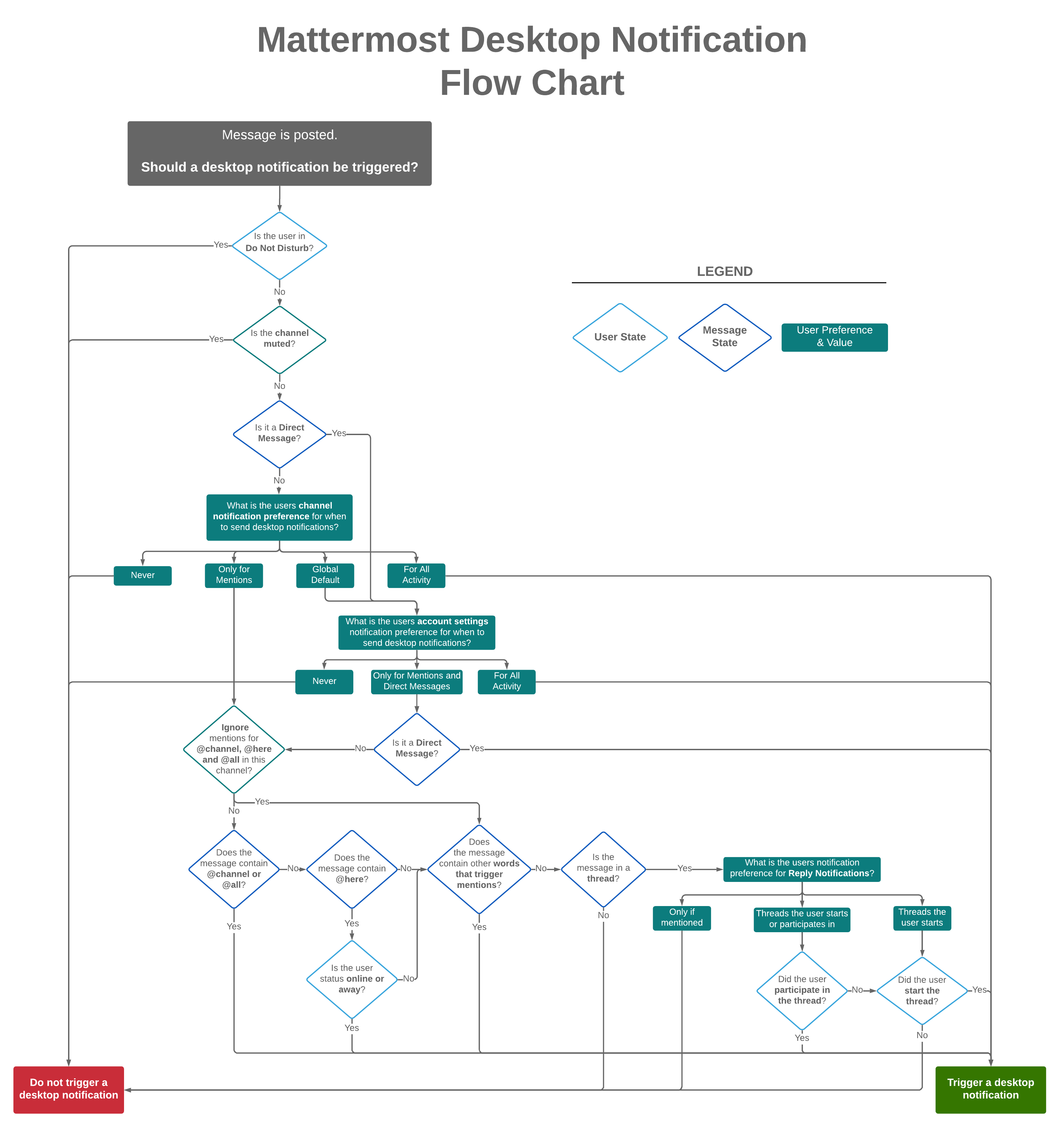
What determines if a desktop notification should be triggered?
Desktop notifications are triggered under to following conditions. Click to expand the flow chart.
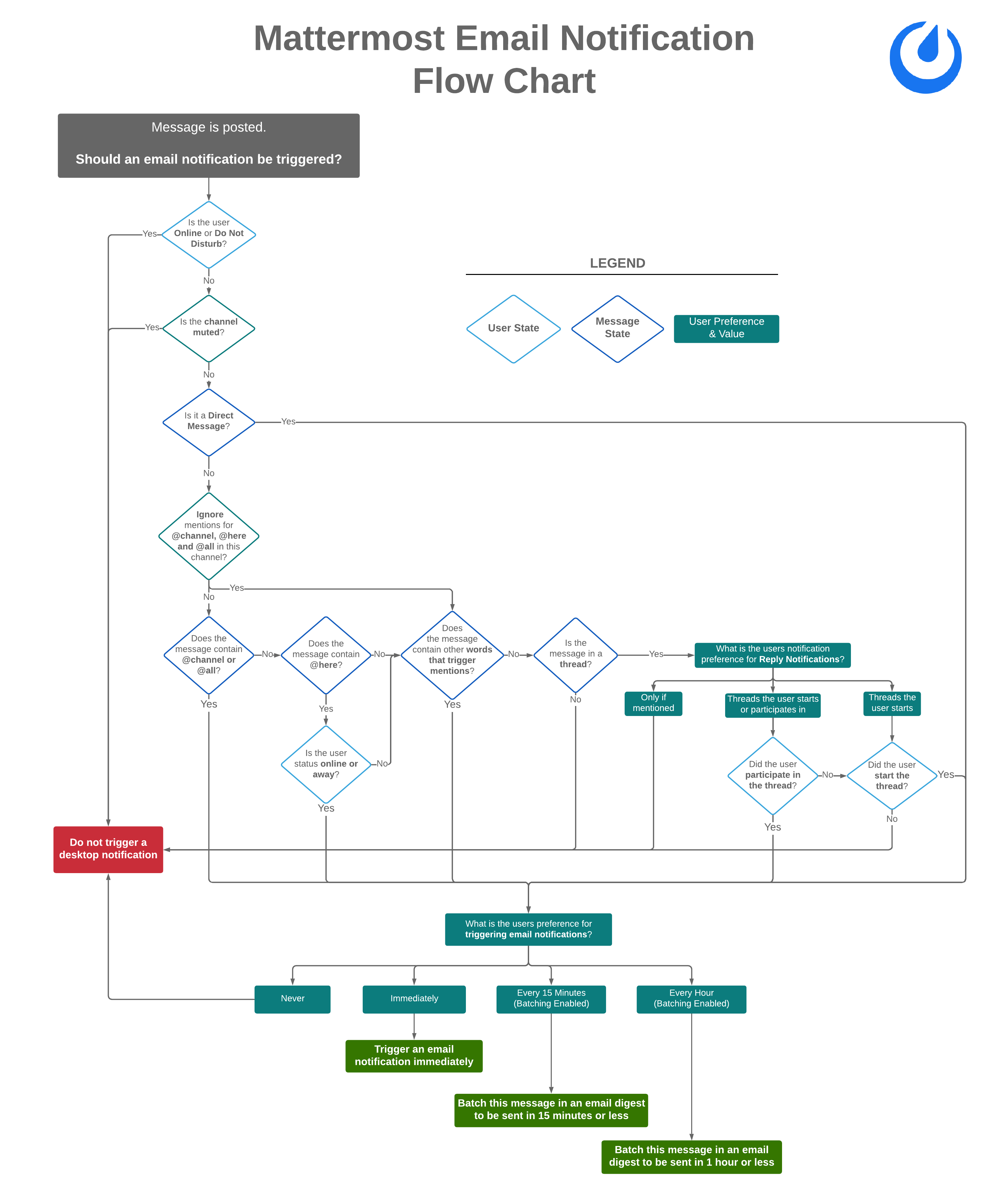
What determines if an email notification should be triggered?
Email notifications are triggered under to following conditions. Click to expand the flow chart.
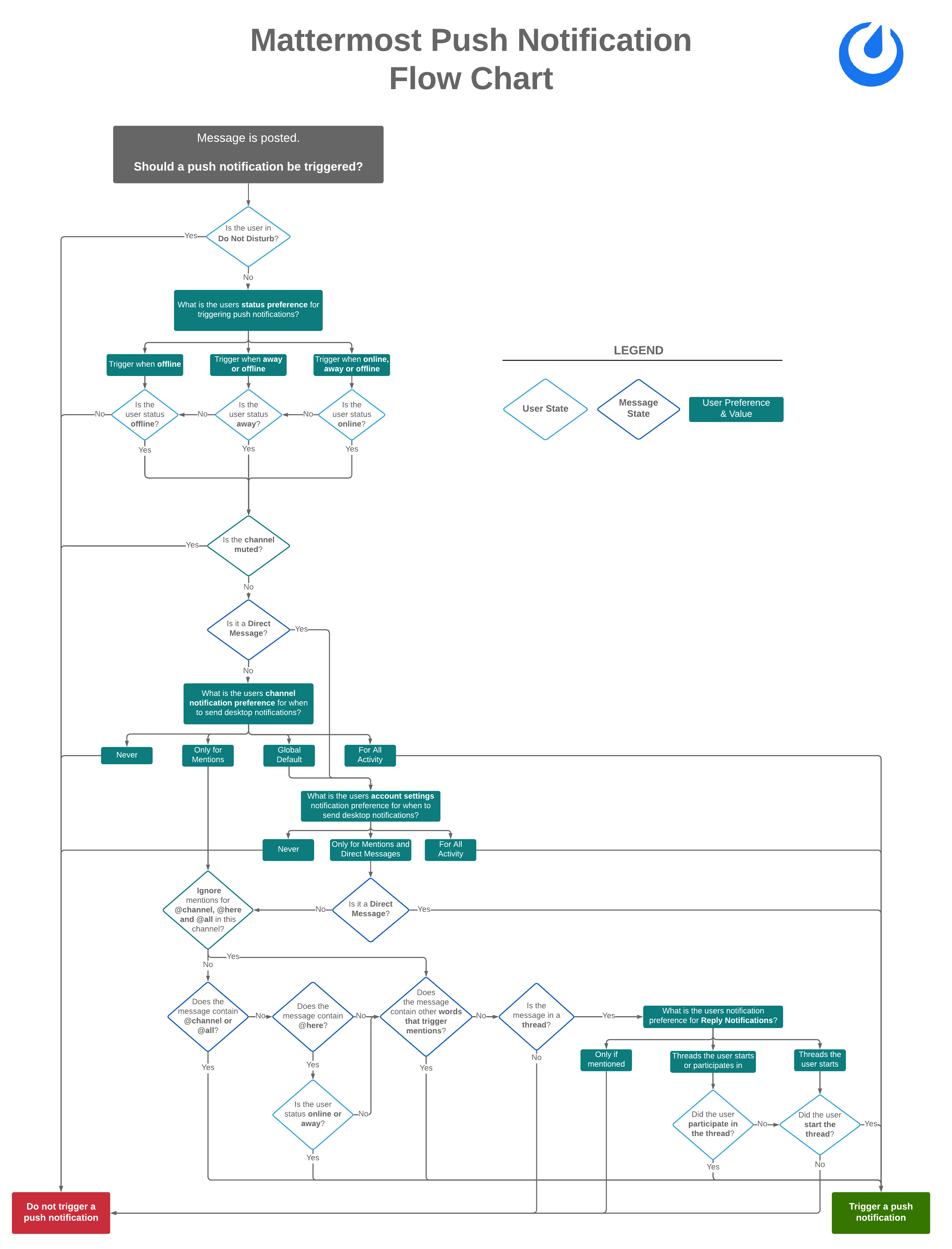
What determines if a mobile push notification should be triggered?
Mobile push notifications are triggered under to following conditions. Click to expand the flow chart.
Are mobile push notifications free?
Yes, push notifications are free if you compile your own push-proxy service. Push notifications are also free if you use the hosted Test Push Notification Service (TPNS) provided by Mattermost, Inc.
TPNS, hosted at https://push-test.mattermost.com, offers transport-level encryption, but not production-level service level agreements (SLAs).
If you need production-level SLAs for push notifications, you can either compile your own push-proxy service, with your own key, or you can use a paid option and become a Mattermost Professional subscriber agreeing to our Conditions of Use, which enables you to use a production-level Hosted Push Notification Service (HPNS) at a regional URL such as https://global.push.mattermost.com — see the push notification server location setting for the full list of regions.
Learn more about our push notification service.
Book a live demo or talk to a Mattermost expert to explore tailored solutions for your organization's secure collaboration needs. Or try Mattermost yourself with a 1-hour preview for instant access to a live sandbox environment.