Manage your mobile notifications
Enable notifications
From Mattermost mobile v2.34, the Mattermost Settings > Notifications screen alerts you when notifications are disabled by your device. Follow the link in the notification to enable device-level notifications.
From Mattermost v9.9, Mattermost prompts you to enable notifications in the mobile app the first time you open the app.
Once Mattermost notifications are enabled at the device level and in the mobile app, you'll start receiving notifications for all Mattermost activity with badges, and push notifications. See the section below on customizing your notifications based on how you prefer to be notified about Mattermost activity on your mobile device.
Badge-based notifications
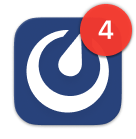
Mattermost mobile app icons display numbered badges for unread direct and group messages, and @mentions, keywords you're actively watching.
Push notifications
You'll see mobile push notification messages on your device as follows:
- iOS: On the Lock Screen, Notification Center, and as Banners/Alerts based on your iOS settings.
- Android: On the Lock Screen, Notification Shade, and as Banners/Heads-Up Notifications based on your Android settings.
Customize your notifications
You can manage your mobile notifications in both the desktop app and the mobile app.
- Desktop app
- Mobile app
In the desktop app, manage your mobile notification preferences by selecting the Settings  icon located in the top right corner of the screen, and select Notifications > Desktop and mobile notifications.
By default, you receive mobile notifications for @mentions, direct messages, and group messages when your Mattermost availability is Online, Away, or Offline. You won't receive Mattermost notifications on your device if you're actively using Mattermost in a web browser.
- Want to receive fewer mobile notifications? Under Trigger mobile notifications when I am, select Away or Offline or Offline.
- Want different desktop and mobile notifications? Select Use different settings for my mobile devices, and then select All new messages, or Mentions, direct messages and group messages.
In the mobile app, tap your profile picture, then tap Settings > Notifications.
- Tap Mentions to disable notifications based on keywords that trigger mentions, including first name, username, channel-wide @mentions, and keywords you've specified.
- Tap Push Notifications to choose what to be notified about.
You can also manage email notifications and send automatic replies to direct messages directly from your device.
Incoming Call notifications
Want to hear a sound on your mobile device when a Mattermost call starts? If your Mattermost admin enables this Beta feature, select Call Notifications to choose the sound that plays when a call is started within a direct or group message you're participating in.
Disable all mobile notifications
To disable all Mattermost mobile notifications, tap Push Notifications > Nothing.
Frequently asked questions
Are mobile notification counts the same as other Mattermost clients?
No. You're only notified of unread threads with @mentions on your mobile device. You're not notified of general unread activity on mobile.
What does a Mattermost icon with an exclamation point mean?

A Mattermost icon with an exclamation point means that you're logged out of at least 1 Mattermost server you connect to using the mobile app. Log back in to any servers as needed. See the Connect to multiple workspaces documentation for details.