Customize your Desktop App experience
You can customize your desktop app further with additional settings. Select the tab below that matches your operating system to learn more about what's available.
- macOS
- Windows/Linux
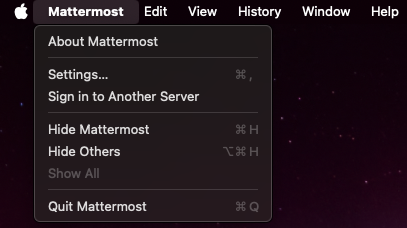
With the Mattermost desktop app in focus, select Mattermost > Settings...
General
- Download Location: Specify where on your machine you want files to be downloaded from the desktop app.
- Show icon in the notification area: The Mattermost icon displays in the notification area. You can hide this icon if preferred. Restart the desktop app to apply changes to this setting.
- Synchronize Desktop App theme with server: The desktop app theme automatically matches the theme set on your primary Mattermost server. Disable this setting to manage desktop app themes independently.
- Open app in full screen: Configure the desktop app to open in fullscreen. Disable this setting to open the app in a windowed view.
- Maximum number of open views: From Desktop v6.0, set the maximum number of open tabs and windows per workspace. When a limit is set, Mattermost prompts you to close tabs or windows when the limit is exceeded. Leave this field blank for no maximum limit.
Notifications
- Show red badge on Dock icon to indicate unread messages: A red badge on the Dock icon displays a count of unread messages and mentions. You can configure the desktop app to display a count of mentions only, if preferred.
- Bounce the Dock icon: When a new message is received on any of your active teams and servers, the Dock icon bounces once or bounces until you open the desktop app. You can configure the Mattermost Desktop App Dock icon to bounce more, less, or not at all.
Language
- App Language: Specify your preferred language for the desktop app.
- Check spelling: Misspelled words detected in your messages are highlighted based on your app language preference. You can disable spell check if preferred.
- Spell Checker Languages: Specify additional spell check languages if needed. Restart the desktop app to change this setting. When multiple languages are configured:
- All selected languages show as spelled correctly when a word matches at least one selected language
- All selected languages show as spelled incorrectly when a word matches none of the selected languages.
- Use an alternative dictionary URL: Specify an alternate dictionary for spell check as a site URL.
Servers
- Add and manage server connections: Learn more about connecting your desktop app to multiple Mattermost workspaces.
Advanced
- Logging level: Adjust logging levels to isolate and troubleshoot issues. Increasing the log level increases disk space usage and can impact performance.
- Send anonymous usage data to your configured servers: Send desktop app usage and performance data to your configured Mattermost servers set up to accept it.
- Send error reports to help improve the app: From Mattermost Desktop v6.1.0, error reports and crash information are automatically sent to Sentry (a third-party error tracking service) to help identify and fix issues. This setting is enabled by default. Error reports include crash information, app version, and platform details (OS, architecture, memory stats), but no personally identifiable information (PII) is included. You can disable error reporting if preferred. Restart the desktop app to apply changes to this setting.
- Enable session attributes: From Mattermost Desktop v6.3, sends the device and network information available on your platform, such as your operating system version and VPN status, to your configured servers for use in permission policies. Each server decides which of these attributes it asks for. This setting is enabled by default, and while it's enabled, a table below it shows the value currently reported for each attribute. Disabling it can block actions your organization controls with these values, like uploading or downloading file attachments. See Session attribute collection for details on what's collected.
- Use GPU hardware acceleration: GPU hardware acceleration renders the desktop app interface more efficiently. If you encounter decreased stability, disable GPU hardware acceleration. Restart the desktop app to apply changes to this setting.
With the Mattermost desktop app in focus, select the More  icon in the top left of the menu bar and select File > Settings...

General
- Download Location: Specify where on your machine you want files to be downloaded from the desktop app.
- Start app on login: The desktop app starts up automatically when you log in to your machine. You can disable this if preferred.
- Launch app minimized: Configure the desktop app to launch minimized in the system tray.
- Icon color: Display a light, dark, or system default-driven Mattermost icon.
- Leave app running in notification area when application window is closed: When closing the desktop app, you’re prompted to confirm whether you want to permanently close the app. Disable this confirmation by selecting Don’t ask again. Silence these notifications by selecting Don’t show again. Restart the desktop app to apply changes to this setting.
- Open app in full screen: Configure the desktop app to open in fullscreen. Disable this setting to open the app in a windowed view.
- Synchronize Desktop App theme with server: The desktop app theme automatically matches the theme set on your primary Mattermost server. Disable this setting to manage desktop app themes independently.
- Maximum number of open views: From Desktop v6.0, set the maximum number of open tabs and windows per workspace. When a limit is set, Mattermost prompts you to close tabs or windows when the limit is exceeded. Leave this field blank for no maximum limit.
- Use native title bar (Linux only): From Mattermost Desktop v6.2.0, render the desktop app with your Linux desktop environment's native title bar and window controls instead of the custom Mattermost title bar. Restart the desktop app to apply changes to this setting.
Notifications
- Show red badge on taskbar icon to indicate unread messages:
- Flash taskbar icon when a new message is received: Your desktop app taskbar icon flashes when a new message is received on any of your active teams and servers. You can disable the flashing taskbar icon if preferred.
Language
- App Language: Specify your preferred language for the desktop app.
- Check spelling: Misspelled words detected in your messages are highlighted based on your app language preference. You can disable spell check if preferred.
- Spell Checker Languages: Specify additional spell check languages if needed. Restart the desktop app to apply changes to this setting. When multiple languages are configured:
- All selected languages show as spelled correctly when a word matches at least one selected language
- All selected languages show as spelled incorrectly when a word matches none of the selected languages.
- Use an alternative dictionary URL: Specify an alternate dictionary for spell check as a site URL.
Servers
- Add and manage server connections: Learn more about connecting your desktop app to multiple Mattermost workspaces.
Advanced
- Logging level: Adjust logging levels to isolate and troubleshoot issues. Increasing the log level increases disk space usage and can impact performance.
- Send anonymous usage data to your configured servers: Send desktop app usage and performance data to your configured Mattermost servers set up to accept it.
- Send error reports to help improve the app: From Mattermost Desktop v6.1.0, error reports and crash information are automatically sent to Sentry (a third-party error tracking service) to help identify and fix issues. This setting is enabled by default. Error reports include crash information, app version, and platform details (OS, architecture, memory stats), but no personally identifiable information (PII) is included. You can disable error reporting if preferred. Restart the desktop app to apply changes to this setting.
- Enable session attributes: From Mattermost Desktop v6.3, sends the device and network information available on your platform, such as your operating system version and VPN status, to your configured servers for use in permission policies. Each server decides which of these attributes it asks for. This setting is enabled by default, and while it's enabled, a table below it shows the value currently reported for each attribute. Disabling it can block actions your organization controls with these values, like uploading or downloading file attachments. See Session attribute collection for details on what's collected.
- Use GPU hardware acceleration: GPU hardware acceleration renders the desktop app interface more efficiently. If you encounter decreased stability, disable GPU hardware acceleration. Restart the desktop app to apply changes to this setting.