Manage channel members
Add members to a channel
Any member of a channel can add other members to public or private channels, unless your system admin has restricted access to do so.
When a channel has attribute-based access controls enabled, you'll see details about which user attributes are permitted access to the channel. Behavior differs by channel type:
- Private channels: Only users who meet the requirements appear in search results when adding members, and only those users can be added.
- Public channels: All eligible team members appear in search results, and users who meet the recommended attributes are labeled Recommended. Anyone can still be added because public-channel access controls are advisory and never remove existing members.
- Web/Desktop
- Mobile
To add members to a channel:
-
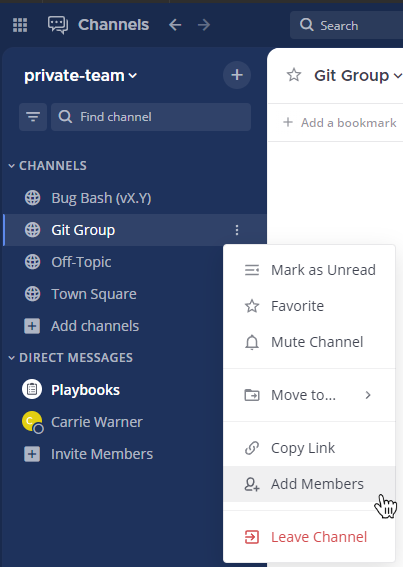
Select the channel name at the top of the center pane to access the drop-down menu, then select Add Members.
-
Search for users, select users, then select Add to add users to the current channel. Mattermost notifies you when a user is already a member of the channel.
Tip
- From Mattermost v7.8, people you've messaged directly are listed first, followed by all users in alphabetical order.
- Alternatively, to add members to a channel, select the channel name, select the View Info
 icon, select Members in the right pane, and then select Add. If the channel has access control restrictions, you'll see details about required attributes at the top of the right pane.
To add members to a channel:
-
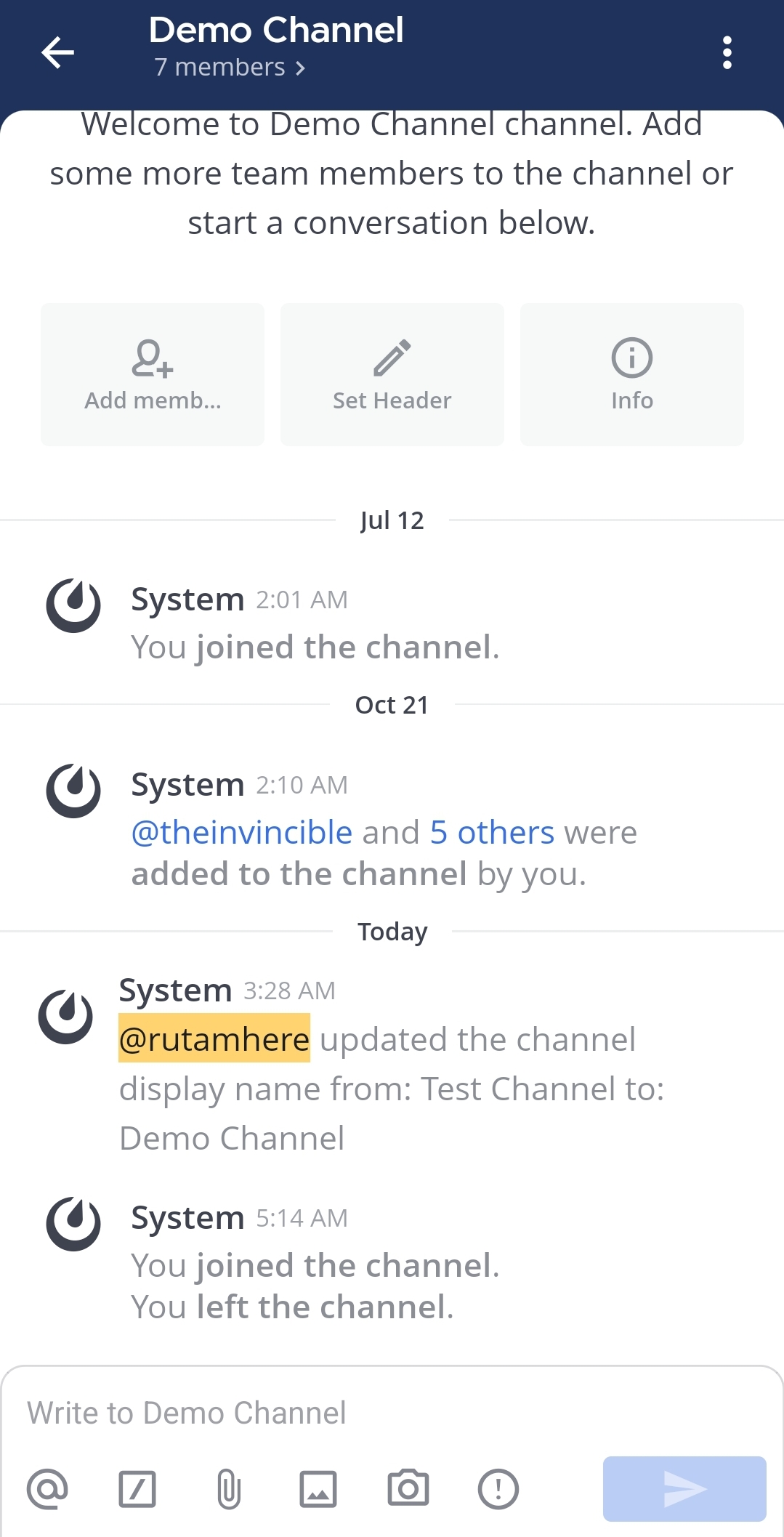
Tap the channel name at the top of the screen.
-
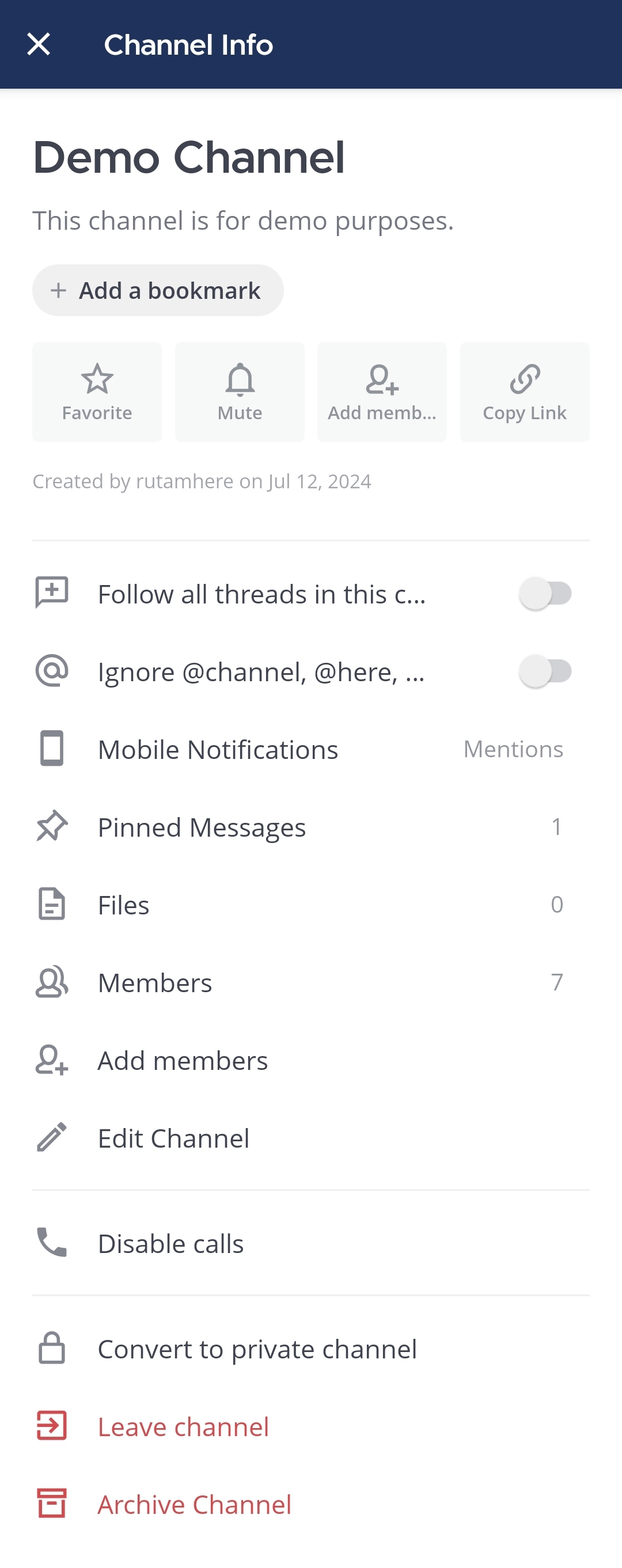
Tap Add members.
-
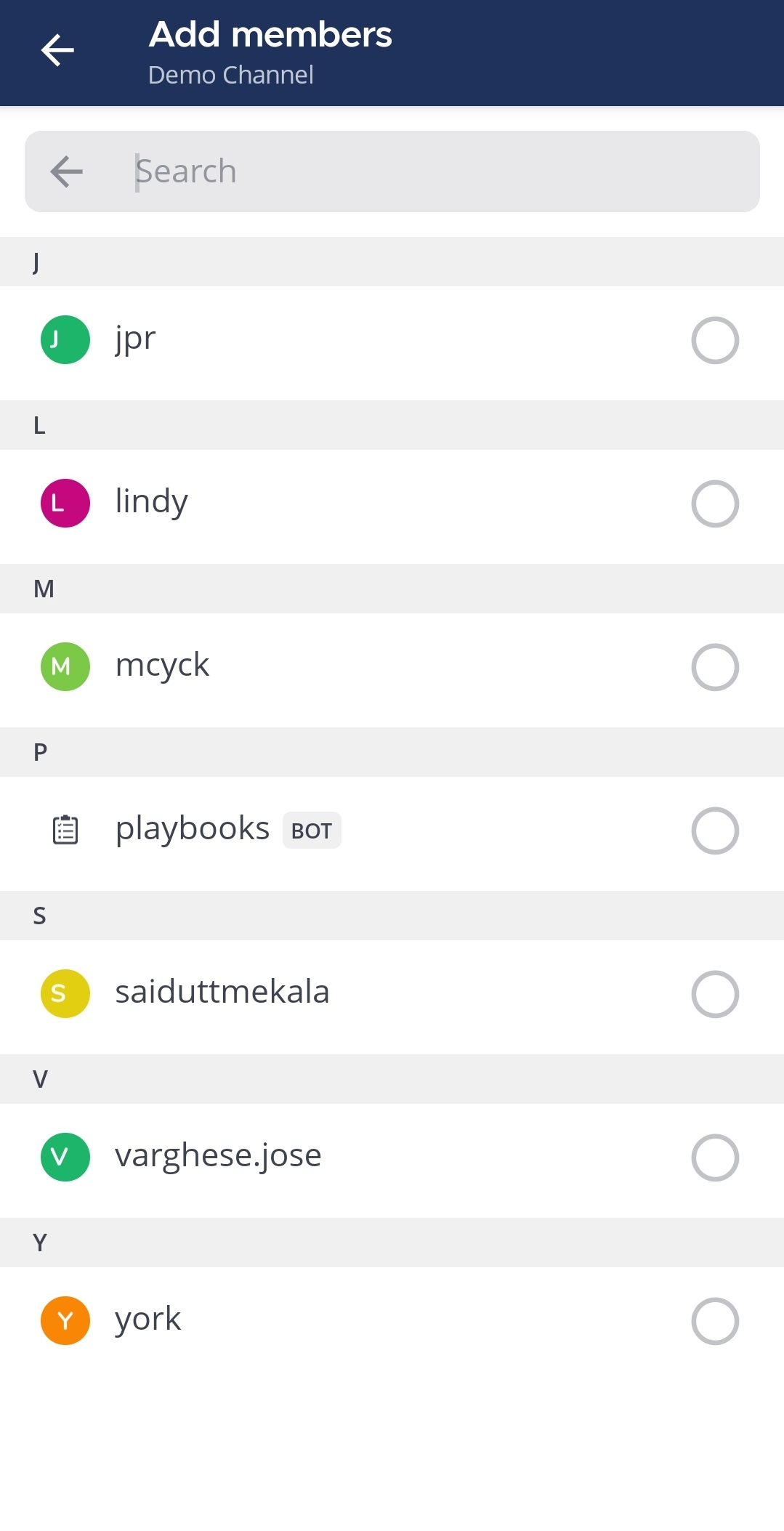
Select members to add to the channel. You can scroll through the alphabetical list of members, or search for members in the Search field.
-
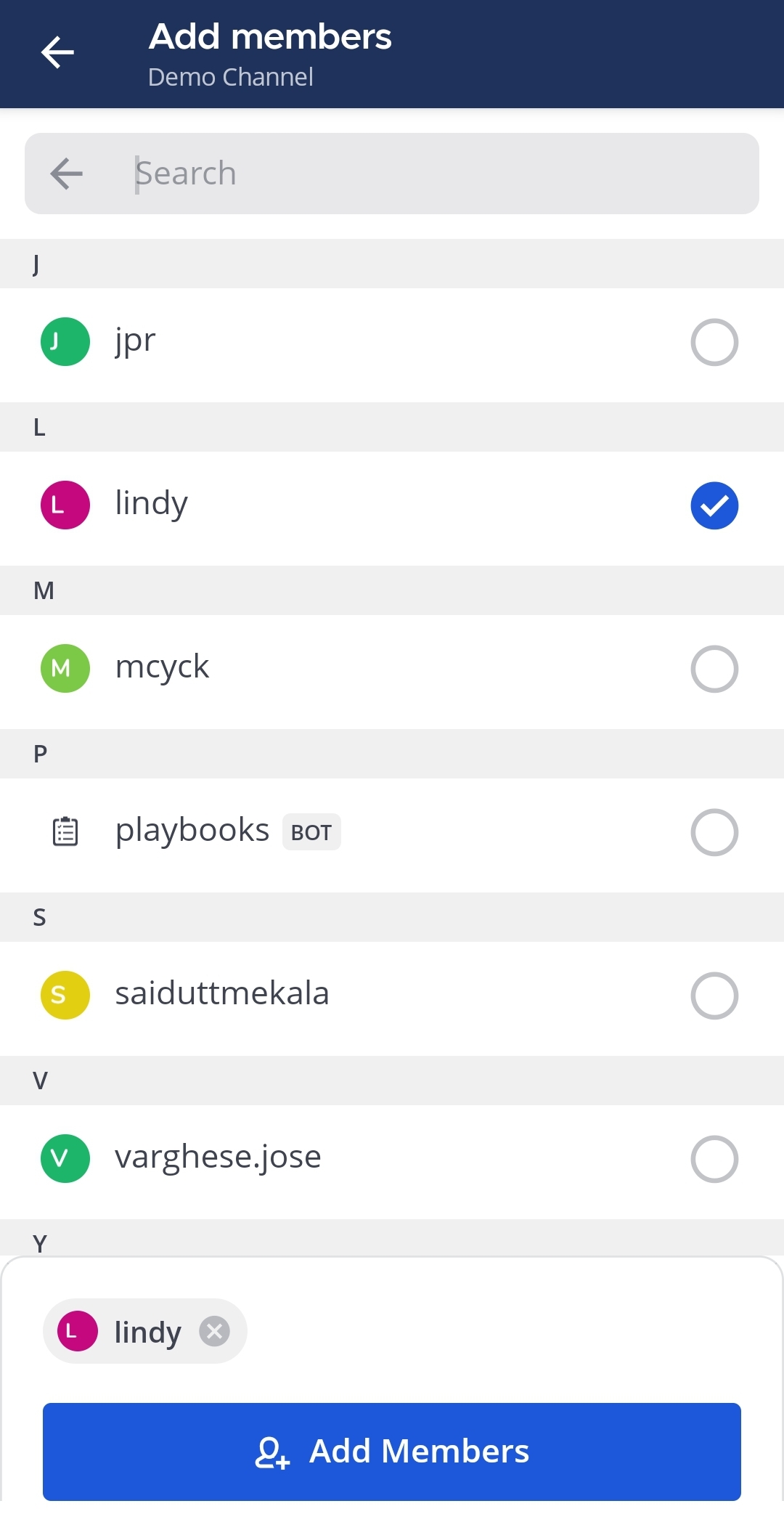
Tap Add Members.
Mention users
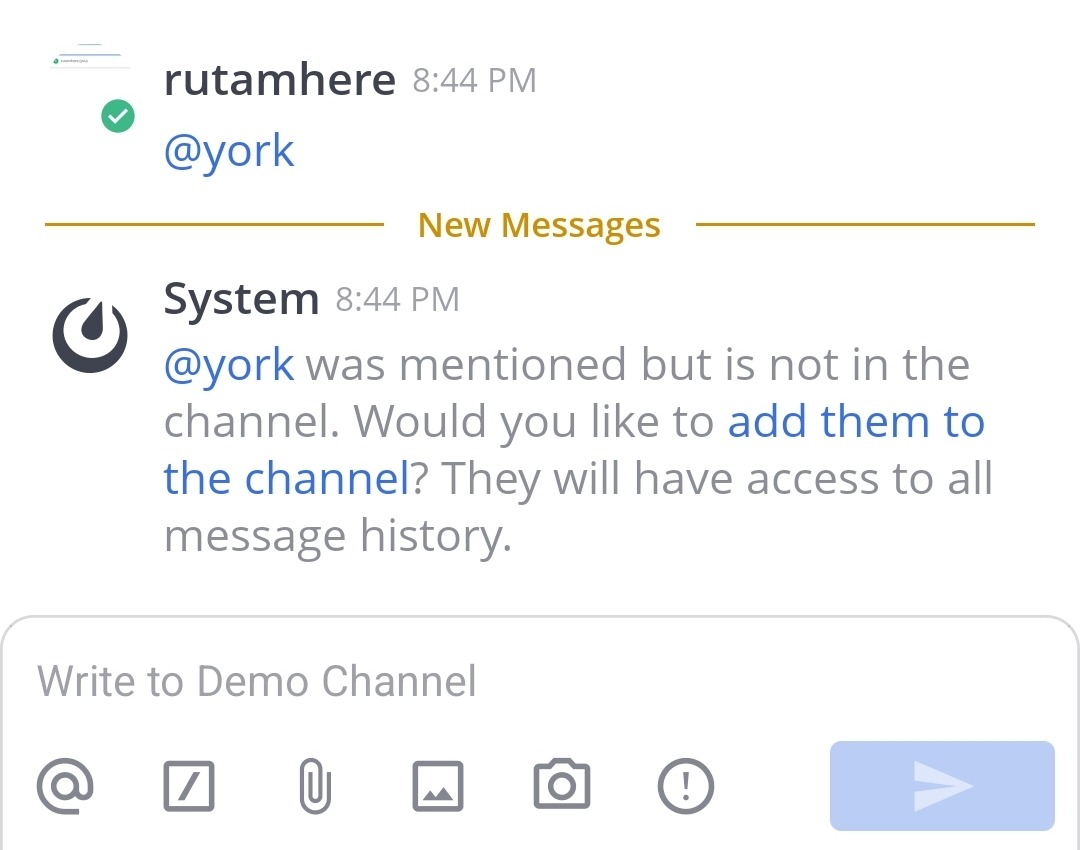
You can also @mention users to add them to a channel. If they're not a channel member, Mattermost prompts you to add them.
Add users from their profile
Using a web browser or the desktop app, you can also add users to channels within their profile pop-over.
-
Select a user's profile image.
-
Tap on
 icon.
icon.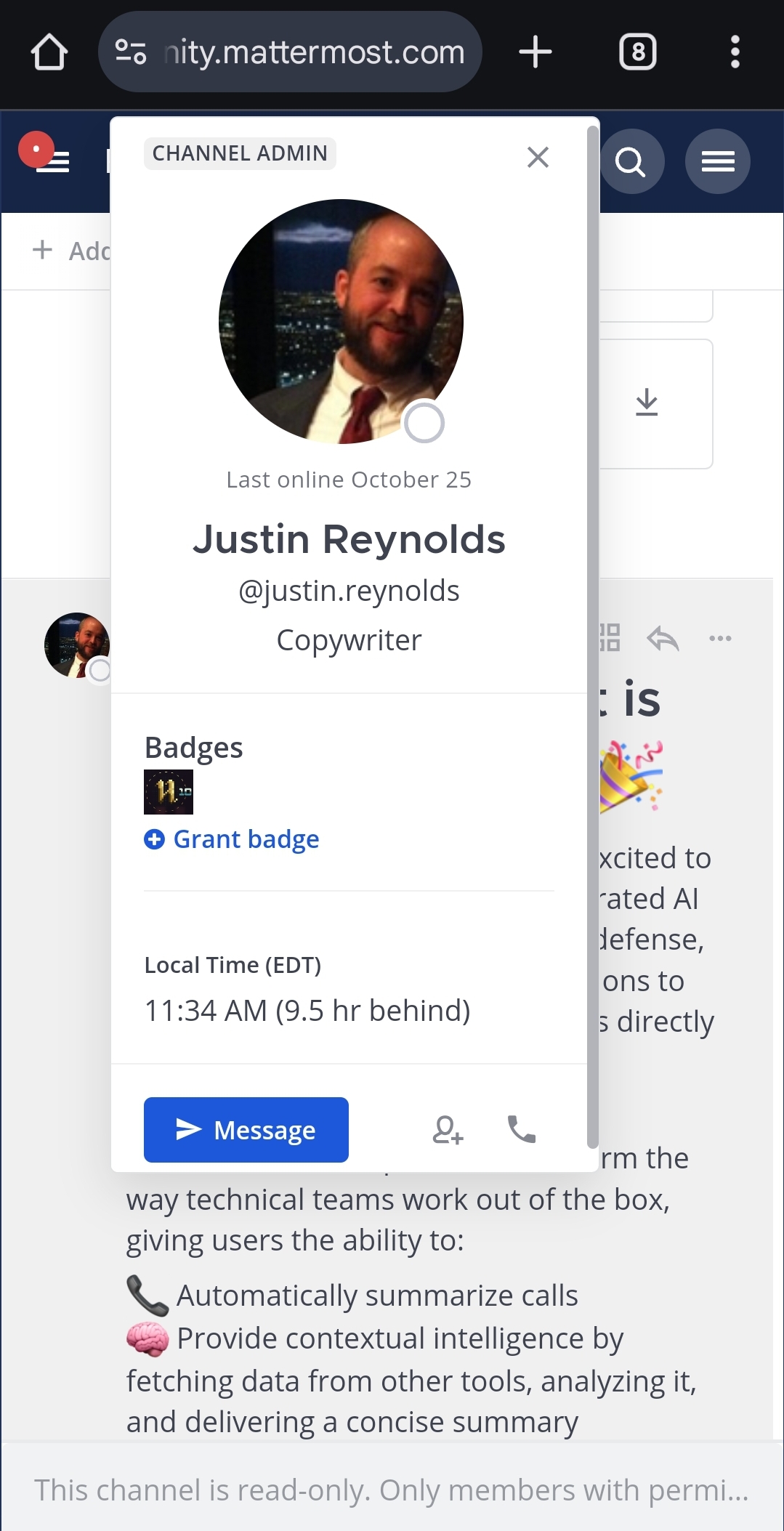
-
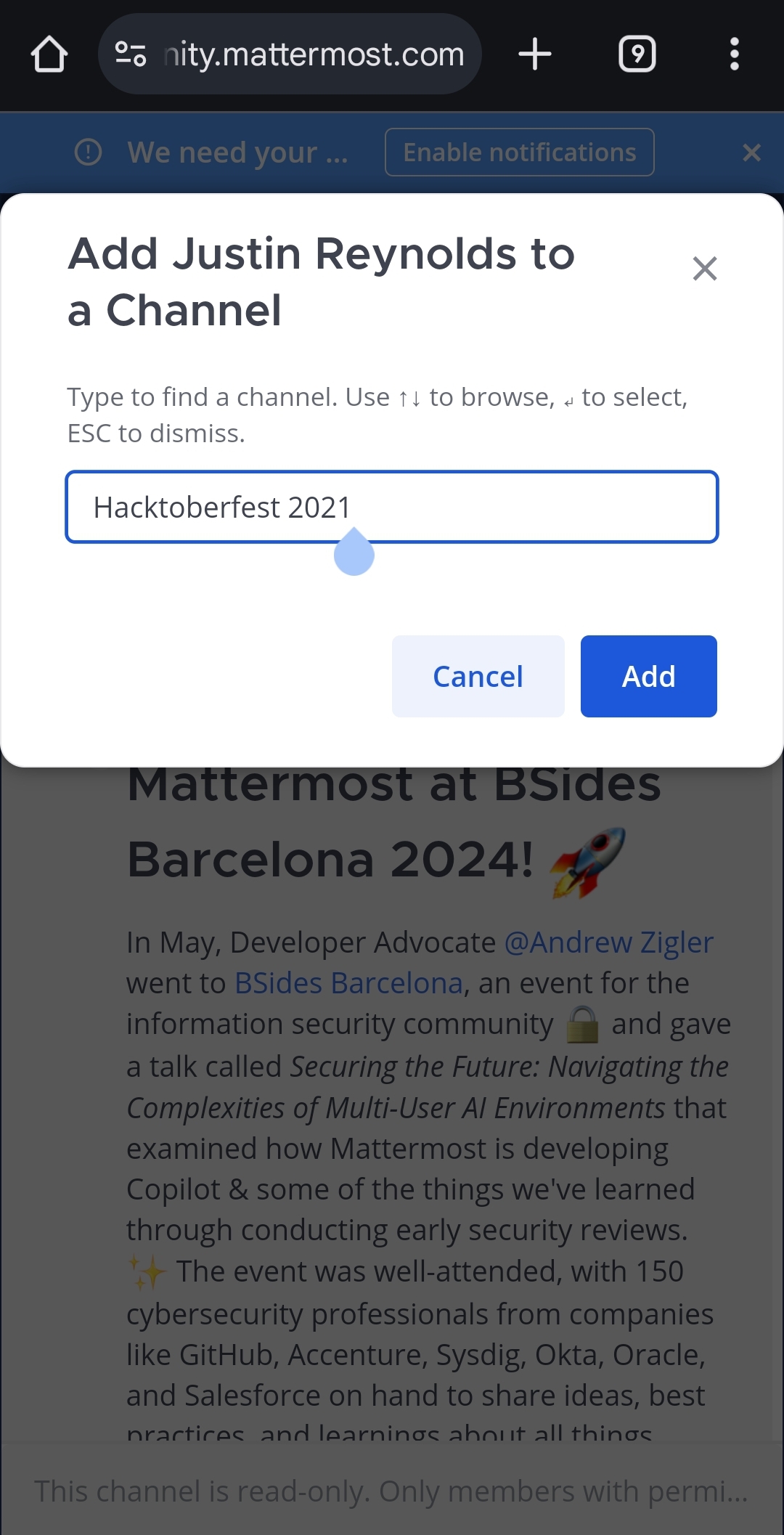
Type to find a channel name, then select a channel and choose Add.
Leave a channel
You can leave public or private channels any time.
- Web/Desktop
- Mobile
Select the channel name at the top of the center pane to access the drop-down menu, then select Leave Channel. When you have permission to manage channel members, you can also leave a channel by going to View Info > Members > Manage and selecting your own name.
-
In a channel, tap
 in the top right corner.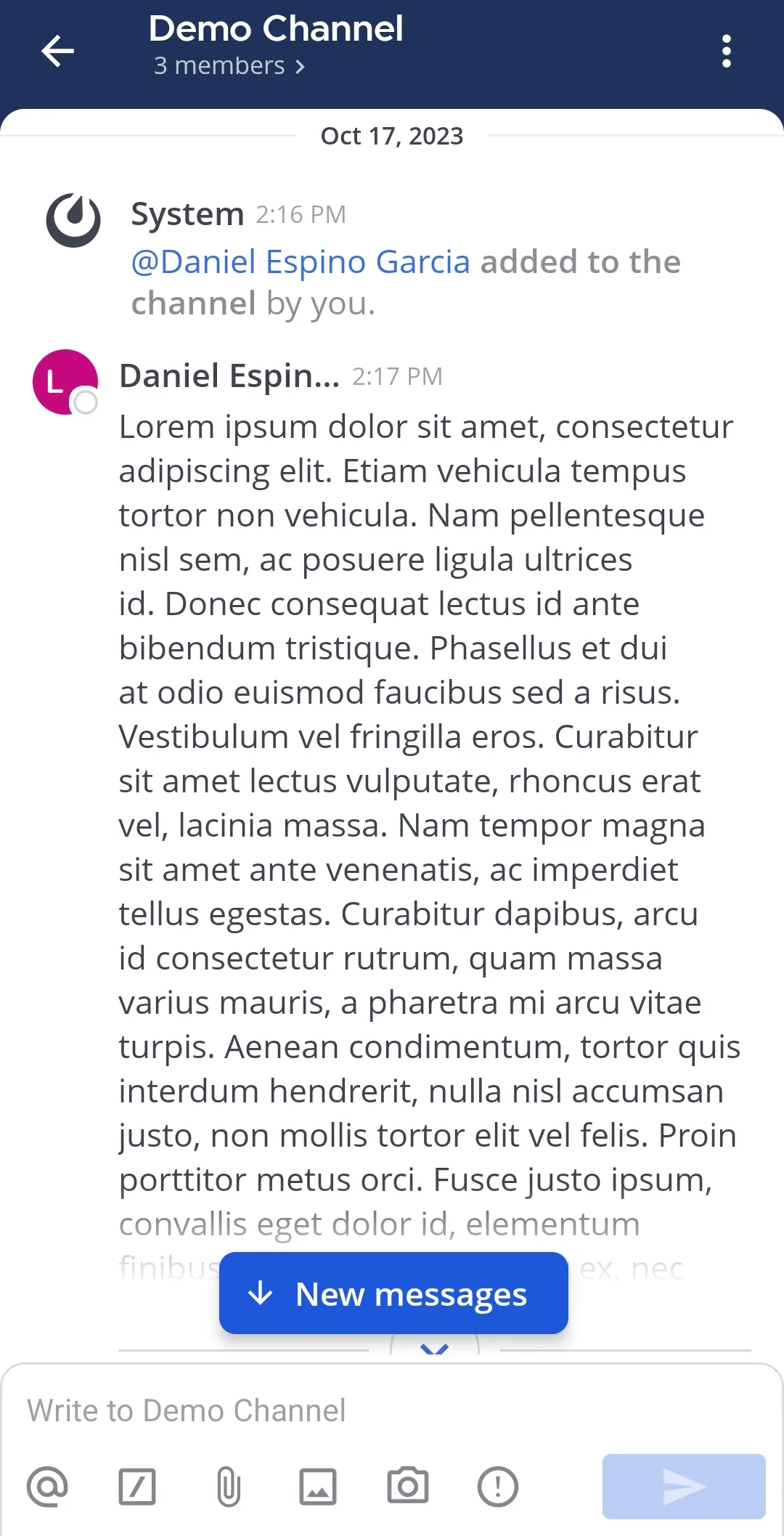
-
Tap Leave channel.
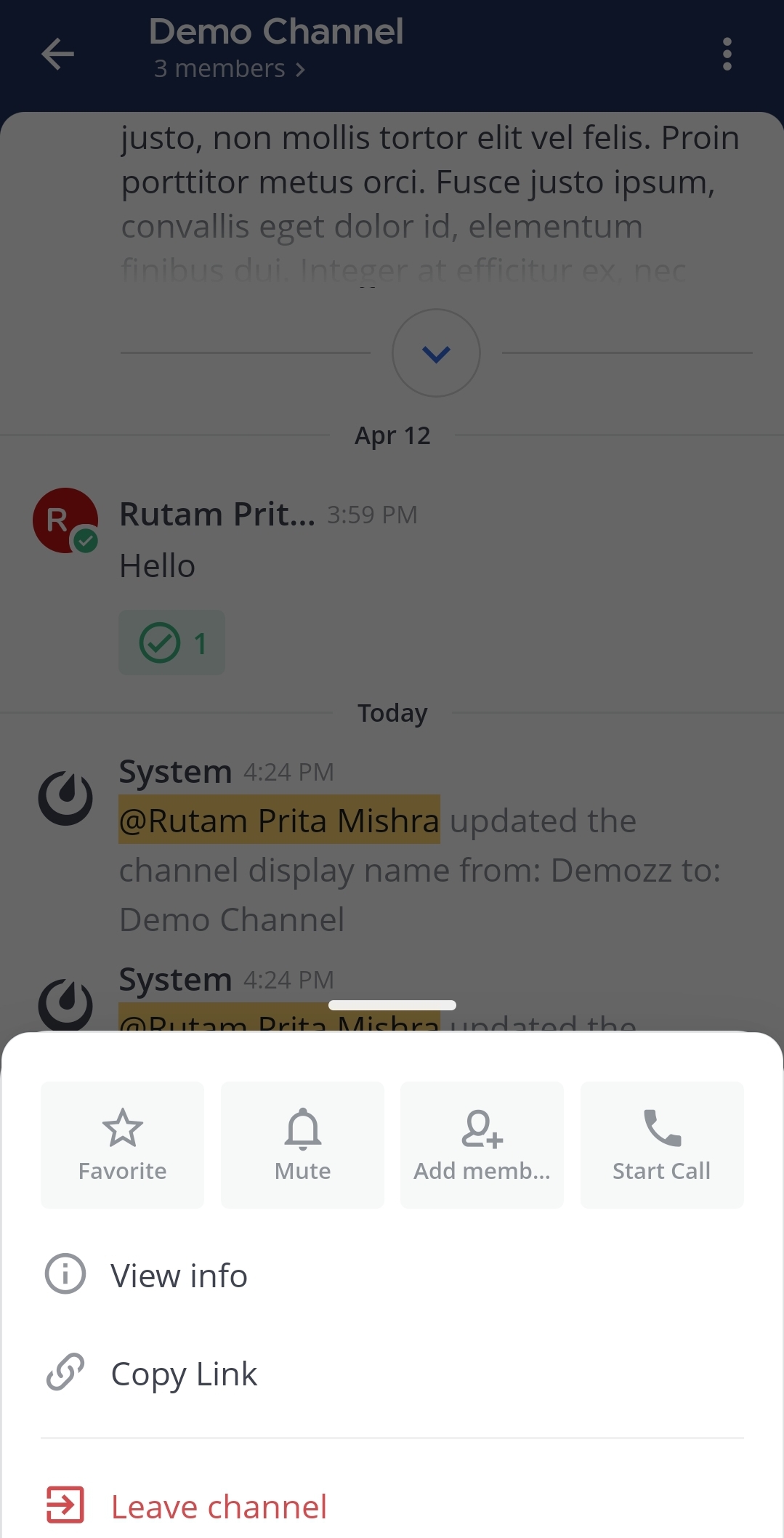
-
Tap on Leave to confirm you choice.
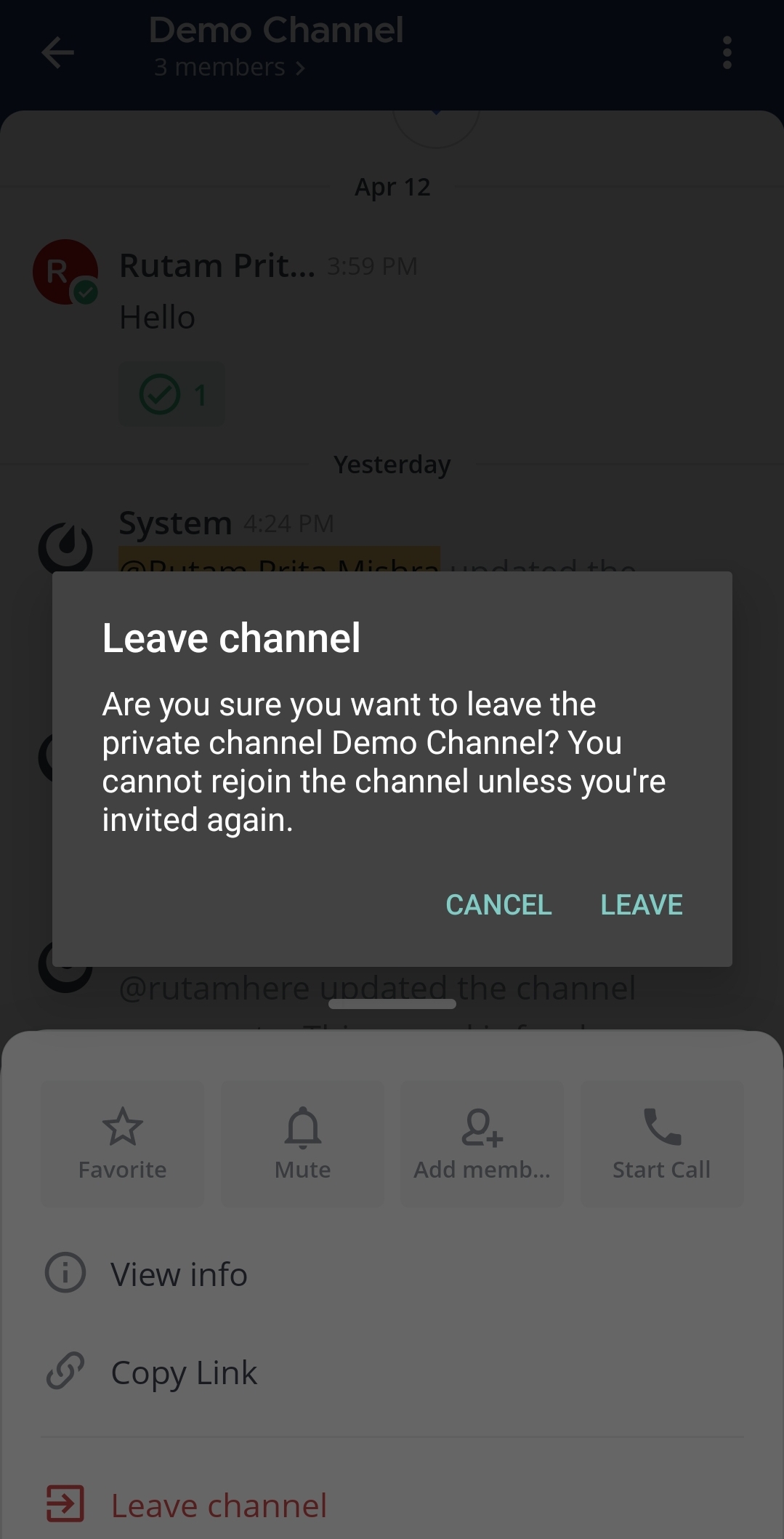
Remove other members from a channel
Any member of a channel can remove other members from a channel.
- Web/Desktop
- Mobile
You have two ways to remove members from a channel:
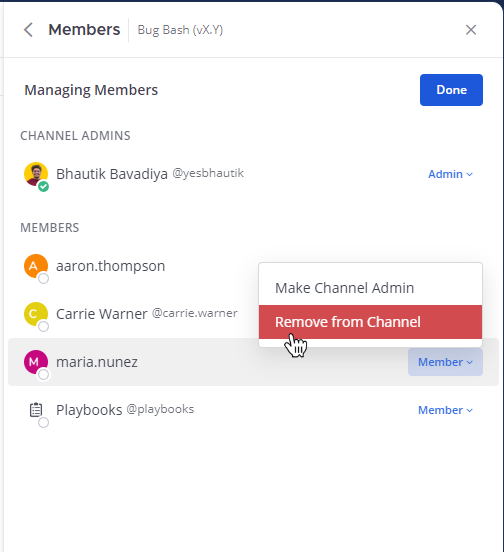
- Select the channel name at the top of the center pane to access the drop-down menu, then select Manage Members. Select the member's user role, then select Remove from Channel.
- Select the channel's View Info icon, and select Members in the right pane. From there, select Manage, select a user's role, then select Remove from Channel.
-
In a channel, tap
in the top right corner. -
Tap View Info.
-
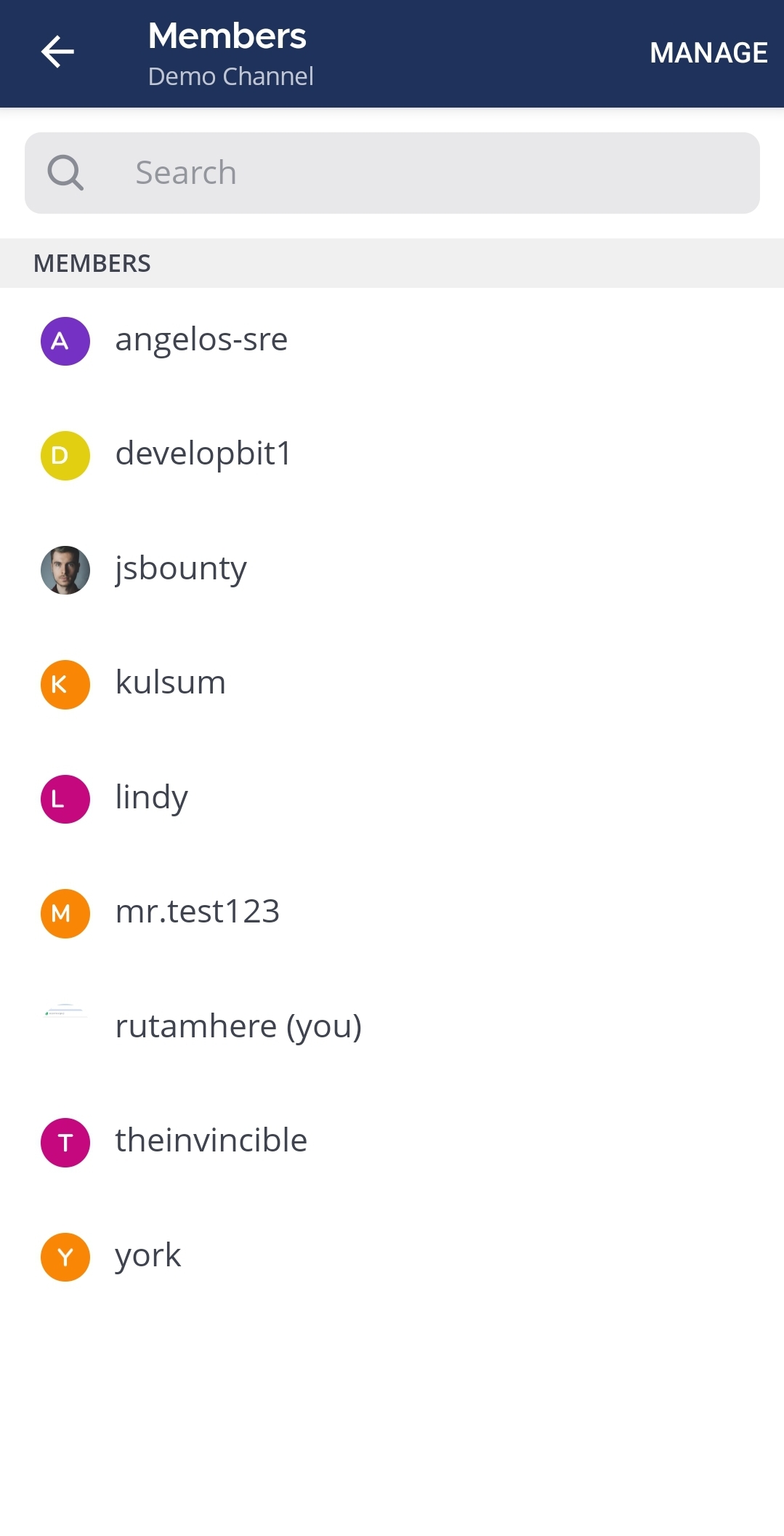
Tap Members.
-
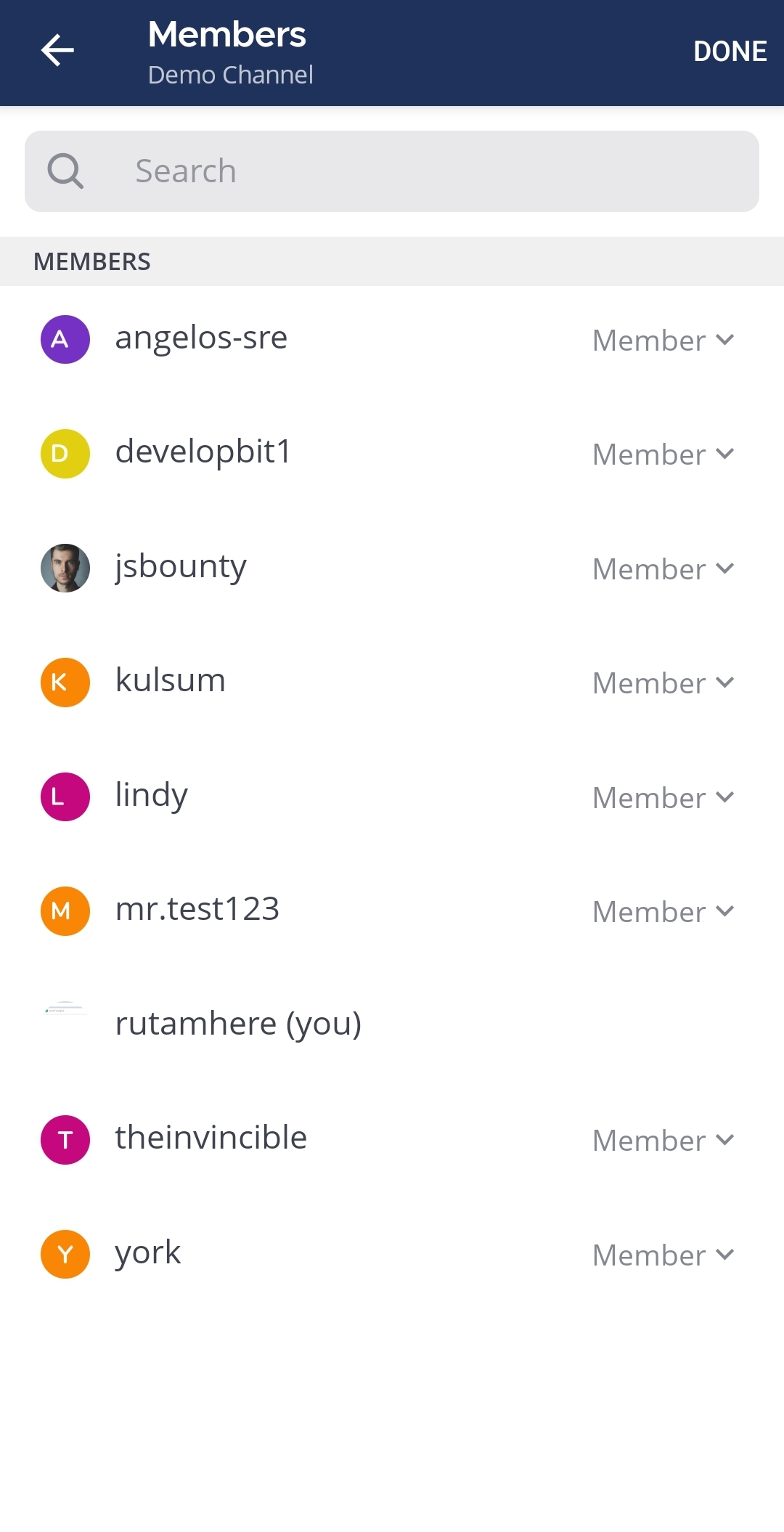
Tap Manage in the top right corner of the screen.
-
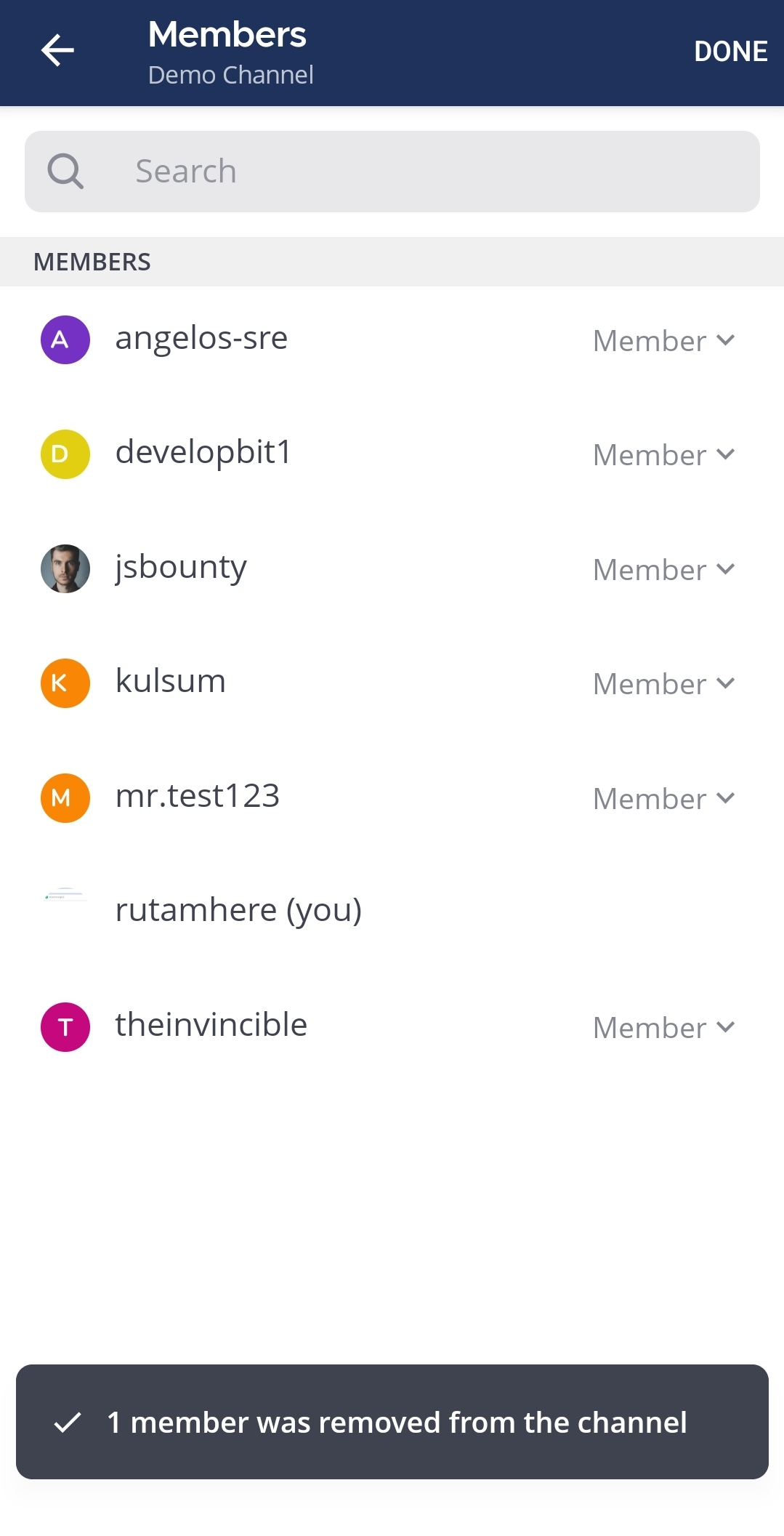
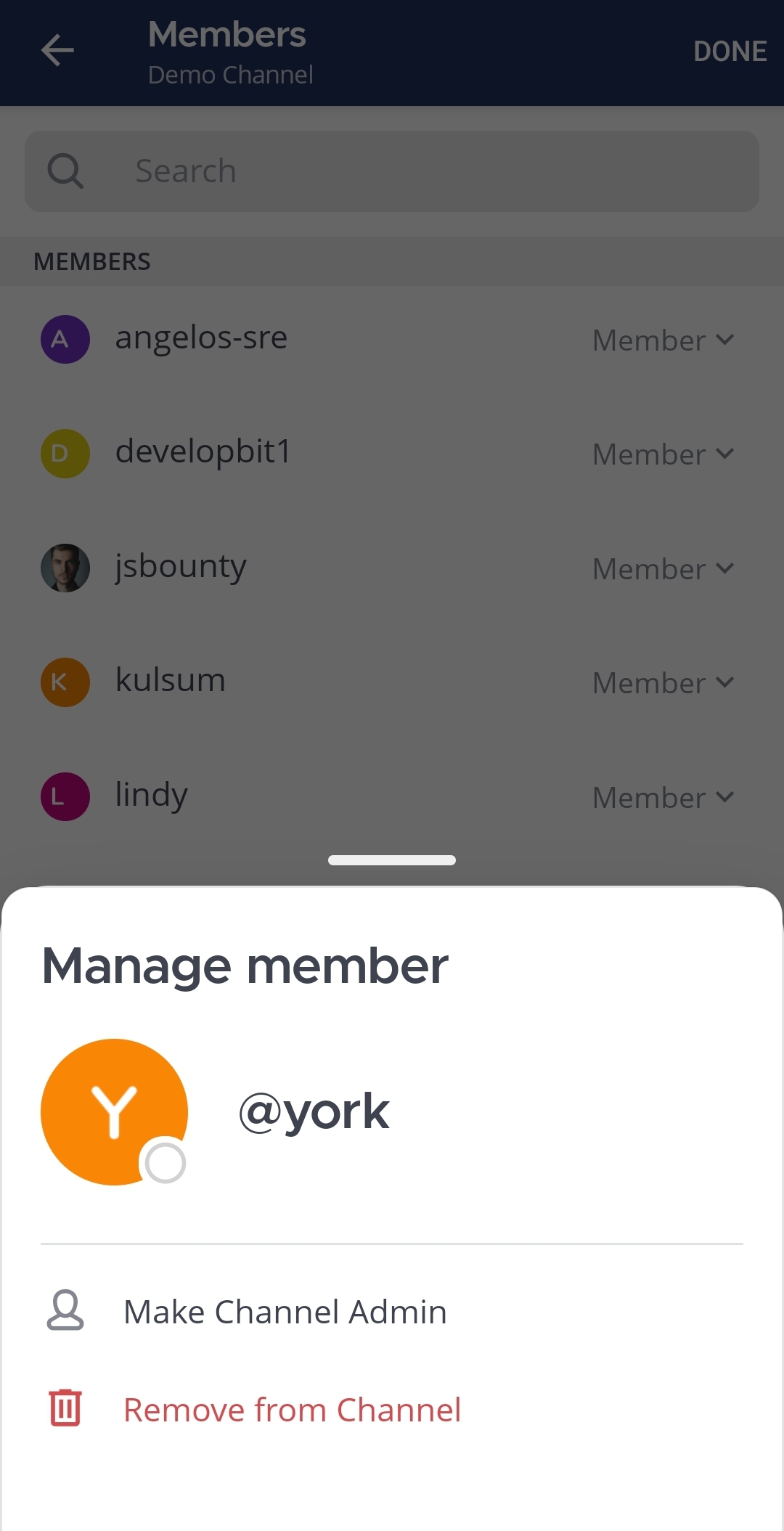
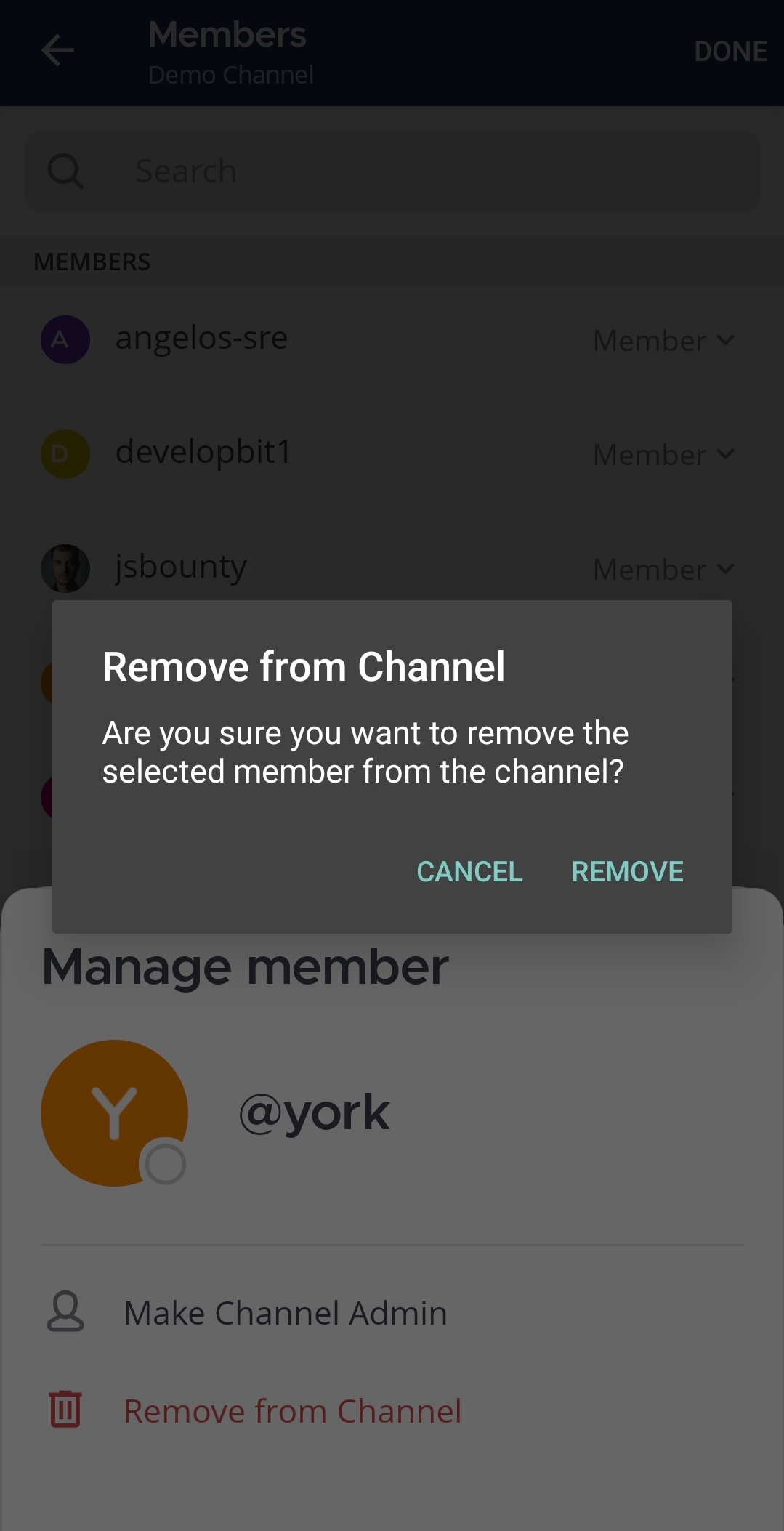
Tap a user role to change it, and tap Remove from Channel.
-
Tap Remove.
-
Tap Done.