Manage channel bookmarks
From Mattermost v10.1, you can bookmark up to 50 links or files to the top of channels for quick and easy access, unless your system admin has disabled your ability to do so. Bookmarks display directly under channel headers. Files added as channel bookmarks are also searchable in Mattermost.
Open a bookmark
Opening a channel bookmark works the same way as selecting a file link or attachment in a message. Select or tap a bookmark to view the file or link.
From Mattermost v10.11, bookmarks containing mattermost:// links open directly in the desktop app using deep linking. This turns bookmarks into one-click shortcuts to channels, threads, or messages, letting you jump straight to key assets in Mattermost quickly and easily.
Add a bookmark
- Web/Desktop
- Mobile
- From Mattermost v10.5, select the channel name at the top of the center pane to access the drop-down menu, and select Bookmarks Bar to add a link or attach a file. In Mattermost versions prior to v10.5, select Add a bookmark in the bookmarks bar instead.
- Select Add a link to specify the link URL, specify bookmark text, and an optional bookmark icon.
- Select Attach a file to select a file, specify bookmark text, and an optional bookmark icon.
The bookmarks bar is hidden when a channel has no bookmarks.
- In a channel, select the More
 icon.
icon.
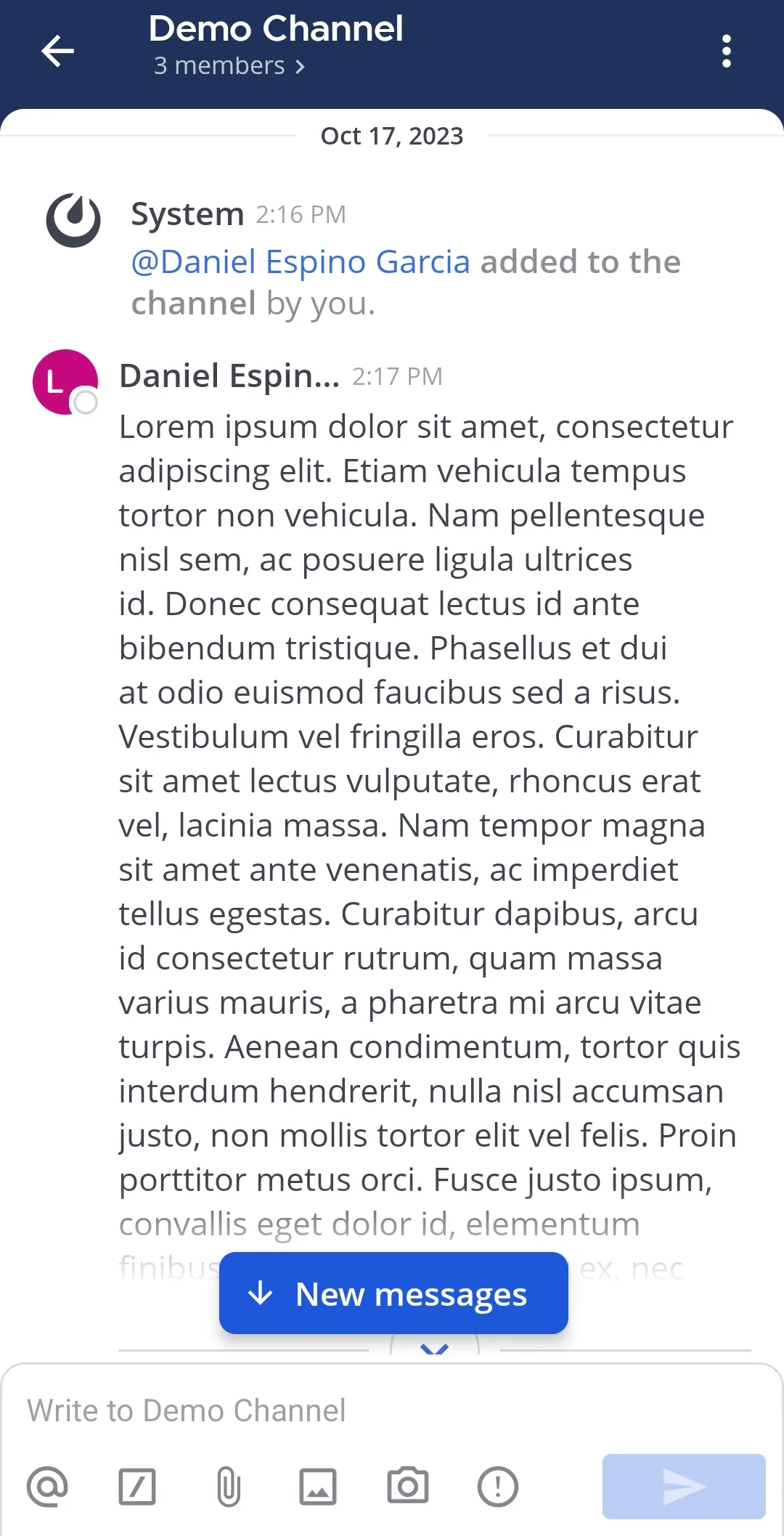
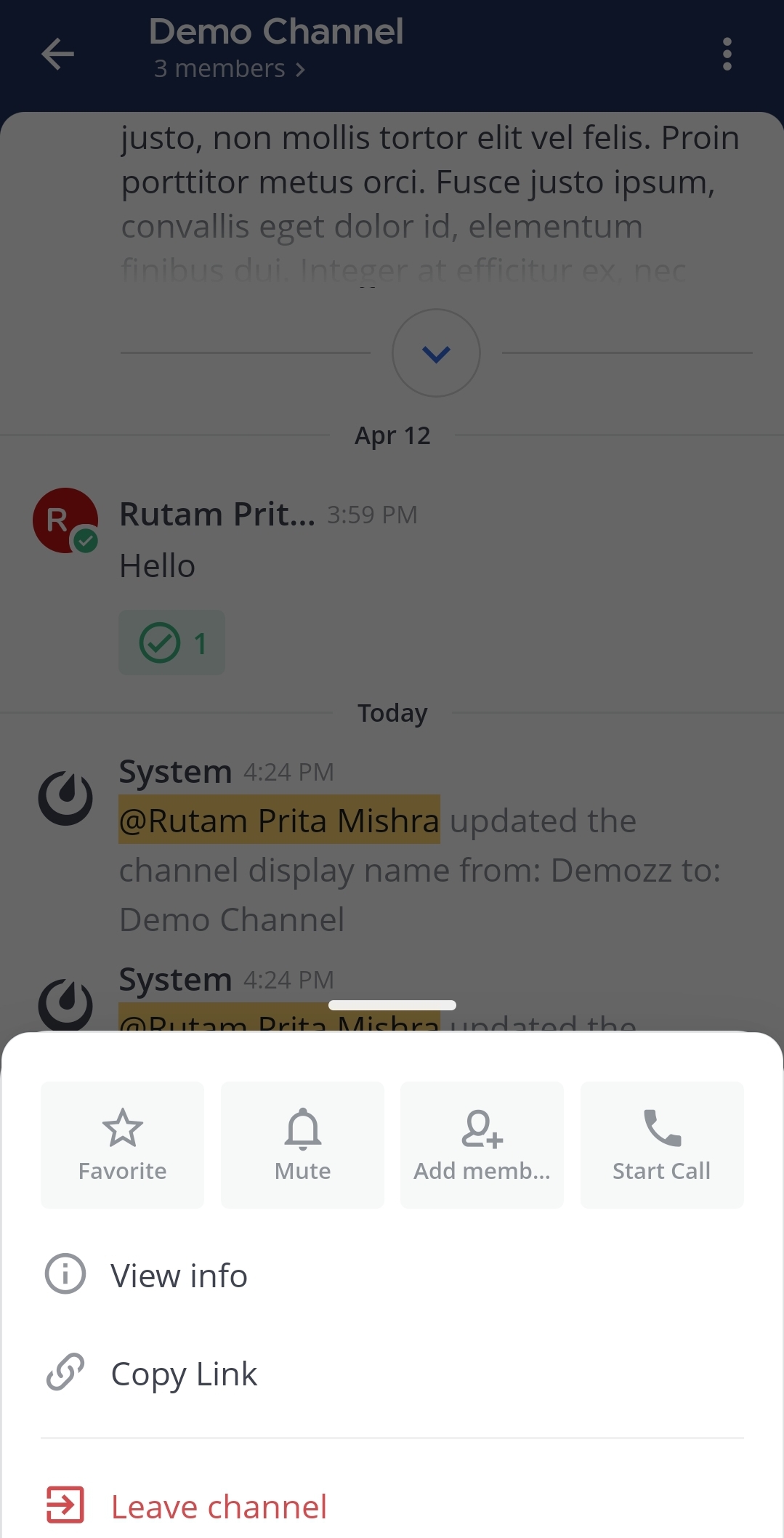
- Select View info.
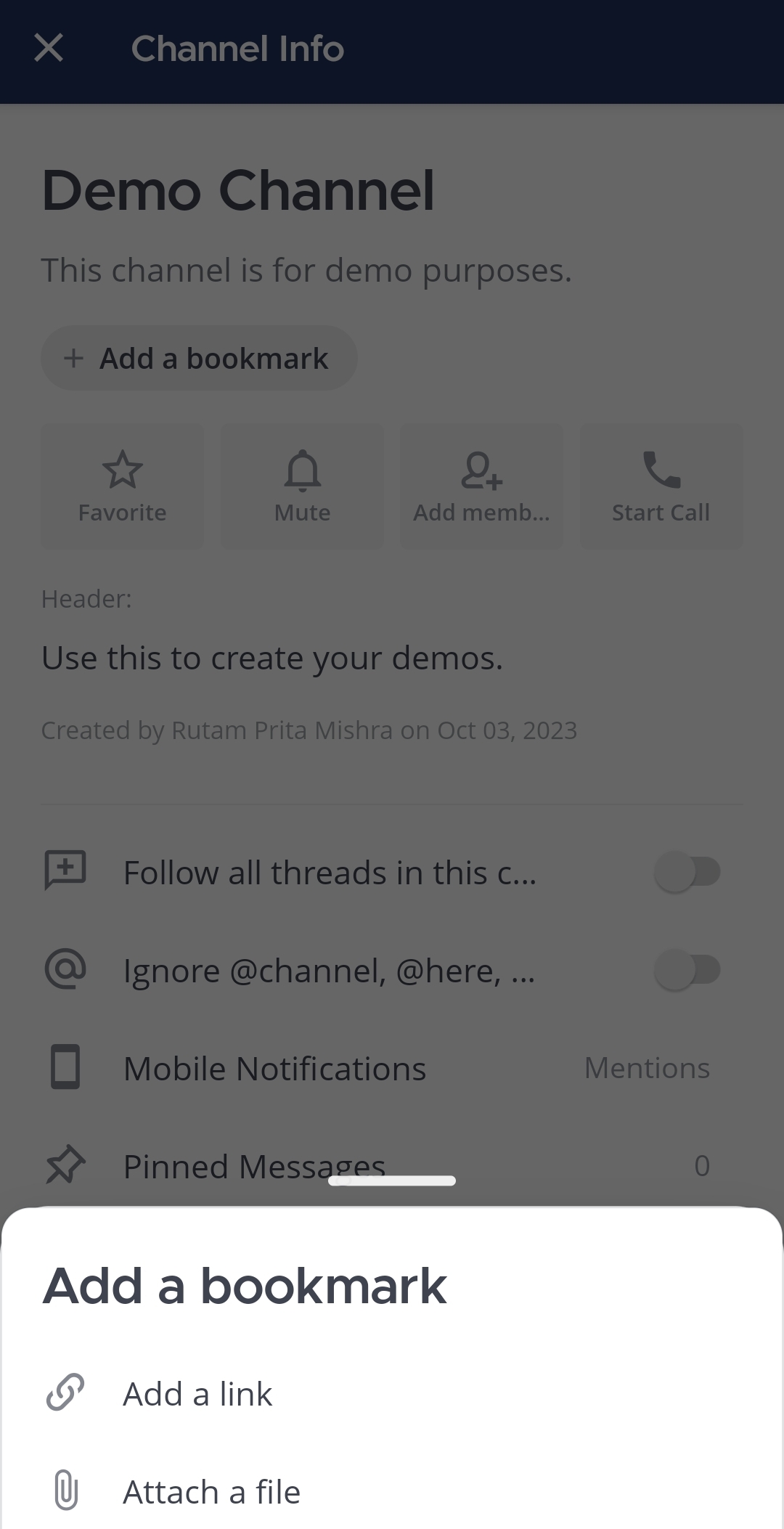
- Tap on Add a bookmark to add the first bookmark.
For subsequent bookmarks, select the Plus  icon in the bookmarks bar.
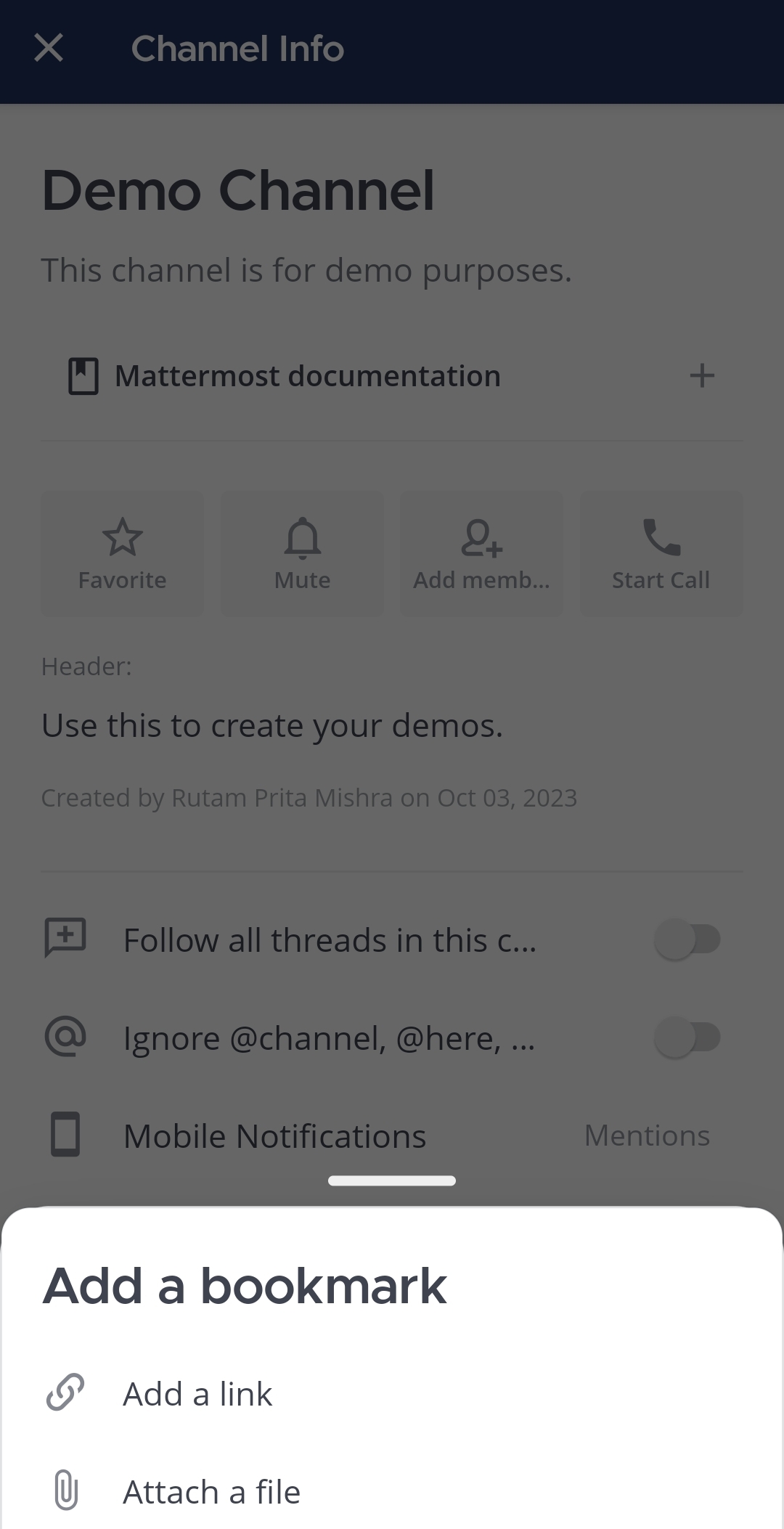
- You can either select Add a link to specify the link URL, specify bookmark text, and an optional bookmark icon.
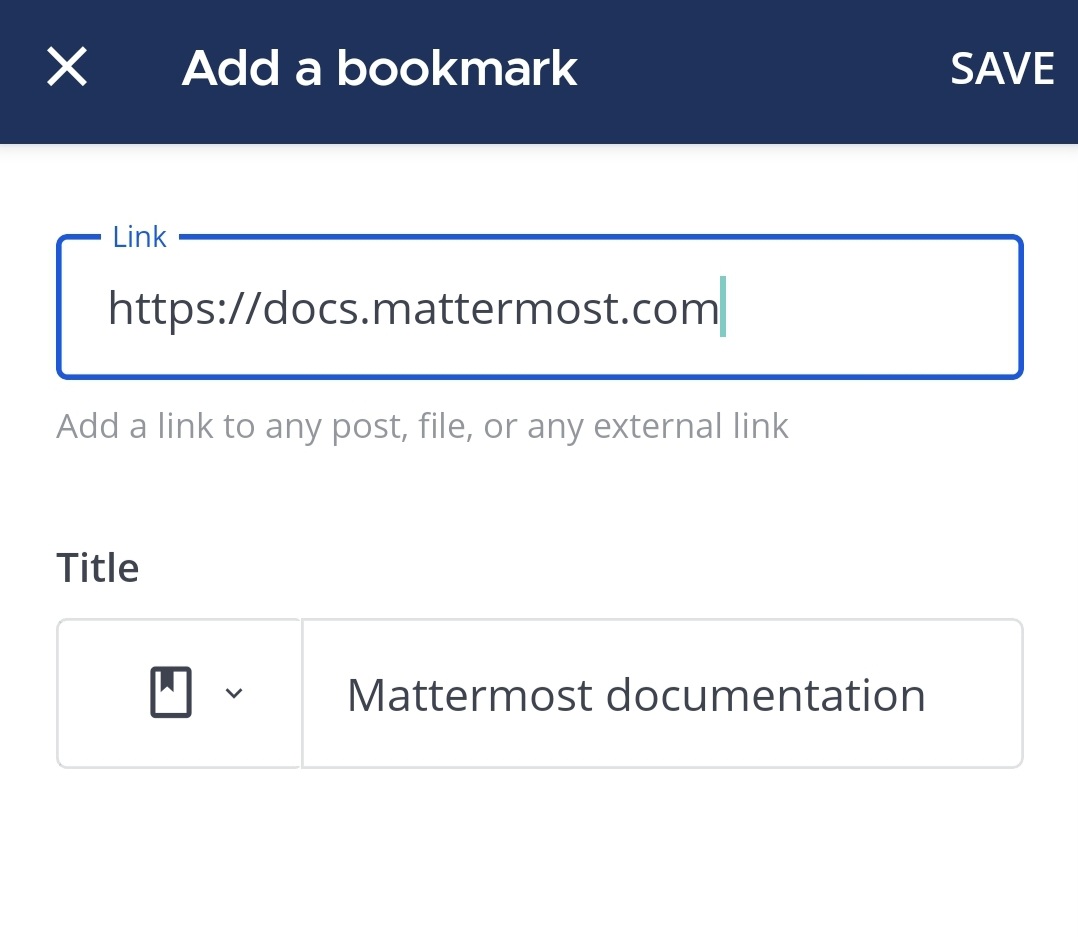
Or you can select Add a file to select a file, specify bookmark text, and an optional bookmark icon.
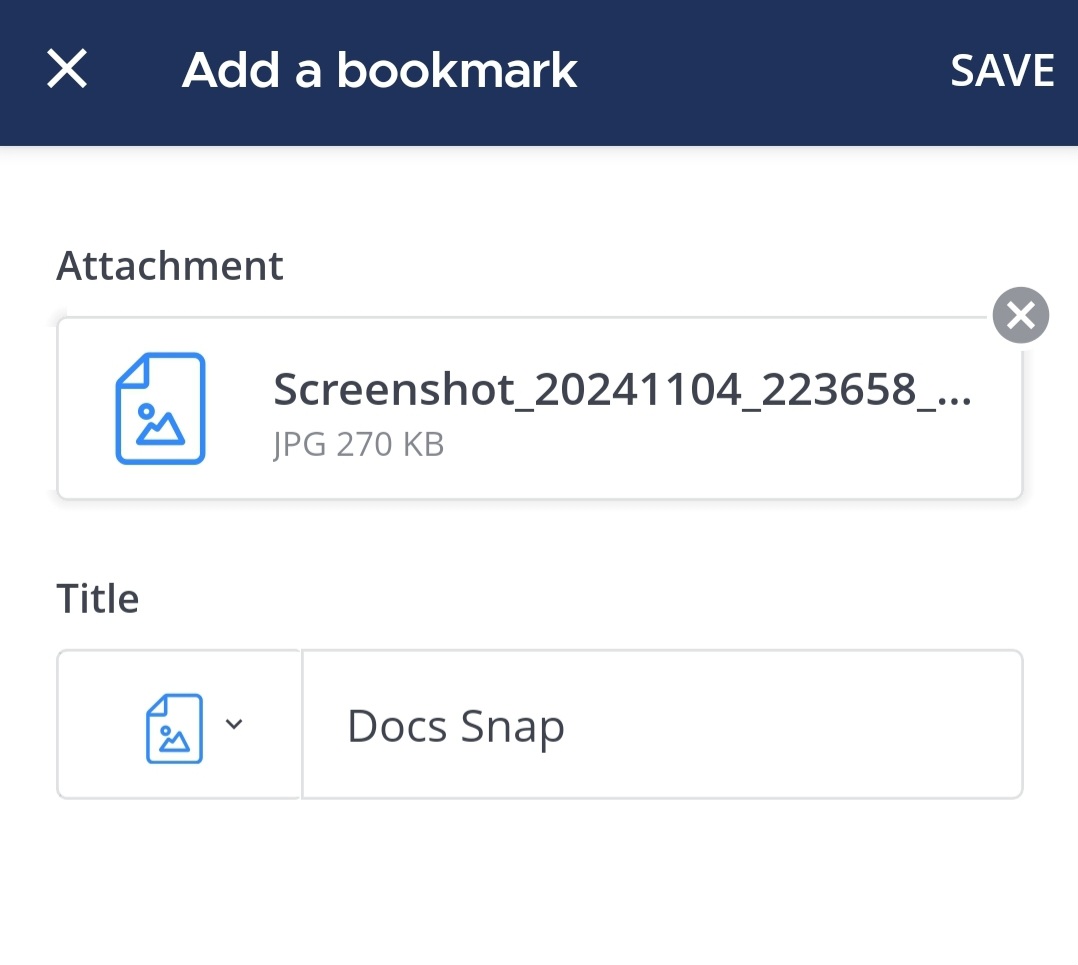
- Tap on Save.
Manage bookmarks
You can edit and delete bookmarks, as well as copy bookmark links. Additionally, web and desktop users can reorder bookmarks, and mobile users can share bookmarks. Changes to bookmarks are visible to all channel members.
Reorder bookmarks
Using Mattermost in a web browser or the desktop app, drag bookmarks to reorder them in the bookmarks bar. Reordering channel bookmarks changes the display order for all channel members.
Edit bookmarks
You can make changes to the bookmark link or file, the bookmark title, or the optional bookmark icon. Editing a bookmark changes the bookmark for all channel members.
- Web/Desktop
- Mobile
Select the More  icon next to a bookmark and select Edit.
Long-press on a bookmark and select Edit.
Share bookmarks
Using the mobile app, long-press on a bookmark and select Share.
Copy bookmark links
You can copy bookmark links when your system admin has enabled your ability to do so.
- Web/Desktop
- Mobile
Select the More icon next to a bookmark and select Copy link.
Long-press on a bookmark and select Copy link.
Delete bookmarks
Deleting a channel bookmark deletes it for all channel members.
- Web/Desktop
- Mobile
Select the More icon next to a bookmark and select Delete.
Long-press on a bookmark and select Delete.