Join and leave channels
Join a channel
Channels are either public or private.
- Public channels are identified with a Globe
 icon. Anyone on the team can join a public channel.
 - Private channels are typically used for sensitive topics, and are identified with a Lock
 icon. You must be invited to private channels by another channel member.
To join a public channel:
- Web/Desktop
- Mobile
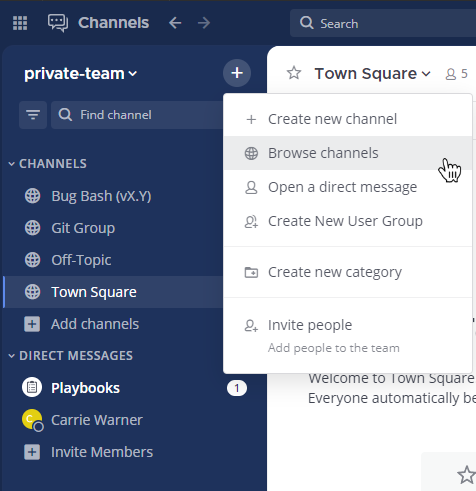
- Select the Add channels button in the channel sidebar, then select Browse Channels.
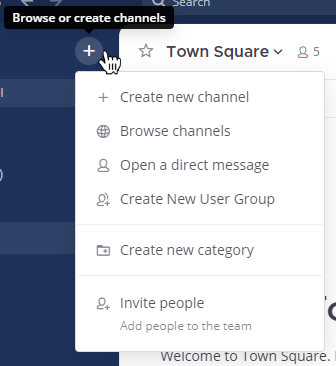
Alternatively, you can select
at the top of the channel sidebar, then select Browse Channels.
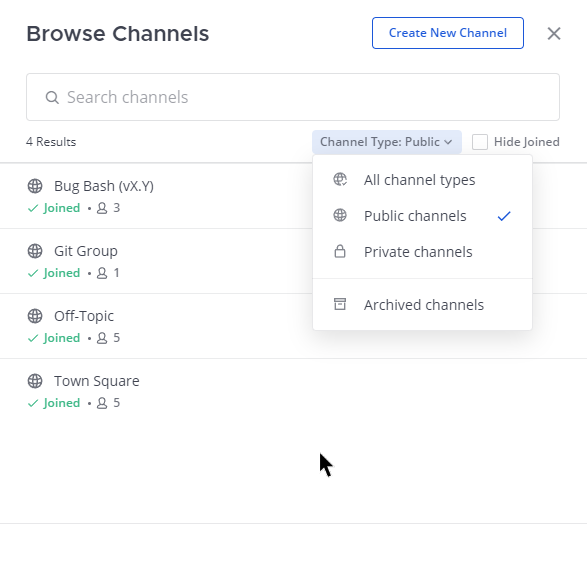
- Select Join next to the public channel you want to join.
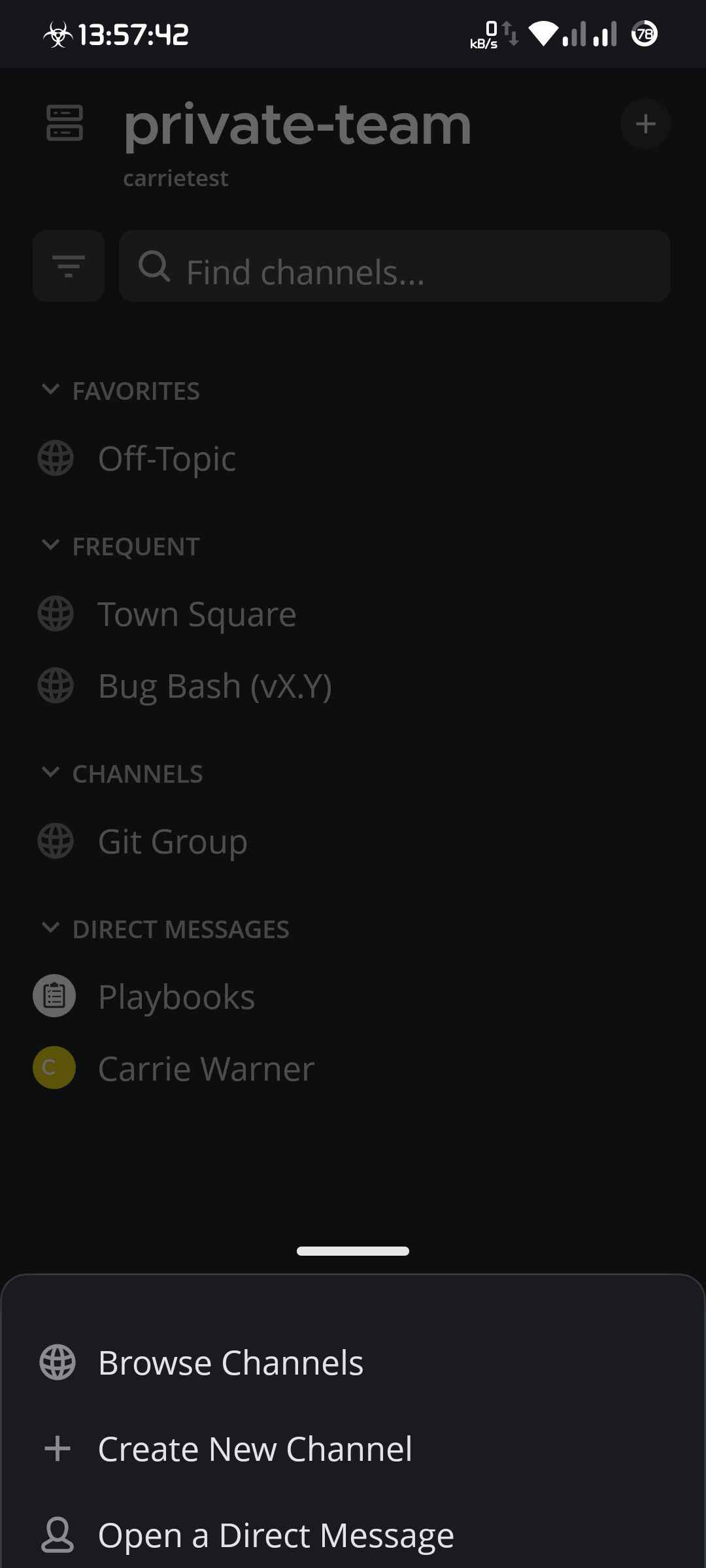
- Tap located in the top right corner the app.
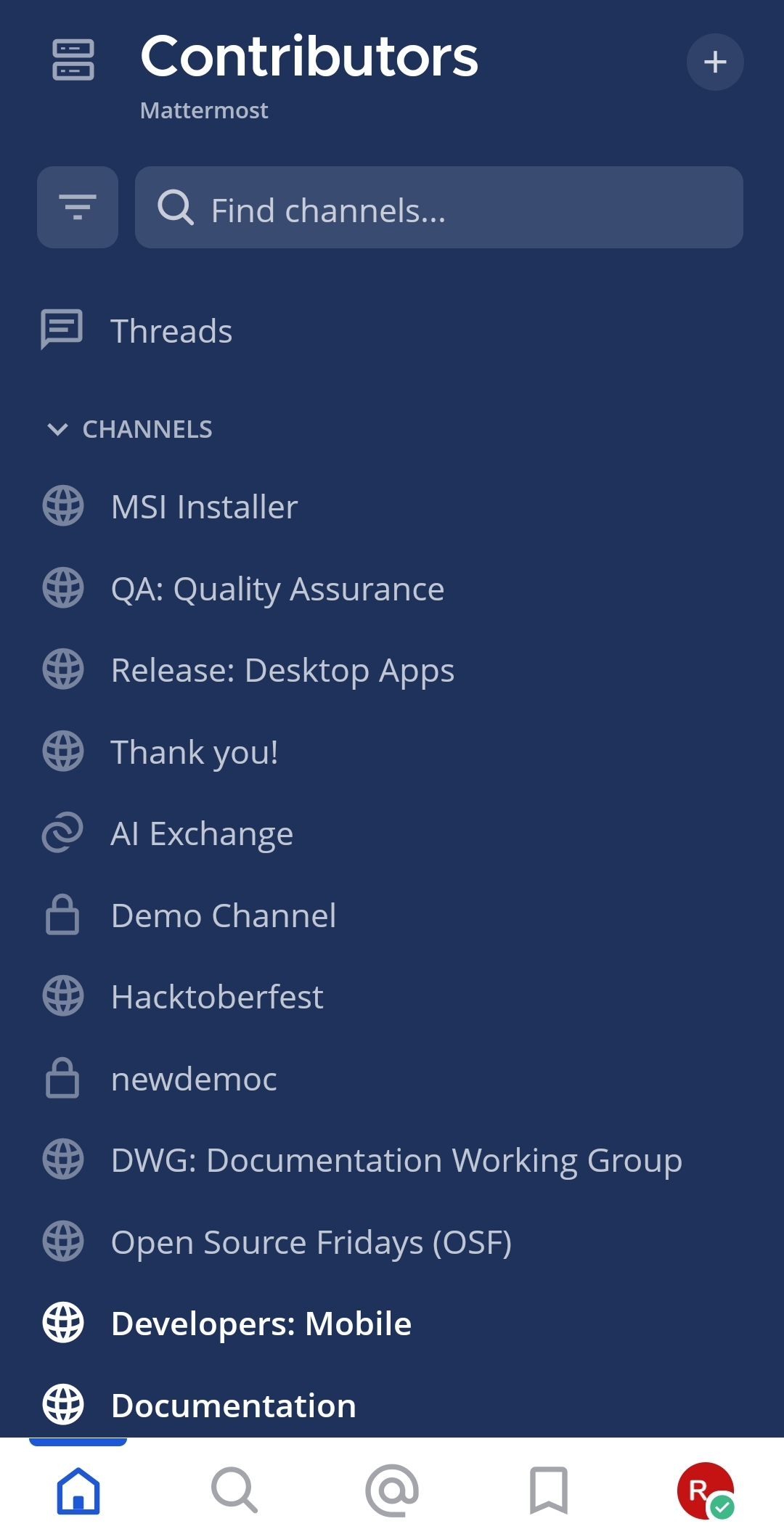
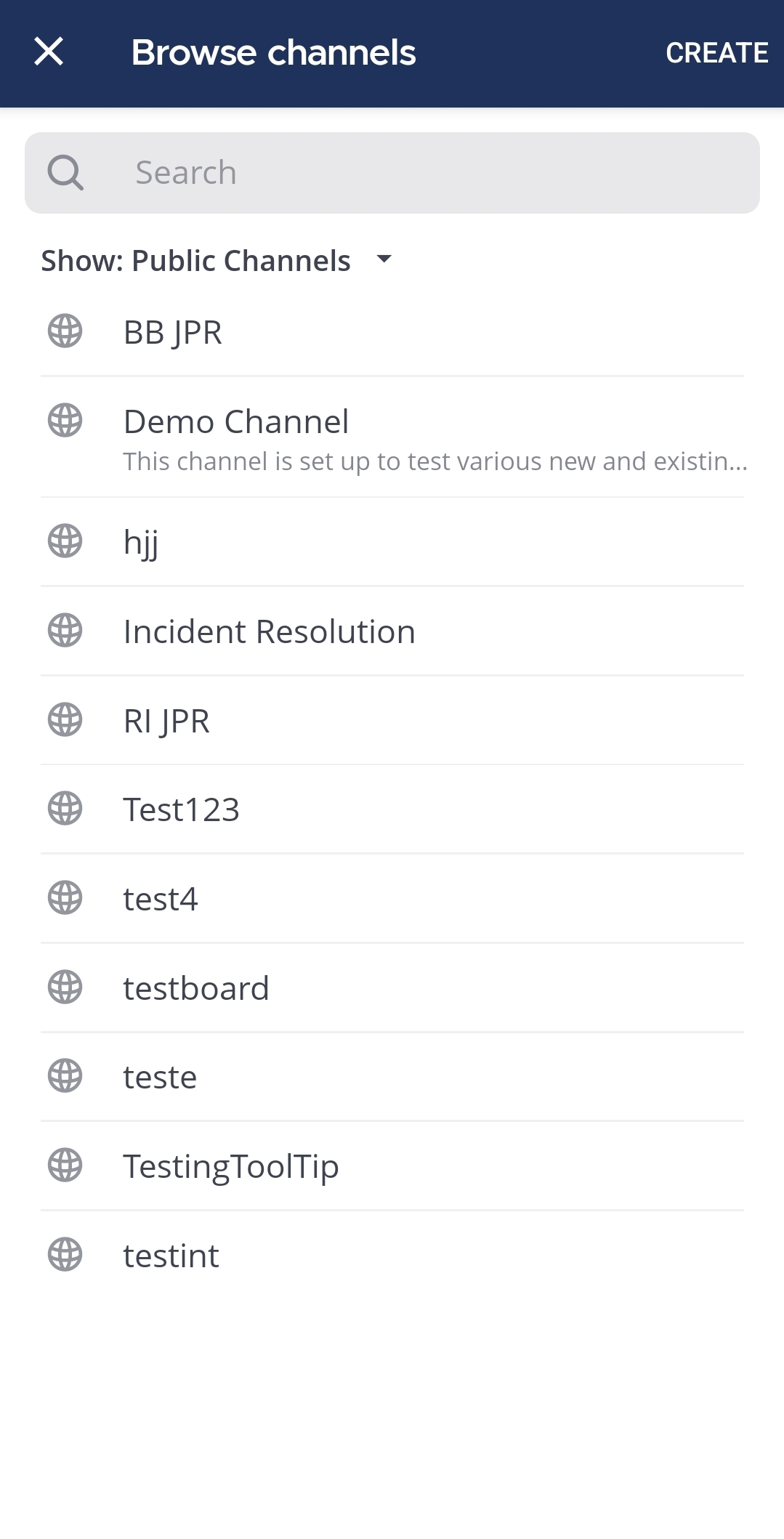
- Tap Browse Channels.
- Tap the public channel you want to join.
See the following documentation to learn more about working with channels:
Leave a channel
When you leave a private channel, you must be re-added by another channel member to rejoin. You won't receive mention notifications from a channel if you're not a member of that channel.
- Web/Desktop
- Mobile
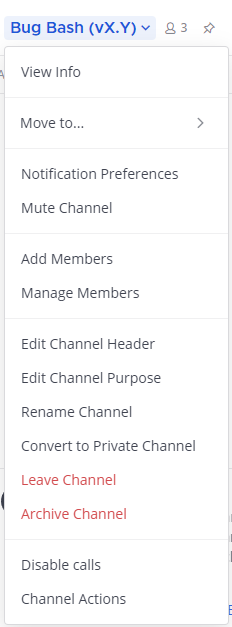
Select the channel name at the top of the center pane to access the drop-down menu, then select Leave Channel.
- Tap the channel you want to leave.
- Tap the More
 icon located in the top right corner of the app.
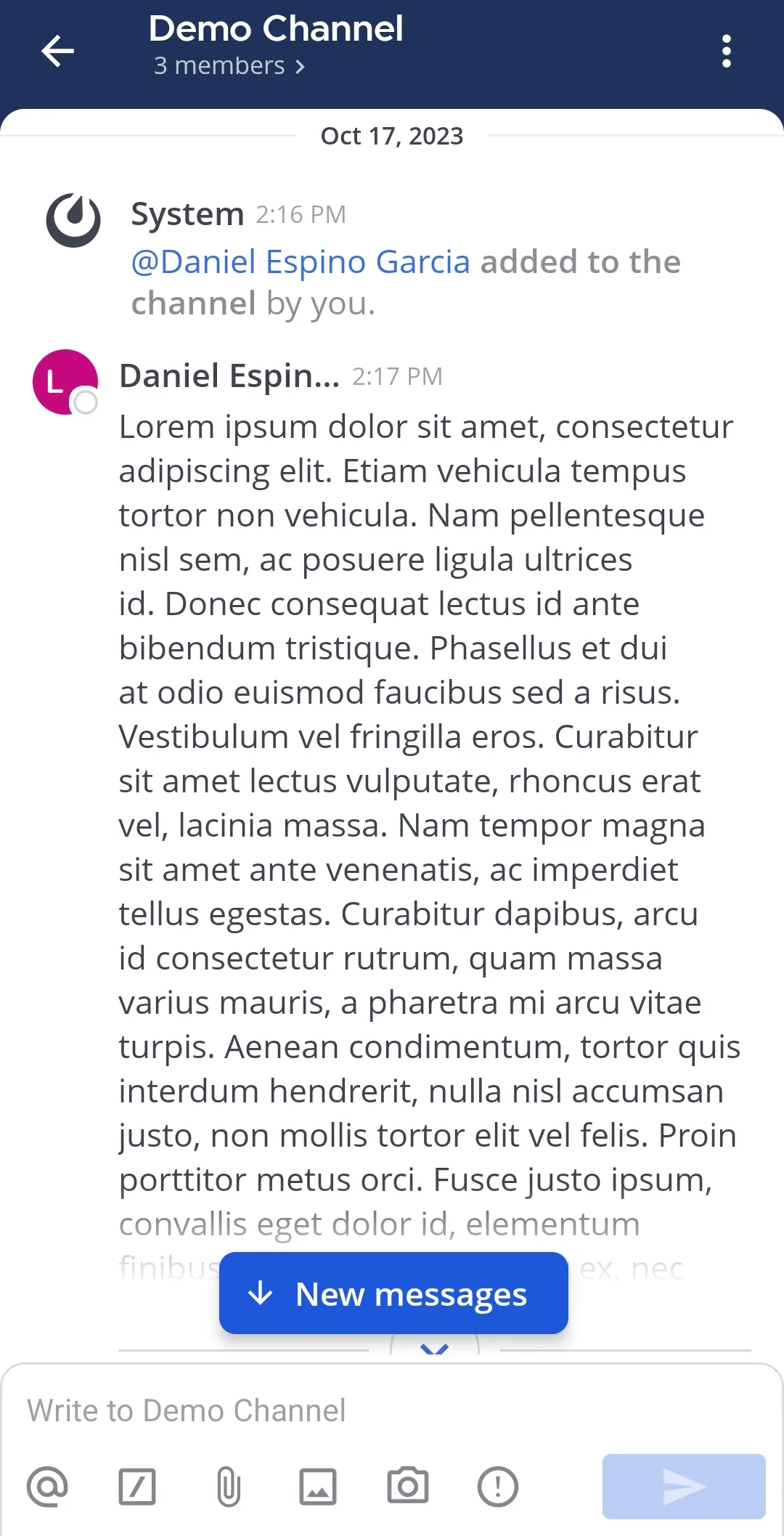
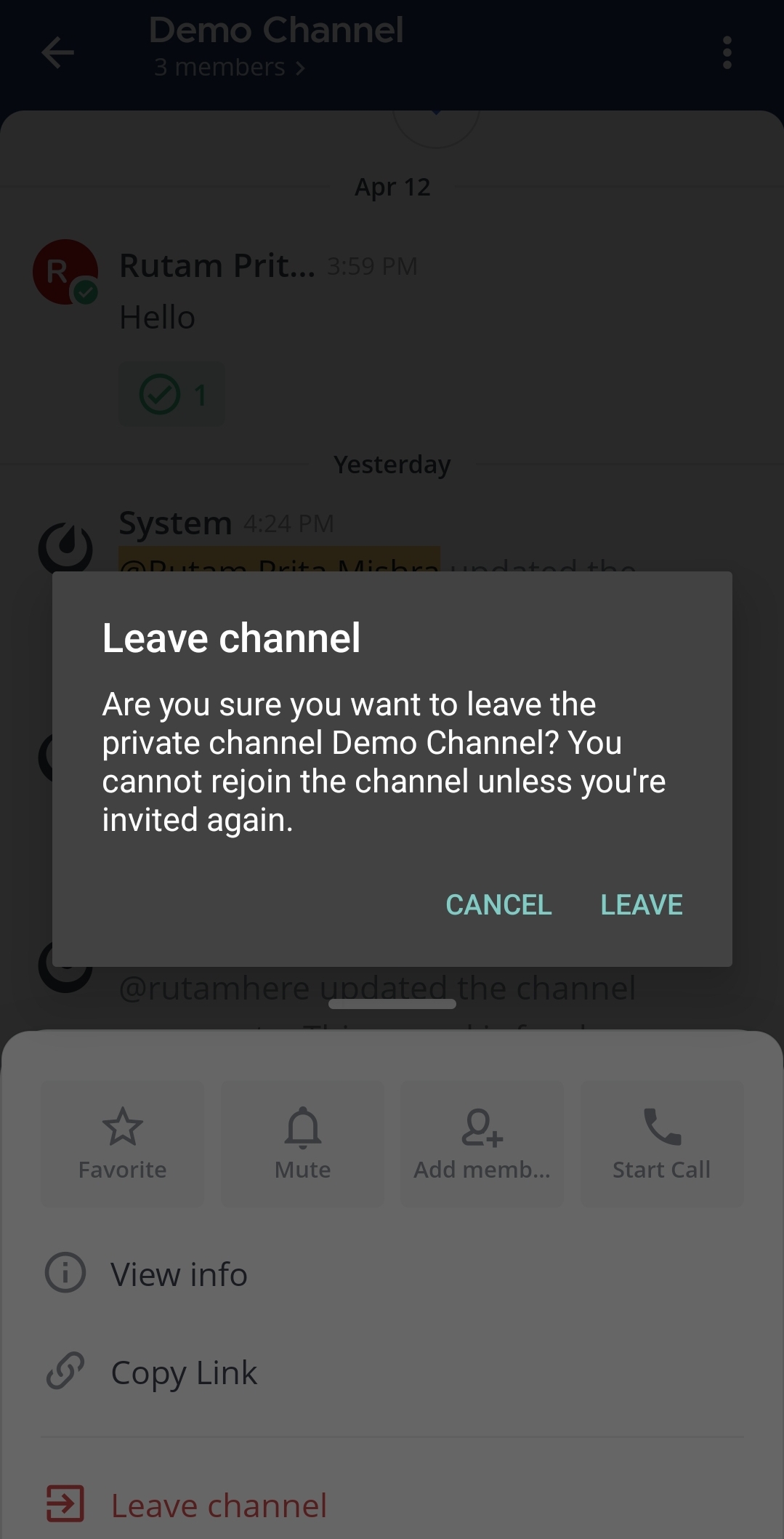
- Tap Leave channel.
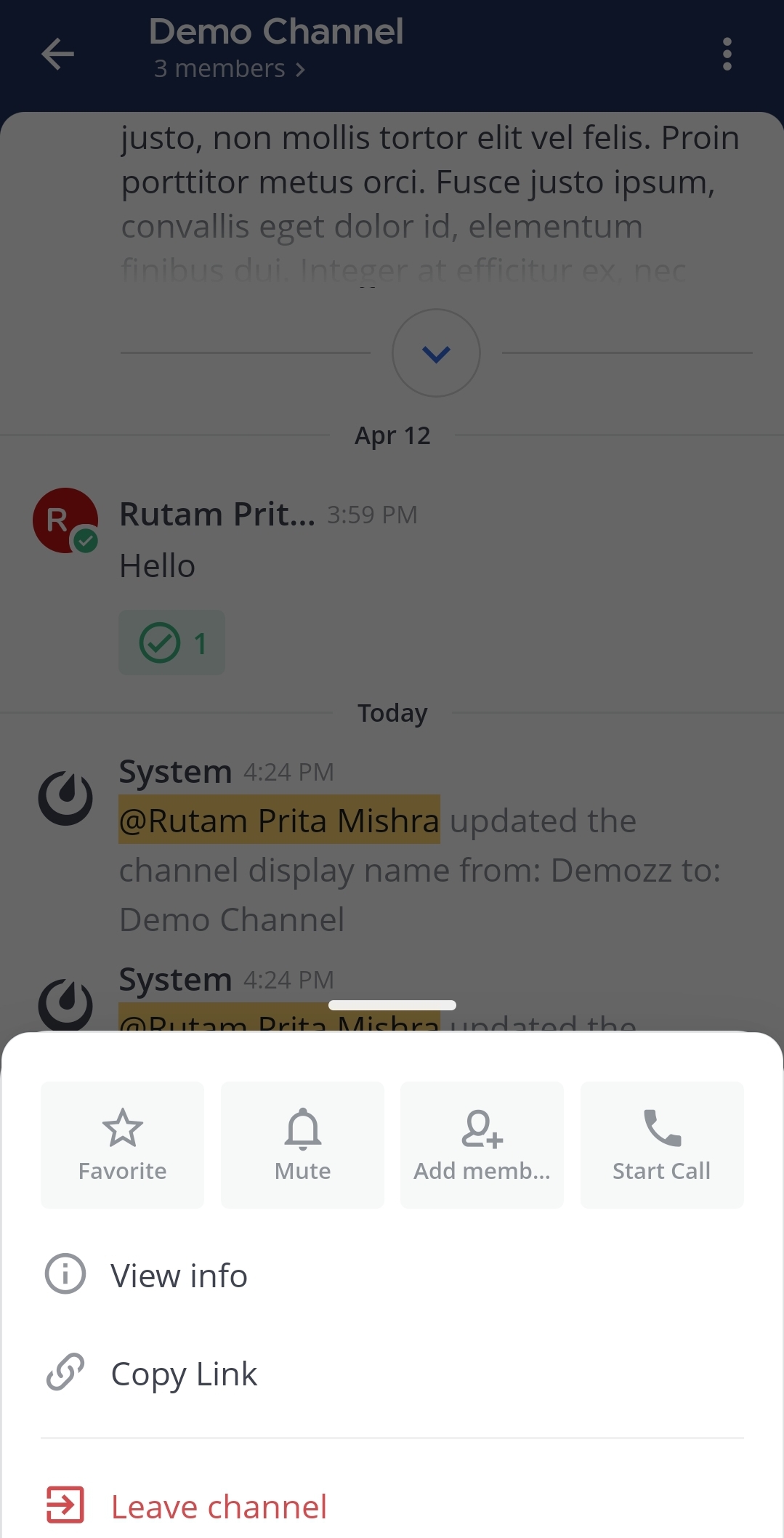
- Tap on Leave to confirm you choice.
Leave a public channel added by a membership policy
From Mattermost v11.8.0, when you leave a public channel you were added to by a membership policy, Mattermost asks you to confirm:
- Choosing Leave channel removes you from the channel.
- Choosing Mute instead keeps you in the channel and mutes its notifications.
If the channel is already muted, Mattermost shows Cancel and Leave channel instead of Mute instead.