Format messages
Use the messaging formatting toolbar
From Mattermost v7.0, you can format your messages in Mattermost using the message formatting toolbar without having to specify any Markdown syntax.
The message formatting toolbar offers the following formatting options:
| Formatting option | Icon |
|---|---|
| Bold, italicize, or strike out text |    |
| Add headings, links, or attachments |    |
| Format a numbered list, a bulleted list, quoted text, or text as code |     |
Add emojis or GIFs  | |
Set message priority  | |
Review how your message formatting will look when the message is sent by selecting the Show/Hide Preview  icon. Return to your draft message by selecting the icon again.
Use Markdown
You can also format your messages in Mattermost using Markdown to control text styling, links, headings, lists, code blocks, in-line code, in-line images, horizontal lines, block quotes, tables, and math formulas. Markdown makes it easy to format messages: type a message as you normally would, then use formatting syntax to render the message a specific way. For a guide to using Markdown in Mattermost, see this blog post.
Text style
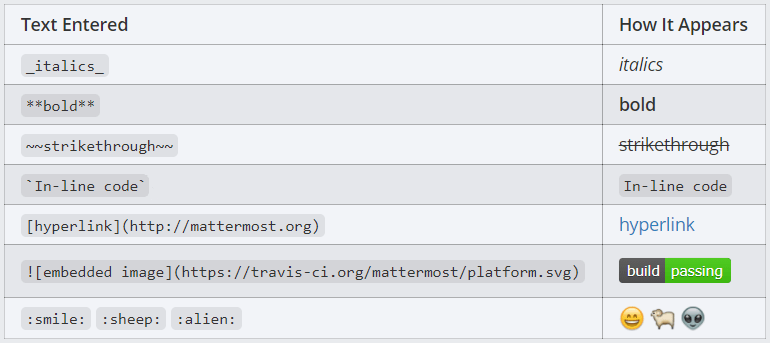
You can use either _ or * around a word or phrase to make it italic, or __ or ** around a word or phrase to make it bold.
*italics*(or_italics_) renders as italics**bold**renders as bold***bold-italic***renders as
~~strikethrough~~renders as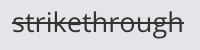
Links
Channel links
Create a link to a public channel in a message by typing ~ followed by the channel name (e.g. ~roadmap). Channel members see private channel names returned.
Labeled links
Create labeled links by putting the desired text in square brackets [ ] and the associated link in round brackets ( ).
[Check out Mattermost!](https://.mattermost.com/)
Renders as: Check out Mattermost!
Phone links
Create a link to a phone number by typing tel: followed by the number, such as tel:+15551234567. To show different text, put the text in square brackets [ ] and the tel: link in round brackets ( ).
[+1 555 123 4567](tel:+15551234567)
Phone links display with a phone icon. Click or tap a phone link to call the number using your device's default calling app.
Headings
Make a heading by typing # and a space before your title. For smaller headings, use more #'s.
## Large Heading
### Smaller Heading
#### Even Smaller Heading
Renders as:

Alternatively, you can underline the text using equal signs === or hyphens --- to create headings.
Large Heading
-------------
Renders as:

Lists
Create a list by using asterisks *, hyphens -, and/or plus signs + interchangeably as bullets. Indent bullet points by adding two spaces in front each one.
* item one
- item two
  + item two sub-point
Renders as:
- item one
- item two
- item two sub-point
Make an ordered list by using numbers instead:
1. Item one
1. Item two
1. item three
Renders as:
- Item one
- Item two
- Item three
You can also start a list at any number:
4. The first list number is 4.
1. The second list number is 5.
1. The third list number is 6.
Renders as:
- The first list number is 4.
- The second list number is 5.
- The third list number is 6.
Make a task list by including square brackets [ ]. Mark a task as complete by adding an x.
- [ ] Item one
- [ ] Item two
- [x] Completed item
Renders as:

Code blocks
Creating a fixed-width code block is recommended for pasting multi-line blocks of code or other text output because it's easier to read with fixed-width font alignment. Examples include block text snippets, ASCII tables, and log files. Rendered code blocks include a Copy option to copy the contents of the code block.
This can be accomplished by placing three backticks (```) on the line directly above and directly below your code:
```
this is my
code block
```
Or by indenting each line by four spaces:
    this is my
    code block
Syntax highlighting
To add syntax highlighting, type the language to be highlighted after the ``` at the beginning of the code block. Mattermost also offers four different code themes (GitHub, Solarized Dark, Solarized Light, and Monokai) that can be changed in Settings > Display > Theme > Custom Theme > Center Channel Styles.
Supported languages and their aliases include:
| Language | Aliases |
|---|---|
| ActionScript | actionscript, as, as3 |
| AppleScript | applescript |
| Bash | bash, sh |
| Clojure | clojure |
| CoffeeScript | coffescript, coffee, coffee-script |
| C/C++ | cpp, c++, c |
| C# | cs, c#, csharp |
| CSS | css |
| D | d, dlang |
| Dart | dart |
| Delphi | delphi |
| Diff | diff, patch, udiff |
| Django | django |
| Dockerfile | dockerfile, docker |
| Elixir | elixir, ex, exs |
| Erlang | erlang, erl |
| Fortran | fortran |
| F# | fsharp |
| G-Code | gcode |
| Go | go, golang |
| Groovy | groovy |
| Handlebars | handlebars, hbs, mustache |
| Haskell | haskell, hs |
| Haxe | haxe |
| Java | java |
| JavaScript | javascript, js |
| JSON | json |
| Julia | julia, jl |
| Kotlin | kotlin |
| LaTeX | latex, tex |
| Less | less |
| Lisp | lisp |
| Lua | lua |
| Makefile | makefile, make, mf, gnumake, bsdmake |
| Markdown | markdown, md, mkd |
| Matlab | matlab, m |
| Objective C | objectivec, objective_c, objc |
| OCaml | ocaml |
| Perl | perl, pl |
| Pascal | pascal, pas |
| PostgreSQL | pgsql, postgres, postgresql |
| PHP | php, php3, php4, php5 |
| PowerShell | powershell, posh |
| Puppet | puppet, pp |
| Python | python, py |
| R | r, s |
| Ruby | ruby, rb |
| Rust | rust, rs |
| Scala | scala |
| Scheme | scheme |
| SCSS | scss |
| Smalltalk | smalltalk, st, squeak |
| SQL | sql |
| Stylus | stylus, styl |
| Swift | swift |
| Text | text |
| TypeScript | typescript, ts, tsx |
| VB.Net | vbnet, vb, visualbasic |
| VBScript | vbscript |
| Verilog | verilog |
| VHDL | vhdl |
| HTML, XML | html, xml |
| YAML | yaml, yml |
Example:
``` go
package main
import "fmt"
func main() {
    fmt.Println("Hello, 世界")
}
```
Renders as:
GitHub Theme

Solarized Dark Theme

Solarized Light Theme

Monokai Theme

In-line code
Create in-line monospaced code text by surrounding it with backticks ``. Don't use single quotes '`.
`monospace`
Renders as: monospace.
In-line images
In-line images are images added within lines of text. You can control whether all in-line images over 100px in height are automatically collapsed or expanded in messages by setting a user preference, or by using the /collapse and /expand slash commands.
To add in-line images to text, use an exclamation mark ! followed by the alt text in square brackets [ ], then the image URL in round brackets ( ). You can add hover text after the link by placing the text in quotes " ".
Example:

If the height of the original image is more than 500 pixels, Mattermost sets the image height at 500 pixels and adjusts the width to maintain the original aspect ratio.
You can set the width and height of the displayed image after the URL of the image by using an equals sign = followed by values for both width and height ##x##. If you set only the width, Mattermost adjusts the height to maintain the original aspect ratio.
Examples:
.. |mattermost-icon-76x76| image:: ../images/icon-76x76.png
.. |mattermost-icon-50x76| image:: ../images/icon-50x76.png
In-line image with hover text

Renders as:

In-line image with link
[](https://github.com/mattermost/mattermost)
Renders as:
In-line image displayed with fixed width and height
Example: An in-line image that's 50 pixels wide and 76 pixels high.

Renders as:

In-line image displayed with fixed width
Example: An in-line image that's 50 pixels wide where the system adjusts the height to maintain the original aspect ratio.

Renders as:

Horizontal lines
Create a line by using three *, _, or -.
***
Renders as:
Block quotes
Create block quotes using >.
> block quotes renders as:

Tables
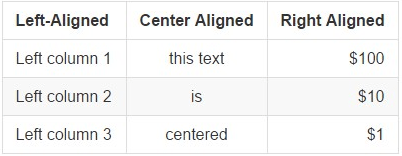
Create a table by placing a dashed line --- under the header row, then separating each column with using pipes |. The columns don’t need to line up exactly. Choose how to align table columns by including colons : within the header row.
| Left-Aligned  | Center Aligned  | Right Aligned |
| :------------ |:---------------:| -----:|
| Left column 1 | this text       |  $100 |
| Left column 2 | is              |   $10 |
| Left column 3 | centered        |    $1 |
Renders as:
Math Formulas
- Using Inline LaTeX
- Using LaTeX in Code Blocks
You can create formulas that display inline using LaTeX. Use the dollar sign ($) symbol at the beginning and end of each formula.
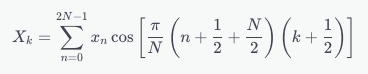
$X_k = \sum_{n=0}^{2N-1} x_n \cos \left[\frac{\pi}{N} \left(n+\frac{1}{2}+\frac{N}{2}\right) \left(k+\frac{1}{2}\right) \right]$
Renders as:

Create formulas as code blocks by using LaTeX in a latex code blocks.
```latex
X_k = \sum_{n=0}^{2N-1} x_n \cos \left[\frac{\pi}{N} \left(n+\frac{1}{2}+\frac{N}{2}\right) \left(k+\frac{1}{2}\right) \right]
```
Renders as: