Push notification service
Now that the app can receive push notifications, we need to make sure that the Mattermost Push Notification Service is able to send the notification to the device. This guide will focus on installing and configuring the push notification service.
Requirements
- A Linux or FreeBSD box server with at least 1GB of memory.
- A copy of the Mattermost Push Notification Service.
- Custom Android and/or iOS Mattermost mobile apps.
- An APNs Auth Key (
.p8) obtained by following the iOS Push Notifications guide. - A Firebase Cloud Messaging Server key obtained by following the Android Push Notifications guide.
Install and upgrade
For the sake of making this guide simple we located the files at /home/ubuntu/mattermost-push-proxy. We've also elected to run the Push Notification Service as the ubuntu account for simplicity. We recommend setting up and running the service under a mattermost-push-proxy user account with limited permissions.
-
Download the latest Mattermost Push Notification Service:
wget https://github.com/mattermost/mattermost-push-proxy/releases/download/vX.X.X/mattermost-push-proxy-linux-amd64.tar.gz
or
wget https://github.com/mattermost/mattermost-push-proxy/releases/download/vX.X.X/mattermost-push-proxy-freebsd-amd64.tar.gz
In this command, `vX.X.X` refers to the release version you want to download. See [Mattermost Push Notification Service releases](https://github.com/mattermost/mattermost-push-proxy/releases).
-
If you're upgrading a previous version of the Mattermost Push Notification Service make sure to back up your
mattermost-push-proxy.jsonfile before continuing. -
Unzip the downloaded Mattermost Push Notification Service using:
tar -xvzf mattermost-push-proxy-linux-amd64.tar.gz
or
tar -xvzf mattermost-push-proxy-freebsd-amd64.tar.gz -
Configure the Mattermost Push Notification service by editing the
mattermost-push-proxy.jsonfile at/home/ubuntu/mattermost-push-proxy/config. Follow the steps in the Android and iOS sections to replace the values in the config file. -
Create a systemd unit file to manage the Mattermost Push Notification Services with systemd and log all output of the service to
/var/log/syslogby running this command as root.echo "[Unit]Description=Mattermost Push Notification Service[Service]Type=oneshotExecStart=/bin/sh -c '/home/ubuntu/mattermost-push-proxy/bin/mattermost-push-proxy | logger'WorkingDirectory=/home/ubuntu/mattermost-push-proxy[Install]WantedBy=multi-user.target" >> /etc/systemd/system/mattermost-push-proxy.serviceTo route the traffic through a separate proxy server, add
Environment="HTTP_PROXY=<http://server>"under the[Service]section of the file. If you have an HTTPS server, then useHTTPS_PROXY. If you set both thenHTTPS_PROXYwill take higher priority thanHTTP_PROXY. -
Start the service with
sudo systemctl start mattermost-push-proxyor restart withsudo systemctl restart mattermost-push-proxy. Usesudo systemctl enable mattermost-push-proxyto have systemd start the service on boot.
Set up Mattermost push notification service to send Android push notifications
-
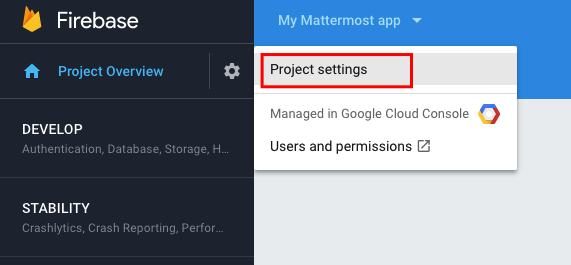
Go to the Firebase Console and select the project you've created. Once in the dashboard, go to the project settings and select Service Accounts.

-
Click on Generate new private key and store the downloaded file.

-
Open the mattermost-push-proxy.json file in the
mattermost-push-proxy/configdirectory and look for the "ServiceFileLocation" entry under "AndroidPushSettings". Paste the location of the file as its value."ServiceFileLocation": "/path/to/downloaded_file"
Set up Mattermost push notification service to send iOS push notifications
Instead of certificates, we now recommend using an APNs Auth Key (.p8) to authenticate with Apple Push Notification service (APNs).
If you haven’t generated your key yet, see Generate an APNs Auth Key.
-
Open the mattermost-push-proxy.json file under the
mattermost-push-proxy/configdirectory and configure it with your key details:"ApplePushSettings":[{"Type":"apple_rn","ApplePushUseDevelopment":true,"ApplePushTopic":"your.bundle.id","AppleAuthKeyFile":"./config/beta/YourAuthKeyFile.p8","AppleAuthKeyID":"YourAuthKeyID","AppleTeamID":"YourAppleTeamID"}], -
ApplePushTopic: Your app’s bundle ID (APNs topic).
-
AppleAuthKeyFile: Path to the
.p8file. -
AppleAuthKeyID: Key ID from Apple Developer portal.
-
AppleTeamID: Team ID from Apple Developer Membership.
-
ApplePushUseDevelopment:
truefor sandbox APNs,falsefor production.
Configure the Mattermost Server to use the Mattermost push notification service
-
In your Mattermost instance, enable mobile push notifications.
-
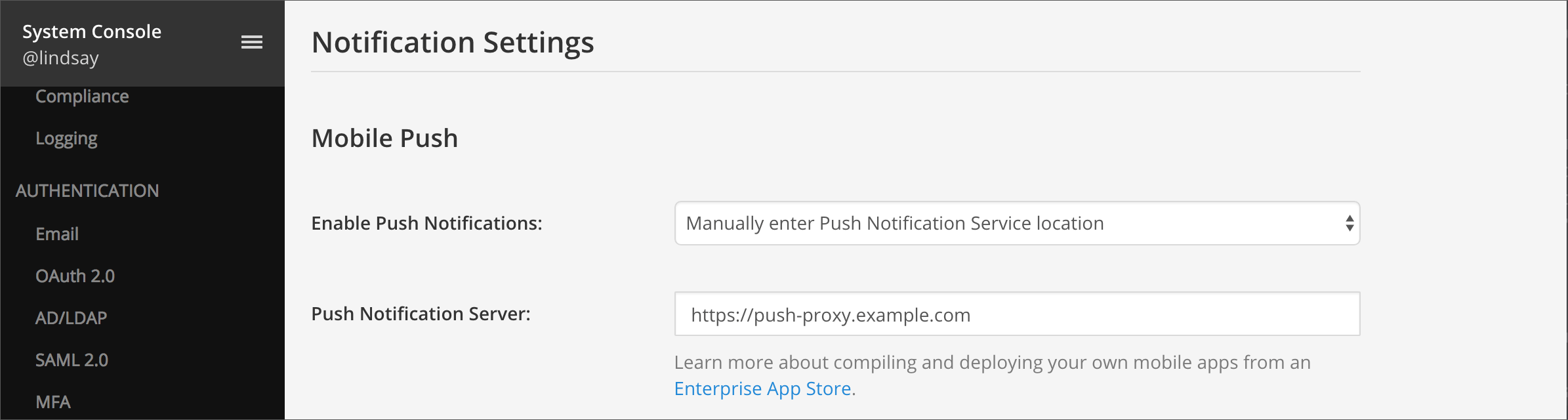
Go to System Console > Notifications > Mobile Push.
-
Under Send Push Notifications, select Manually enter Push Notification Service location.
-
Enter the location of your Mattermost Push Notification Service in the Push Notification Server field.
-
-
(Optional) Customize mobile push notification contents.
-
Go to System Console > Notifications > Mobile Push.
-
Select an option for Push Notification Contents to specify what type of information to include in the push notifications.
-
Most deployments choose to include the full message snippet in push notifications unless they have policies against it to protect confidential information.

-
-
Finally, start your Mattermost Push Notification Service, and your app should start receiving push notifications.
Test the Mattermost push notification service
-
Verify that the server is functioning normally and test the push notification using curl:
curl http://127.0.0.1:8066/api/v1/send_push -X POST -H "Content-Type: application/json" -d '{"type": "message", "message": "test", "badge": 1, "platform": "PLATFORM", "server_id": "MATTERMOST_DIAG_ID", "device_id": "DEVICE_ID", "channel_id": "CHANNEL_ID"}'- Replace
MATTERMOST_DIAG_IDwith the value found by running the SQL query:SELECT * FROM Systems WHERE Name = 'DiagnosticId'; - Replace
DEVICE_IDwith your device ID, which can be found using (whereyour_email@example.comis the email address of the user you are logged in as):SELECTEmail, DeviceIdFROMSessions,UsersWHERESessions.UserId = Users.IdAND DeviceId != ''AND Email = 'your_email@example.com'; - Replace
CHANNEL_IDwith the Town Square channel ID, which can be found using:SELECT Id FROM Channels WHERE DisplayName = 'Town Square';
- Replace
- You can also verify push notifications are working by opening your Mattermost site and mentioning a user who has push notifications enabled in Settings > Notifications > Mobile Push Notifications.
To view the log file, use:
$ sudo tail -n 1000 /var/log/upstart/mattermost-push-proxy.log
Troubleshooting
DeviceTokenNotForTopic
For iOS / Apple Push Notifications: If the logs are reflecting DeviceTokenNotForTopic (error 400) this may be because you're using an older / previous Device ID. Re-run the queries you need to get device IDs and test.
This could also be because you generated a key for the wrong bundle ID. The bundle ID used in mattermost-push-proxy.json should be the same one as the app, and should be for the same app it was generated for.
Reporting issues
For issues with repro steps, please report to https://github.com/mattermost/mattermost/issues