Developer setup for Mattermost mobile apps
The following instructions apply to the mobile apps for iOS and Android built in React Native. Download the iOS version here and the Android version here. Source code can be found at the GitHub Mattermost Mobile app repository.
If you run into any issues getting your environment set up, check the Troubleshooting section of the product docs for common solutions.
Environment setup
The following instructions apply to both iOS and Android mobile apps. On macOS, we recommend using Homebrew as a package manager.
Install NodeJS and NPM
We recommend using NodeJS v22 and npm v10. Many of our team use nvm to manage npm and NodeJS versions.
- macOS
- Linux
To install NVM, follow these instructions.
After installing, follow the post-install steps shown by the installer to add the necessary lines to your shell profile (for example ~/.zshrc or ~/.bash_profile). Then open a new terminal and run:
nvm install --lts
There are three available options for installing NodeJS on Linux:
- Using NVM by following the instructions here.
- Install using your distribution's package manager.
- Download and install the package from the NodeJS website.
Install Watchman
Watchman is a file watching program. When a file changes, Watchman triggers an action, such as re-running a build command if a source file has changed.
The minimum required version of Watchman is 4.9.0.
- macOS
- Linux
To install Watchman using Homebrew, open a terminal and execute:
brew install watchman
Download the latest package from here.
Install react-native-cli tools
npm -g install react-native-cli
Install Git
- macOS
- Linux
To install Git using Homebrew, open a terminal and execute:
brew install git
Some distributions come with Git preinstalled but you'll most likely have to install it yourself. For most distributions the package is simply called git.
Additional setup for iOS (macOS)
Install XCode
Install Xcode to build and run the app on iOS. The minimum required version is 11.0.
Install Ruby
A version of Ruby is automatically installed on macOS, but Mattermost React Native app development requires the Ruby version pinned in the repository's .ruby-version file (currently 3.2.11). You can check the current version of Ruby by running the following command.
ruby --version
If it isn't, we recommend using Ruby Version Manager or your preferred package manager to install the required version. The steps below are for using RVM.
- Install the GPG keys for RVM using the command found here.
- If you don't have the
gpgcommand, you can install it using Homebrew by running.brew install gnupg
- If you don't have the
- Install the stable version of RVM using the following command.
\curl -sSL https://get.rvm.io | bash -s stable --ruby
- To load RVM, either open a new terminal or run the following command.
source ~/.rvm/scripts/rvm
- Install the required version of Ruby
rvm install 3.2.11
- (Optional) If you don't need to use a different version of Ruby for anything else, you'll want to change the default version of Ruby. Without this, you'll need to run
rvm use 3.2.11any time you want to work on the mobile app.rvm alias create default 3.2.11
On recent Apple Silicon Macs, installing Ruby through RVM can fail with repeated OpenSSL errors. If you hit those, rv (a Ruby version manager) is a reliable alternative:
brew install rv
rv ruby install 3.2.11
To have rv switch Ruby versions automatically, install its shell integration once. For example, for zsh:
echo 'eval "$(rv shell init zsh)"' >> ~/.zshrc
Run rv shell <your-shell> (bash, fish, etc.) to see the equivalent for your shell, then open a new terminal. After that, rv reads the repository's .ruby-version file and selects the pinned version automatically when you cd into the project.
Additional setup for Android
Download and install Android Studio or Android SDK CLI tools
Download and install the Android Studio app or the Android SDK command line tools
Environment variables
Make sure you have the following environment variables configured for your platform:
- All platforms
- macOS
- Linux
- Set
ANDROID_HOMEto where Android SDK is located (likely/Users/<username>/Library/Android/sdkor/home/<username>/Android/Sdk) - Make sure your
PATHincludesANDROID_HOME/toolsandANDROID_HOME/platform-tools
On Mac, this usually requires adding the following lines to your ~/.bash_profile file:
export ANDROID_HOME=$HOME/Library/Android/sdk
export PATH=$ANDROID_HOME/emulator:$ANDROID_HOME/platform-tools:$ANDROID_HOME/tools:$PATH
Then reload your bash configuration:
source ~/.bash_profile
On Linux the home folder is located under /home/<username> which results in a slightly different path:
export ANDROID_HOME=/home/<username>/Android/Sdk
export PATH=$ANDROID_HOME/platform-tools:$PATH
export PATH=$ANDROID_HOME/tools:$PATH
Then reload your configuration
source ~/.bash_profile
Install the SDKs and SDK tools
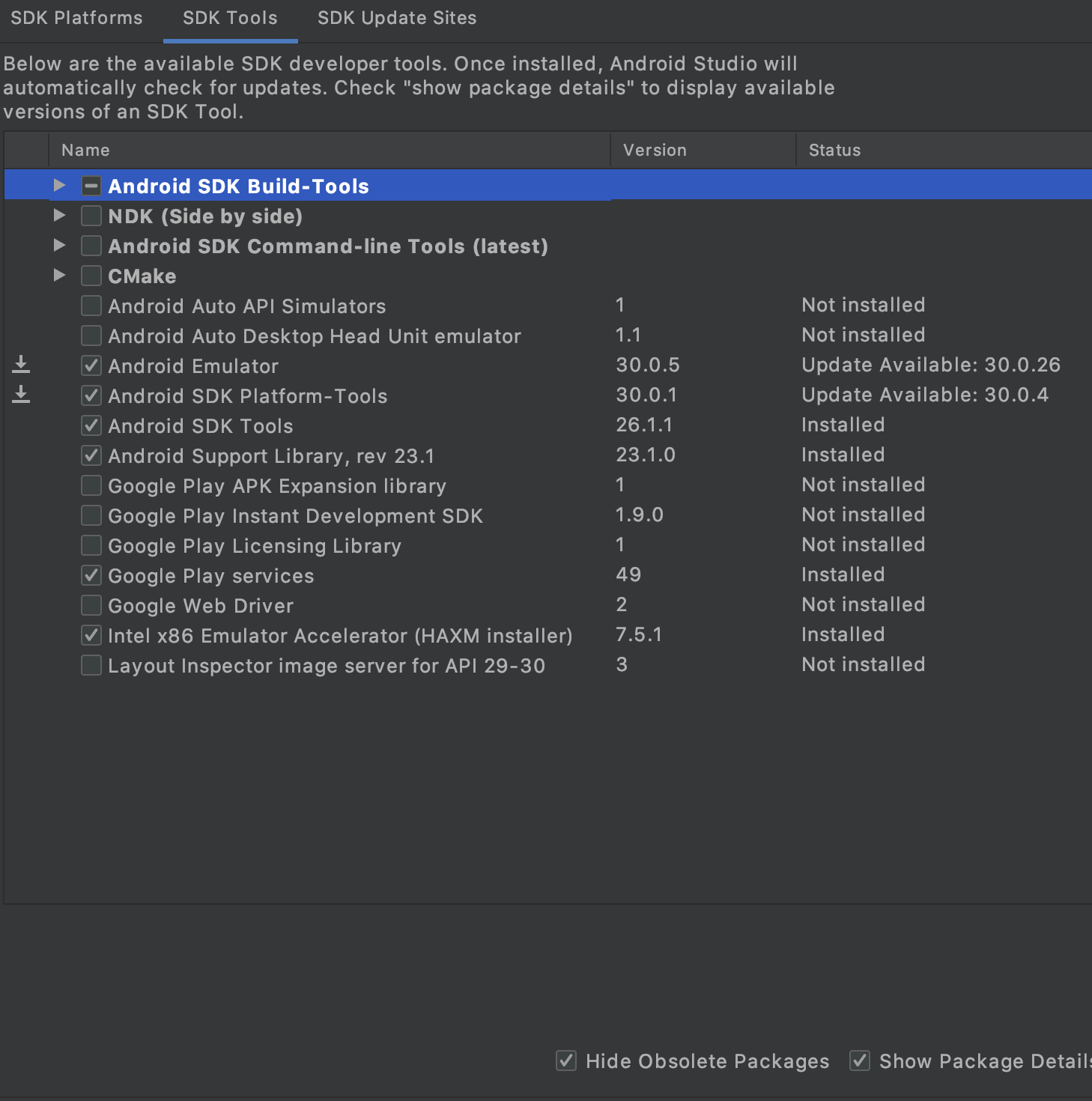
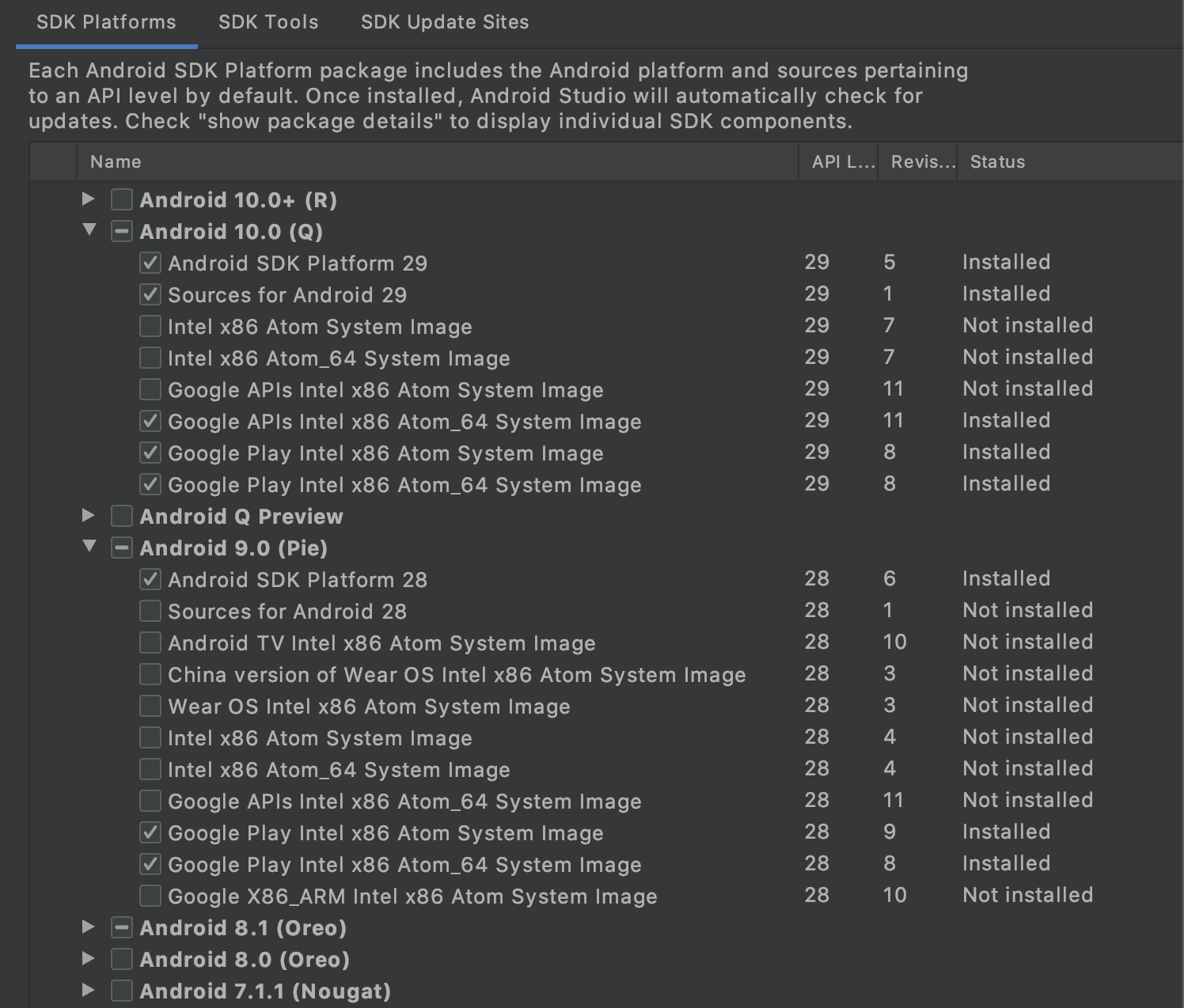
In the SDK Manager using Android Studio or the Android SDK command line tool, ensure the following are installed:
-
SDK Tools (you may have to select Show Package Details to expand packages):
- Android SDK Build-Tools 31
- Android Emulator
- Android SDK Platform-Tools
- Android SDK Tools
- Google Play services
- Intel x86 Emulator Accelerator (HAXM installer)
- Support Repository
- Android Support Repository
- Google Repository
-
SDK Platforms (you may have to select Show Package Details to expand packages)
- Android 12 or above
- Google APIs
- SDK Platform
- Android SDK Platform 31 or above
- Intel or Google Play Intel x86 Atom_64 System Image
- Any other API version that you want to test
- Android 12 or above
Obtain the source code
In order to develop and build the Mattermost mobile apps, you'll need to get a copy of the source code. Forking the mattermost-mobile repository will also make it easy to contribute your work back to the project in the future.
-
Fork the mattermost-mobile repository on GitHub.
-
Clone your fork locally:
a. Open a terminal
b. Change to a directory you want to hold your local copy
c. Run
git clone https://github.com/<username>/mattermost-mobile.gitif you want to use HTTPS, orgit clone git@github.com:<username>/mattermost-mobile.gitif you want to use SSH
-
Change the directory to
mattermost-mobile.cd mattermost-mobile -
Install the project dependencies with
npm install