Deploy the desktop app on Windows
The desktop app is available for Windows in two ways:
- Microsoft Store: Recommended for most users. It updates itself.
- MSI installer: A self-contained installer for admins and power users who want to control which version is installed and when. It installs per-machine to
C:\Program Files\Mattermostand requires administrator privileges.
The rest of this page covers the MSI.
Install the MSI
- Download the MSI that matches your devices' processor architecture from the GitHub releases page, either
win-x64orwin-arm64. To check a device's architecture, go to Windows Settings > System > About, and look at System type. In the commands on this page, replace<version>and<arch>with the version and architecture in the downloaded MSI filename. - If Mattermost is already installed, close the app, and make sure it isn't also running in the system tray.
- Install the MSI:
-
Interactively: Double-click the MSI and accept the administrator prompt. If Mattermost is still running, the installer asks you to close it. After closing it, select Retry rather than Ignore.
-
Silently: Run the following from an elevated prompt. A silent install fails if Mattermost is running.
msiexec /i mattermost-desktop-<version>-<arch>.msi /qn
-
- Optionally, configure policies.
To install to a different folder, add the APPLICATIONFOLDER property:
msiexec /i mattermost-desktop-<version>-<arch>.msi /qn APPLICATIONFOLDER="<install directory>"
If an install fails, running it again with logging can help find the cause. Include the log if you contact support:
msiexec /i mattermost-desktop-<version>-<arch>.msi /qn /l*v "%TEMP%\mattermost-install.log"
Configure policies
You can set the desktop app policies with Group Policy or Intune.
Group Policy
-
Download the source code ZIP for your desktop app release from the GitHub releases page. The policy templates are in its
resources\windows\gpofolder. -
Copy
mattermost.admxtoC:\Windows\PolicyDefinitions, anden-US\mattermost.admltoC:\Windows\PolicyDefinitions\en-US. For domain-wide policies, copy them to the same folders in your central store,\\<domain>\SYSVOL\<domain>\Policies\PolicyDefinitions, instead. -
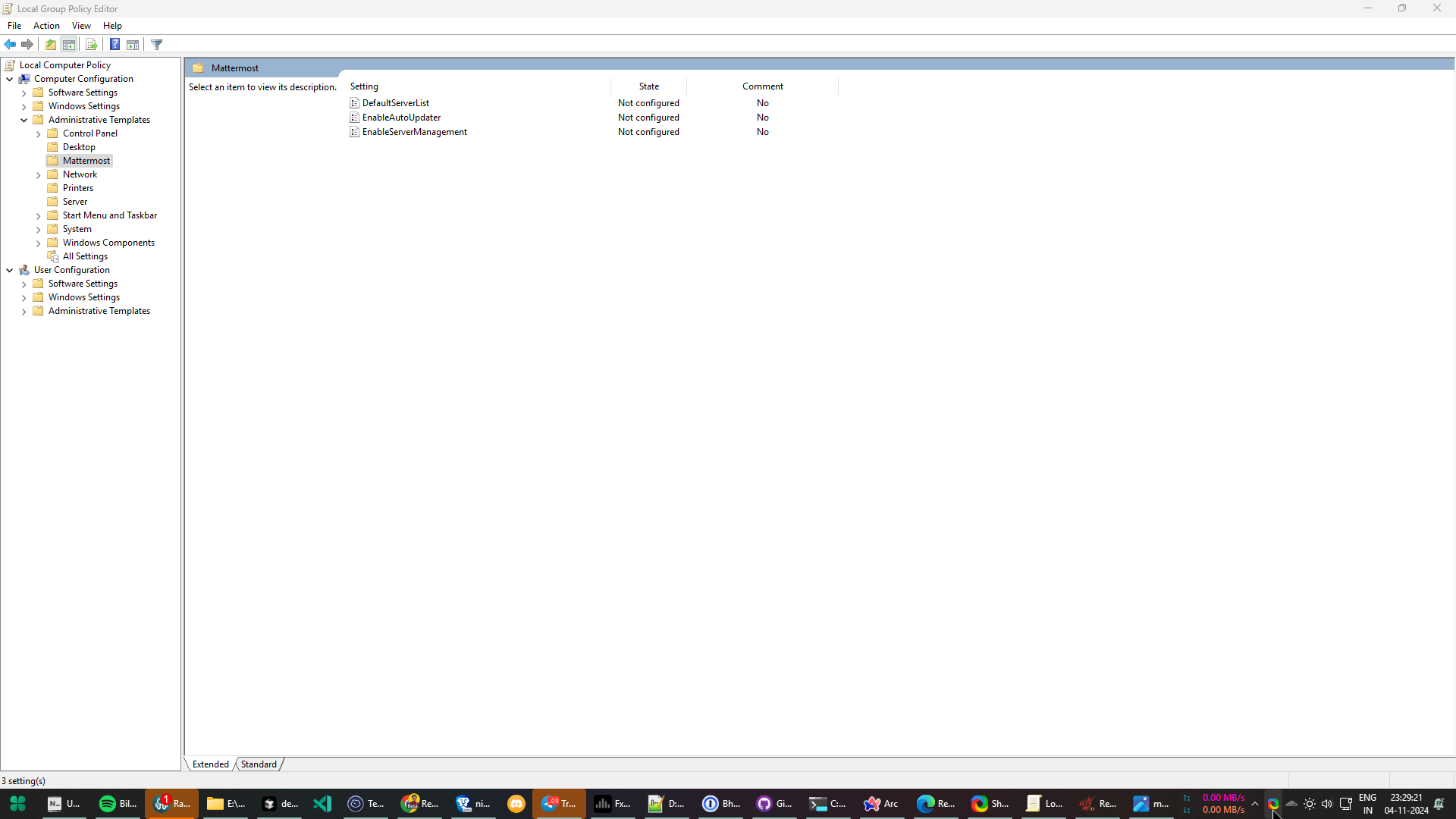
In the Group Policy editor, go to Computer Configuration > Administrative Templates > Mattermost.
-
Open a policy and set it:
- For
EnableAutoUpdaterandEnableServerManagement, select Enabled to turn the feature on, or Disabled to turn it off. - For
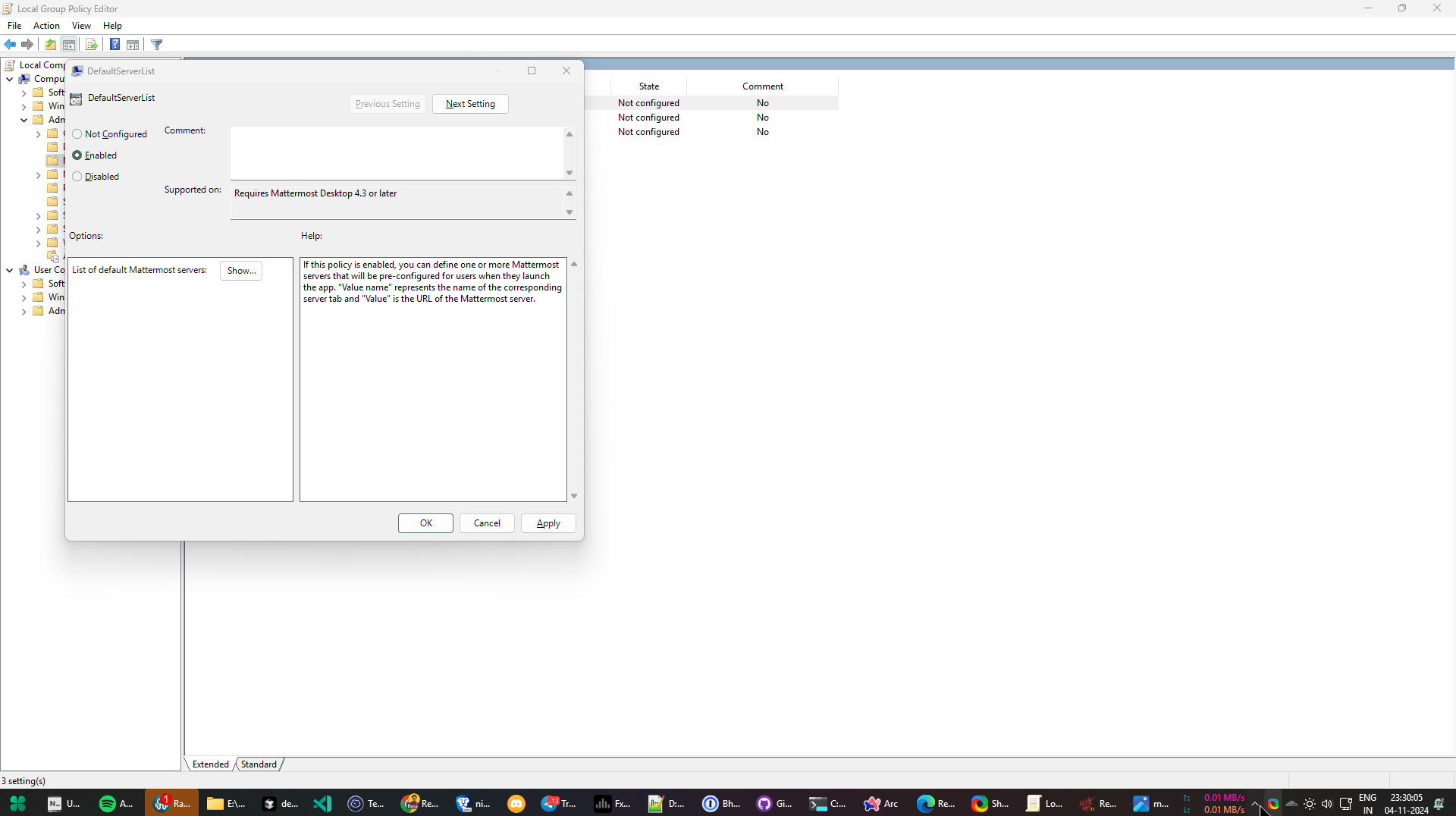
DefaultServerList, select Enabled, then select Show… and add each server with a display name as the Value name and the server URL as the Value.
For
TrustedEmbeddedMediaOrigins, select Enabled, then use a unique Value name, and a JSON object as the Value, for example{"serverOrigin":"https://chat.example.com","embeddedOrigin":"https://meet.example.com"}. - For
-
Select OK, then restart Mattermost on a client device. To confirm the policy reached the device, check
HKEY_LOCAL_MACHINE\SOFTWARE\Policies\Mattermostin the Registry Editor.
Intune
- Get
mattermost.admxanden-US\mattermost.admlas described in Windows Group Policy. - In the Intune admin center, go to Devices > Configuration > Import ADMX, and import both files.
- Go to Devices > Configuration > Create > New policy. Set Platform to Windows 10 and later, and Profile type to Templates > Imported administrative templates.
- Configure the Mattermost policies as described in Windows Group Policy, then assign the profile to your device groups.
Deploy with SCCM or Intune
The MSI works with Microsoft Configuration Manager (SCCM), Intune, and similar tools as a standard per-machine package deployed in the system (device) context. x64 and ARM64 devices each need their own package. The following points are specific to the Mattermost MSI and are worth knowing before you build your deployment.
A silent install fails if Mattermost is running. The app often keeps running in the system tray after its window is closed. SCCM can close it for you: add Mattermost.exe on the Install Behavior tab of the deployment type, then select Automatically close any running executables you specified on the install behavior tab in the deployment settings. In Intune, package the MSI as a Win32 app with an install command that closes it first, for example:
cmd /c taskkill /im Mattermost.exe /f & msiexec /i mattermost-desktop-<version>-<arch>.msi /qn
Force-closing Mattermost ends any call the user is in, and on a shared device it closes Mattermost for every signed-in user.
Older per-user installs aren't visible to the system context. The MSI installed per-user by default from v5.9 to v6.0.4. A deployment running as SYSTEM can't upgrade, remove, or detect those installs, so users end up with two copies. Remove them with a step that runs as the user before deploying the per-machine MSI. See Why are two versions installed after upgrading?.
EXE installs aren't cleaned up under the system context. The MSI only removes an EXE install found in the installing account's profile, so under SYSTEM, users' EXE installs stay in place. See How do I move from the EXE installer to the MSI?.
The mattermost:// link handler is registered at first launch, not by the installer. SSO sign-in returns to the app through that link, so it doesn't work until the user has opened the app once.
Rolling back a version. If you need to roll back a release, the MSI lets you install an older version over a newer one. Downgrading isn't officially supported, though, and users may run into issues. See Can I downgrade to an older version?. For the same reason, a detection rule based on an older release's product code can reinstall that release over a newer one, so detect by the file version of %ProgramFiles%\Mattermost\Mattermost.exe instead.
Quote custom install paths. If you set APPLICATIONFOLDER to a path with spaces, wrap it in straight double quotes.
Frequently asked questions
Do I need to uninstall the old version before upgrading?
No. Installing a newer MSI removes the previous version. Make sure Mattermost is closed before upgrading.
Can I downgrade to an older version?
Downgrading the desktop app isn't supported. An older version may not be able to read configuration written by a newer version, which can cause user settings to be overwritten and data to be lost.
Why are two versions installed after upgrading?
Before v6.1.0, the MSI could install per-user, in C:\Users\<username>\AppData\Local\.... From v6.1.0, it installs per-machine, and it can't upgrade a per-user install from v5.9 to v6.0.4, so both versions stay installed. To avoid this, uninstall every Mattermost entry from Windows Settings > Apps before installing the new MSI.
Why does the taskbar shortcut show the wrong icon after upgrading?
This can happen once when upgrading from a version earlier than v6.1.0. To fix it, the user can unpin the shortcut, launch Mattermost from the Start menu, then right-click the Mattermost icon in the taskbar and select Pin to taskbar.
How do I move from the EXE installer to the MSI?
The EXE installer no longer receives updates. The MSI removes an EXE install it finds in the installing account's %LOCALAPPDATA%\Programs\mattermost-desktop folder. When the MSI is installed as SYSTEM, users' EXE installs can be removed in a separate user-context step:
"%LOCALAPPDATA%\Programs\mattermost-desktop\Uninstall Mattermost.exe" /currentuser /S
User settings and sign-ins in %APPDATA%\Mattermost are kept.
Does uninstalling remove users' data?
No. To remove it as well, you can delete the app data folder.
Why does the app take 20 to 30 seconds to start?
Windows is trying to auto-detect a proxy. If you don't use an auto-detected proxy, you can turn off Automatically detect settings in Windows Settings > Network & internet > Proxy.