Workspace organization
There's no single correct way to organize a Mattermost workspace. The right structure depends on the size of your organization, your security requirements, and how your people work together. This guide offers recommended starting points and the trade-offs behind them.
Workspace organization comes down to 3 decisions:
- How many teams you create, and what each team represents.
- How channels are named and grouped within those teams.
- Who is allowed to create and manage teams and channels.
These decisions depend on each other. A team structure that matches how people actually work makes channel organization easier, and your permission model is what enforces the security boundaries that structure is meant to create.
Choose a team structure
Teams form the top level of organization in Mattermost. They define who collaborates together and what information they can access, which is how you maintain data sovereignty, compliance, and operational clarity across the deployment.
Each team is an independent workspace with its own members, channels, permissions, and integrations. That separation creates clear boundaries between groups that rarely collaborate, or that operate under different levels of data sensitivity or access control. Think of a team as a secure collaboration enclave: a contained environment where people can freely share information relevant to their work.
The most useful question isn't how to organize your teams, it's how many you actually need. The answer is usually fewer than expected. Use teams to separate populations that shouldn't share data or that don't work together often.
| Operational boundary | Recommended structure | Example teams |
|---|---|---|
| None | A single team. Channel types and access controls manage access to information within it, so one team doesn't mean everyone sees everything. | Acme Company |
| Security boundaries | One team per boundary. Separation covers more than channels: it also limits which people and integrations each group can see, and lets you give each population the permission set your compliance policies require. | Field Ops, R&D, Regulatory Compliance |
| Business unit segmentation | One team per business unit, subsidiary, or region, with an optional organization-wide team for announcements. Gives each unit autonomy and its own compliance posture within one deployment. | Americas, EMEA, APAC |
| External access control | A separate team for external collaboration, isolating partners and contractors from internal systems. Use connected workspaces instead when your partners also run Mattermost. | Core Platform, Integration Partners, Customer Deployments |
Single team
Best for organizations with fewer than about 2,000 users under a single security boundary, with no need to isolate groups from one another. Everyone shares one workspace. Channels, categories, and naming conventions carry all the structure. This model is the easiest to administer and gives people the broadest visibility across the organization.
A single team still gives you control over who sees what. Private channels limit membership, and access control policies can gate channels on user attributes without splitting the workspace into separate teams.
Use a single team when:
- Your organization has a unified directory (one IdP, one LDAP/SAML source).
- All users operate at the same classification level or sensitivity tier.
- You want maximum visibility and searchability across the organization.
- Your user count stays manageable within one channel list.
Avoid a single team when:
- You need to prevent certain groups from even seeing that other channels or users exist.
- You have subsidiaries, partner organizations, or external users who shouldn't mix with your internal workspace.
- Notification volume from the full organization would overwhelm individual users.
Multiple teams by security boundary
Best for organizations where different populations must be separated by classification level, role, or data sensitivity — not just for organizational clarity, but as a security control. Populations in separate teams have no visibility into each other's channels, including public ones. A red team and a blue team, for example, stay fully hidden from each other: planned attack methods on one side, detection rules and alert thresholds on the other.
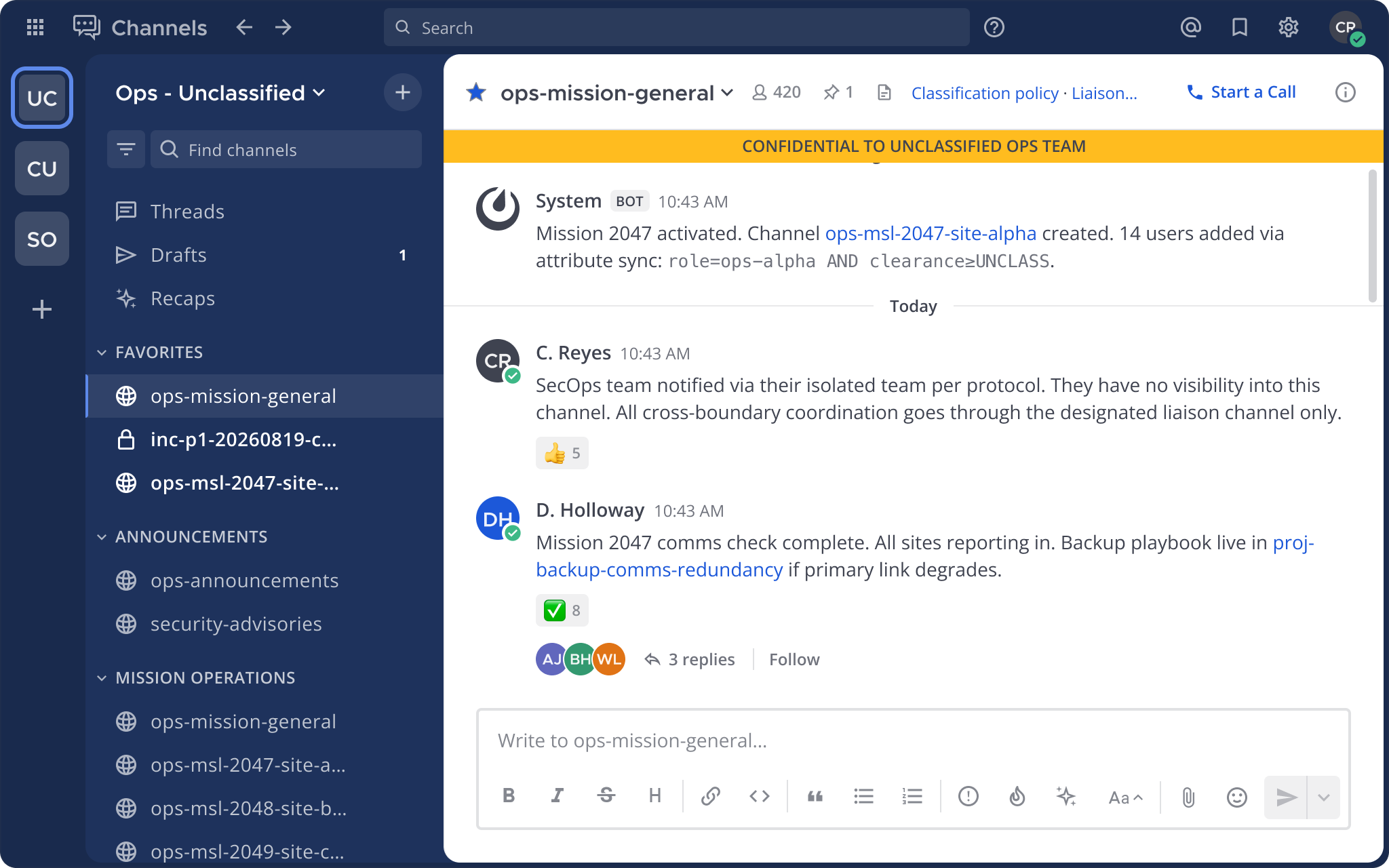
The boundary covers more than channels. Integrations such as webhooks and slash commands are created within a team and stay scoped to it, and a team override scheme lets each population run under the permission set its compliance obligations call for.
To keep people from discovering users outside their own team, do both of the following:
- In System Console > Site Configuration > Users and Teams, set Enable users to open direct message channels with to Any member of the team. That restricts the Direct Messages menu and Find channel to people on the team currently being viewed.
- Set each security-boundary team to Private Team, so users who aren't already members can't find or join it.
Use multiple teams by security boundary when:
- Your organization operates at multiple classification levels (for example, FOUO, CUI, or classified).
- Two populations must stay mutually invisible, such as separately compartmented program offices.
- A small group must stay sealed off from the rest of the organization for regulatory reasons, such as a deal team running acquisition due diligence before an announcement.
- Your compliance posture requires demonstrable access separation at the collaboration layer.
Pair this pattern with attribute-based access control to automate team and channel membership from identity-provider attributes.
Multiple teams by business unit
Best for large organizations with distinct business units, group companies, or subsidiaries that operate independently but share a single Mattermost server. Each major unit gets its own team. An organization-wide team with announcement channels is optional. Within each team, people organize by project and function using channels and categories. Common examples include a financial services firm with a team per subsidiary, or a conglomerate whose group companies share infrastructure but operate independently.
Use multiple teams by business unit when:
- Different parts of your organization need meaningfully different channel structures and policies.
- You want to limit sidebar noise for people who only need visibility into their own unit.
- Performance is a concern — multiple teams distribute database query load.
Watch out for:
- Team sprawl. Creating a team for every project or sub-group, rather than using channels, recreates the sprawl problem at the team level. Set a policy for what warrants a new team versus a new channel.
- Cross-team collaboration gaps. Users in separate teams can't share a channel. For cross-unit projects, use a shared team that both populations can join.
Multiple teams for external access
Best for organizations that regularly collaborate with contractors, partners, customers, or coalition partners who shouldn't have full access to the internal workspace. One approach is a dedicated team (or set of teams) for external collaboration. Internal users can belong to both internal and external-facing teams.
Two alternatives avoid standing up a separate team:
- Guest accounts restrict an external user to the specific channels and teams they're invited to. They can't browse the channel directory or join channels on their own. Guest accounts fit when your external collaborators don't run Mattermost themselves and the scope of collaboration is limited.
- Connected workspaces let users on separate Mattermost servers share channels without either organization exposing its internal workspace. This is the preferred model when your partners also run Mattermost, or when your compliance posture requires that external users are never provisioned on your server.
Establish a channel taxonomy
Within each team, channels carry the organizational structure. A consistent taxonomy — a defined set of channel types, naming conventions, and sidebar categories — is what lets people navigate a large workspace without training.
Channel naming conventions
Consistent channel names are what make the taxonomy navigable at scale. For the product rules that constrain any name, such as length limits and allowed characters, see create channels.
Good naming carries a team to several thousand channels without significant confusion. Every organization eventually hits a limit where an additional team is the better answer, but clear, short names postpone that point considerably.
Start broad, then narrow
It's natural to begin with broadly defined channels and let them divide as discussion grows. A single "Marketing" channel might become "Marketing-Website", "Marketing-Social-Media", and "Marketing-General". As the organization grows, disciplines split across business units, products, and geographies, producing names like "US-Marketing" and "UK-Marketing".
Hierarchies combine into formats like [SUB-TEAM]-[TOPIC]-[SUB-TOPIC], giving names such as US-Mrkt-Website and UK-Mrkt-Social-Media.
Shorten words, particularly category names, by removing vowels, word endings, and redundant letter sounds. "Marketing" becomes "Mrkt" and "Project" becomes "Prjt". For countries, use standard 2-letter country codes.
Group related channels with a shared prefix
Channels that belong together should share a prefix, such as ops-, proj-, inc-, or social-. Shared prefixes group related channels in search results and in Find channel, so typing the prefix surfaces the whole set.
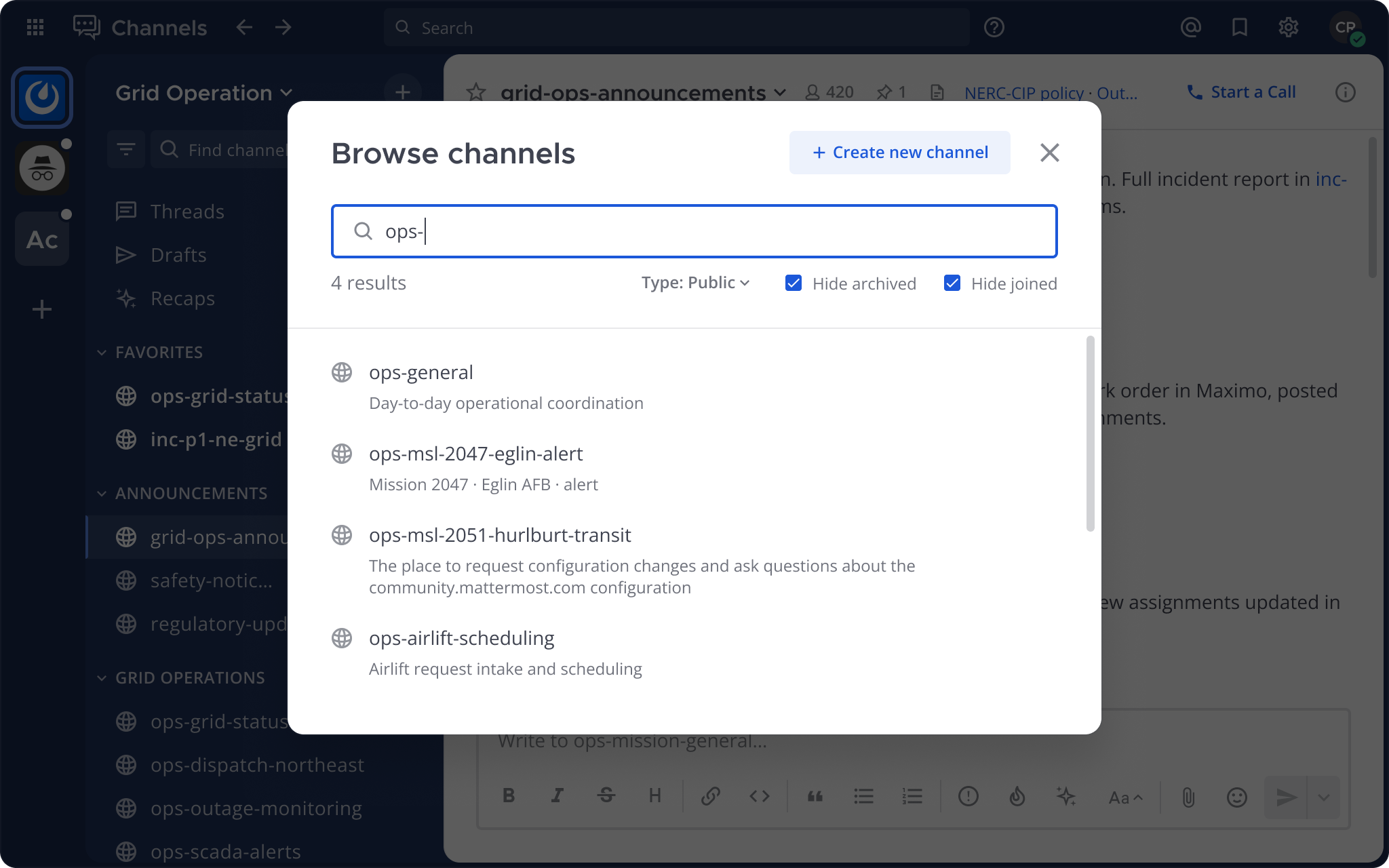
Prefer descriptive names over abbreviations for channels that new users and external collaborators will encounter. Abbreviations are efficient once someone knows the system and opaque before then. Reserve them for conventions that are standard and documented.
Prefix names with emojis
Emoji prefixes are a lightweight way to make a long channel list scannable, and they work alongside text prefixes rather than replacing them. Using the same emoji across every channel in a category reinforces that grouping visually, so people locate the channel they need at a glance instead of reading the whole sidebar.
The payoff is largest in big workspaces and during onboarding. New members infer what a channel is for from its prefix without a written explanation, which reduces the time spent teaching people how the workspace is arranged.
For the steps to insert one, see add an emoji to a channel name.
Common channel patterns
Most workspaces end up with some mix of the following:
- Topic channels organize broad subject areas, much like folders for email or documents. Examples:
Recruiting,Interviews,Legal-Reviews,Documentation. As the channel count grows, name topics in a hierarchy so related ones sort together:Legal-Trademarks,Legal-Contracts,Legal-Licensing. - Announcement channels broadcast from leadership or operations. Restrict posting to admins or designated roles by making them read-only, so people receive the information without generating reply noise. Examples:
Town-Square,Announcements,Security-Advisories. - Meeting channels organize recurring meetings, where members post agenda items ahead of the meeting time. Examples:
Monday-Sales-Update,All-Hands-Meeting. Number agenda items using Markdown formatting, discuss each item in its own thread before and after the meeting, and keep the conferencing link in the channel header so attendees can join from the channel. - Sub-team channels gather a discipline, a project team, or a manager's reports. Examples:
Developers,Marketers,Offsite-Organizing-Committee. These subdivide as they outgrow a single channel, intoUS-DevelopersandUK-Developers. - Project channels are scoped to a specific outcome and are often private and time-bounded. Examples:
Logo-Design,Localization,Product-Launch. Detailed work happens here, and summaries flow back to the larger channel the project came from. - Location channels help people in the same building, city, or region coordinate meetings and events. Examples:
Loc-Building-10,Loc-Palo-Alto,Loc-Toronto. They keep location-specific announcements out of everyone else's sidebar. - Integration channels receive automated posts from bots, webhooks, monitoring systems, ticketing systems, and news alerts. Examples:
Bugs,Support-Tickets,News-Mentions. Some people read these like a daily newspaper; others configure them to notify only on a mention or keyword.
Systematic and automated names
Some organizations, particularly in defense, operations, and incident response, create channels programmatically when an event occurs: a mission is activated, an incident is declared, a project opens in a tracking system.
For automated creation, embed structured metadata in the name using a consistent format such as [type]-[identifier]-[scope]:
ops-msl-2047-eglinfor a mission channel keyed to a mission number and locationinc-p1-20260819-db-outagefor a priority 1 incident keyed to date and componentproj-atlas-q3-frontendfor a project workstream
A few principles make generated names durable:
- Put the type prefix first so channels sort meaningfully in lists and search results.
- Embed the identifier used by the authoritative system, such as a mission number or ticket ID, so the channel maps cleanly to that record.
- Include enough context that someone encountering the channel for the first time understands its scope without opening it.
- Add a date only when it's meaningful. Don't date-stamp channels intended to be long-lived.
Organize the sidebar
Channel names tell people what a channel is about. Categories tell them where to find it. In a well-organized workspace, a sidebar has four to six categories rather than a flat list of dozens of channels.
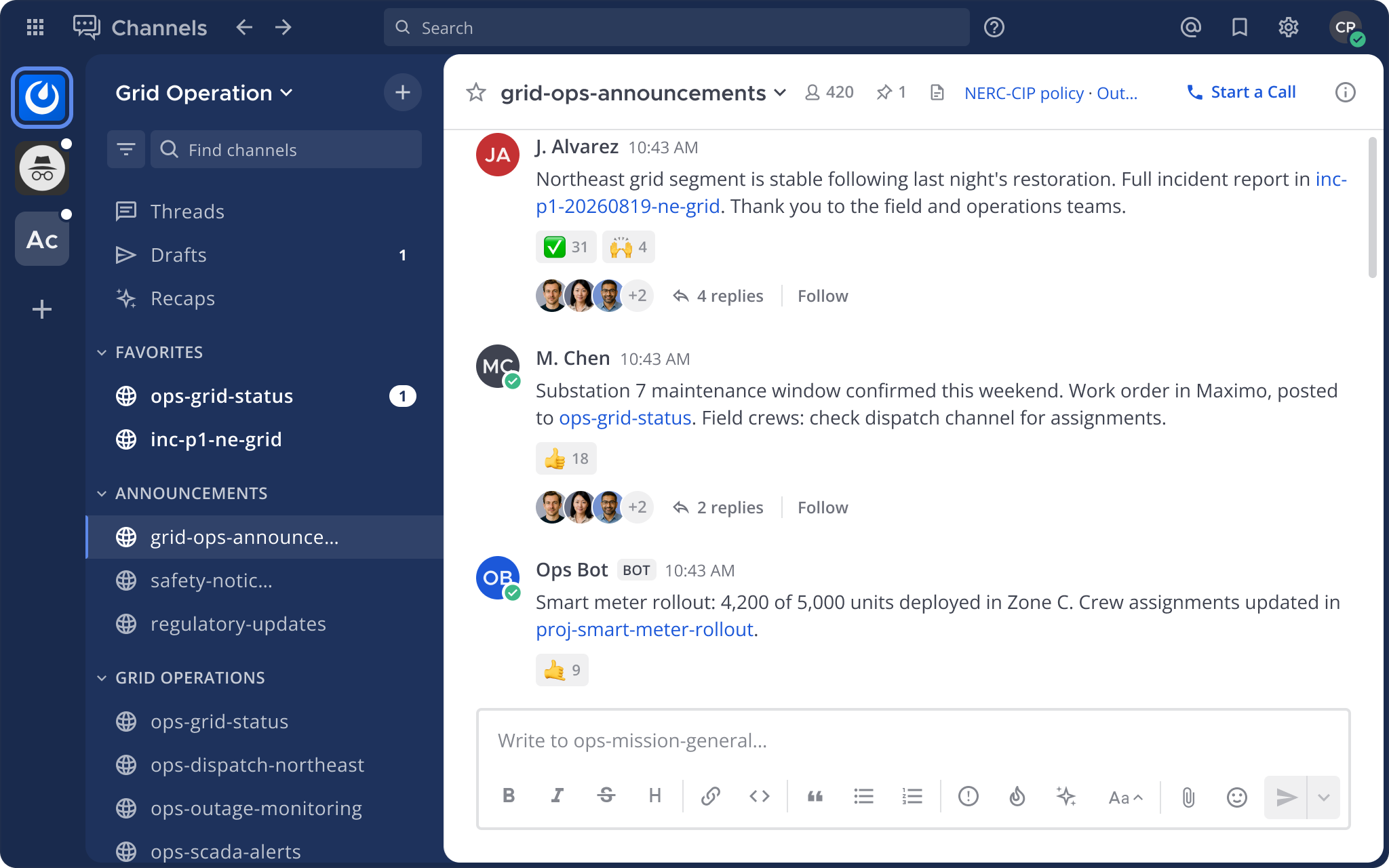
A common starting structure:
| Category | Contents | Example channels |
|---|---|---|
| Announcements | Read-only channels for organization-wide or team-wide broadcasts | town-square, announcements, security-advisories, release-notices |
| Operations | Ongoing operational work, incidents, and alerts | ops-general, inc-p1-db-outage, alert-network |
| Projects | Project-specific channels, often temporary | proj-atlas-frontend, proj-pontoon-launch |
| Integrations | Bot and automation channels | jira-notifications, ci-alerts, pagerduty-feed, github-mattermost |
| Social | Community, off-topic, and culture channels | social-off-topic, social-palo-alto, social-running-club |
| Reference | Low-traffic channels kept for reference rather than active work | ref-docs-feedback, ref-archived-atlas |
Categories are personal to each user, so people can adapt them. Where channel category sorting is enabled, channel admins can set a default category when creating a channel. New members then arrive to an organized sidebar instead of building one themselves.
See customize your channel sidebar for how people manage categories day to day.
Manage notification load
Structure also affects notification volume. Someone in 50 active channels across 10 teams hears from all of them unless they configure each one, and most people never do. The result is that they mute everything, miss what matters, and disengage.
Naming and structure decisions can reduce that load by design:
- Group high-volume, low-urgency channels such as bot feeds and CI alerts into one category, and set that category to mentions-only. Anyone who wants full notifications opts in.
- Use read-only announcement channels for broadcasts, so people receive the message without a stream of replies.
- Prefer threads over new channels for sub-conversations. One channel with active threads is easier to follow than several short-lived channels, each with its own notification stream.
- Weigh the notification cost when deciding between a new team and a new channel. Every team someone joins adds to their notification surface; a channel in a team they already belong to adds far less.
See channel notification preferences for the per-channel settings people control themselves.
Document your conventions
Publish your naming and organization guide where people will find it, such as a pinned message in Town Square or your internal handbook. People who understand the conventions organize themselves. People who don't will create channels that break the system.
Enforce permissions
Permissions turn your structure from a convention into a boundary the server enforces. That includes who can create teams and channels — naming conventions only hold when creation is managed.
As a starting point for enterprise deployments:
- Team creation: system admins only. Creating a team is a structural decision that deserves deliberate authorization.
- Public channel creation: team admins. Restricting this to system admins creates a bottleneck; opening it to everyone invites sprawl.
- Private channel creation: all members. Private channels aren't visible to others and tend to be self-limiting.
- Channel deletion and archiving: channel admins and system admins.
Configure these in System Console > User Management > Permissions. See advanced permissions for the full permission model and worked examples.
Most organizations land on one of these channel-creation models:
| Model | How it works | Best for |
|---|---|---|
| Open creation | Any member creates channels. Conventions are guidance, corrected retroactively. | Smaller organizations with an existing open-creation culture. |
| Team-admin creation | Creation is restricted to team admins (and system admins). | Enterprises that want structure without an IT bottleneck. |
| Request and approve | Users submit a request; on approval an admin creates the channel — or an automation creates it — with the agreed name, category, and membership. | Organizations needing an audit trail for channel creation, or highly regulated environments. |
Team-admin creation is the most common choice in enterprise deployments, because it keeps naming standards intact without making people wait on system admins. To set it up, turn off Create Channels for All Members and leave it on for Team Administrators. See restrict who can create channels in specific teams.
Mattermost doesn't ship a channel request workflow. Many organizations handle requests through a form, ticket system, or other intake process people already use, then have an admin create the channel. You can also automate approval with the plugin framework and the channel creation API, so an approved request produces a correctly named channel without manual admin work.
In larger deployments, attribute-based access control ties team and channel membership to attributes from your identity provider. People are added to the right teams as they join, and lose access when their attributes change. Without it, keeping membership correct across many teams becomes a significant administrative burden.
Iterate as you scale
Workspace organization isn't a one-time decision. Review your configuration when you see any of the following:
- Team or channel count has grown sharply. If either has more than doubled since your last review, audit for sprawl, archive what's inactive, and confirm your creation permissions are still right.
- People report they can't find channels. Your naming conventions either aren't working or aren't being followed.
- Notification complaints increase. Usually a sign that categories aren't being used, that high-volume integration channels aren't muted, or that team structure is duplicating notification streams.
- A new population joins with different security requirements. A new subsidiary, partner organization, or classification level is the most common trigger for a structural review.
- You adopt attribute-based access control or change identity providers. A change in identity infrastructure is an opportunity to automate membership that was previously manual.