Review and manage the following environmental configuration options in the System Console by selecting the Product menu, selecting System Console, and then selecting Environment:
With self-hosted deployments, you can configure the network environment in which Mattermost is deployed by going to System Console > Environment > Web Server, or by updating the config.json file as described in the following tables. Changes to configuration settings in this section require a server restart before taking effect.
The longest URL, in characters, including query parameters, accepted by the Mattermost server. Longer URLs are rejected, and API calls fail with an error.
The address and port to which to bind and listen. Specifying :8065 will bind to all network interfaces. Specifying 127.0.0.1:8065 will only bind to the network interface having that IP address.
If you choose a port of a lower level (called “system ports” or “well-known ports”, in the range of 0-1023), you must have permissions to bind to that port.
We recommend gzip to improve performance unless your environment has specific restrictions, such as a web proxy that distributes gzip files poorly.
gzip: (Default) The Mattermost server will serve static files compressed with gzip to improve performance. gzip compression applies to the HTML, CSS, Javascript, and other static content files that make up the Mattermost web client.
Uncompressed: The Mattermost server will serve static files uncompressed.
Disabled: The Mattermost server will not serve static files.
Configure Mattermost to allow insecure outgoing connections.
true: Outgoing HTTPS requests, including S3 clients, can accept unverified, self-signed certificates. For example, outgoing webhooks to a server with a self-signed TLS certificate, using any domain, will be allowed, and will skip TLS verification.
false: (Default) Only secure HTTPS requests are allowed.
You must change the database line in the config.json file, and then reload configuration to fail over without taking the server down.
Select the Reload configuration from disk button in the System Console after changing your database configuration. Then, go to Environment > Database and select Recycle Database Connections to complete the reload.
The path and filename of the license file on disk. On startup, if Mattermost can't find a valid license in the database from a previous upload, it looks in this path for the license file.
String input. Can be an absolute path or a path relative to the mattermost directory.
The time, in seconds, that the browser remembers a site is only to be accessed using HTTPS. After this period, a site can't be accessed using HTTP unless TLSStrictTransport is set to true.
With self-hosted deployments, you can configure the database environment in which Mattermost is deployed by going to System Console > Environment > Database, or by editing the config.json file as described in the following tables. Changes to configuration settings in this section require a server restart before taking effect.
When Driver Name is set to postgres, use a connection string in the form of: postgres://mmuser:password@hostname_or_IP:5432/mattermost_test?sslmode=disable&connect_timeout=10
To use TLS with PostgreSQL databases
The parameter to encrypt connection against a PostgreSQL server is sslmode. The library used to interact with PostgreSQL server is pq. Currently, it's not possible to use all the values that you could pass to a standard PostgreSQL Client psql "sslmode=value" See the SSL Mode Descriptions documentation for details.
Your database admin must configure the functionality according to the supported values described below.
Short description of the sslmode parameter
Value
Example of a data source name
Don't use TLS / SSL encryption against the PostgreSQL server.
For the moment, it's not possible to use all the values that you could pass to a standard MySQL Client mysql --ssl-mode=value. See Connection-Encryption Option Summary documentation for a version 8.0 example.
Your database admin must configure the functionality according to supported values described below.
Short description of the tls parameter
Value
Example of a data source name
Don't use TLS / SSL encryption against MySQL server.
false
"<mmuser:password>@tcp(hostname or IP:3306)/mattermost_test ?charset=utf8mb4,utf8&writeTimeout=30s&tls=false"
Use TLS / SSL encryption against MySQL server.
true
"<mmuser:password>@tcp(hostname or IP:3306)/mattermost_test ?charset=utf8mb4,utf8&writeTimeout=30s&tls=true"
Use TLS / SSL encryption with a self-signed certificate against MySQL server.
skip-verify
"<mmuser:password>@tcp(hostname or IP:3306)/mattermost_test ?charset=utf8mb4,utf8&writeTimeout=30s&tls=skip-verify"
Use TLS / SSL encryption if server advertises a possible fallback; unencrypted if it's not advertised.
preferred
"<mmuser:password>@tcp(hostname or IP:3306)/mattermost_test ?charset=utf8mb4,utf8&writeTimeout=30s&tls=preferred"
For an AWS High Availability RDS cluster deployment, point this configuration setting to the write/read endpoint at the cluster level to benefit from the AWS failover handling. AWS takes care of promoting different database nodes to be the writer node. Mattermost doesn't need to manage this. See the high availability database configuration documentation for details.
Maximum lifetime for a connection to the database, in milliseconds. Use this setting to configure the maximum amount of time a connection to the database may be reused
Numerical input in milliseconds. Default is 3600000 milliseconds (1 hour).
Select the Recycle Database Connections button to manually recycle the connection pool by closing the current set of open connections to the database within 20 seconds, and then creating a new set of connections.
To fail over without stopping the server, change the database line in the config.json file, select Reload Configuration from Disk via Environment > Web Server, then select Recycle Database Connections.
When enterprise-scale search, | - System Config path: Environment > Database database search can be disabled from performing searches. | - config.json setting: SqlSettings > DisableDatabaseSearch > false | | - Environment variable: MM_SQLSETTINGS_DISABLEDATABASESEARCH | - true: Disables the use of the database to perform | | searches. If another search engine isn't configured, | | setting this value to true will result in empty search | | results. | | - false: (Default) Database search isn't disabled. | |
Search behavior in Mattermost depends on which search engines are enabled:
If Elasticsearch fails or is disabled, Mattermost will attempt to use Bleve search, if enabled. Bleve search has been deprecated in Mattermost v11.0. We recommend using Elasticsearch or OpenSearch for enterprise search capabilities.
If these fail or are disabled, Mattermost tries to search the database directly, if this is enabled.
If all of the above methods fail or are disabled, the search results will be empty.
A list of all migrations that have been applied to the data store based on the version information available in the db_migrations table. Select About Mattermost from the Product menu to review the current database schema version applied to your deployment.
For an AWS High Availability RDS cluster deployment, point this configuration setting directly to the underlying read-only node endpoint within the RDS cluster to circumvent the failover/load balancing that AWS/RDS takes care of (except for the write traffic). Mattermost has its own method of balancing the read-only connections and can also balance those queries to the data source/write+read connection should those nodes fail. See the high availability database configuration documentation for details.
Specifies the connection strings for the search replica databases. A search replica is similar to a read replica, but is used only for handling search queries.
For an AWS High Availability RDS cluster deployment, point this configuration setting directly to the underlying read-only node endpoint within the RDS cluster to circumvent the failover/load balancing that AWS/RDS takes care of (except for the write traffic). Mattermost has its own method of balancing the read-only connections and can also balance those queries to the data source/write+read connection should those nodes fail. See the high availability database configuration documentation for details.
String array input specifies a connection string and user-defined SQL queries on the database to measure replica lag for a single replica instance.
These settings monitor absolute lag based on binlog distance/transaction queue length, and the time taken for the replica to catch up.
String array input consists of:
DataSource: The database credentials to connect to the database instance.
QueryAbsoluteLag: A plain SQL query that must return a single row. The first column must be the node value of the Prometheus metric, and the second column must be the value of the lag used to measure absolute lag.
QueryTimeLag: A plain SQL query that must return a single row. The first column must be the node value of the Prometheus metric, and the second column must be the value of the lag used to measure the time lag.
Configure the replica lag metric based on your database type. See the following tabs for details on configuring this for each database type.
AWS Aurora
MySQL Group Replication
PostgreSQL replication slots
Add the configuration highlighted below to your SqlSettings.ReplicaLagSettings array. You only need to add this once because replication statistics for AWS Aurora nodes are visible across all server instances that are members of the cluster. Be sure to change the DataSource to point to a single node in the group.
"QueryAbsoluteLag":"select server_id, highest_lsn_rcvd-durable_lsn as bindiff from aurora_global_db_instance_status() where server_id=<>",
"QueryTimeLag":"select server_id, visibility_lag_in_msec from aurora_global_db_instance_status() where server_id=<>"
}
]
}
}
Add the configuration highlighted below to your SqlSettings.ReplicaLagSettings array. You only need to add this once because replication statistics for all nodes are shared across all server instances that are members of the MySQL replication group. Be sure to change the DataSource to point to a single node in the group.
For more information on group replication stats, see the MySQL documentation.
Example
{
"SqlSettings": {
"ReplicaLagSettings":[
{
"DataSource":"replica-1",
"QueryAbsoluteLag":"select member_id, count_transactions_remote_in_applier_queue FROM performance_schema.replication_group_member_stats where member_id=<>",
"QueryTimeLag":""
}
]
}
}
Add the configuration highlighted below to your SqlSettings.ReplicaLagSettings array. This query should run against the primary node in your cluster, to do this change the DataSource to match the SqlSettings.DataSource setting you have configured.
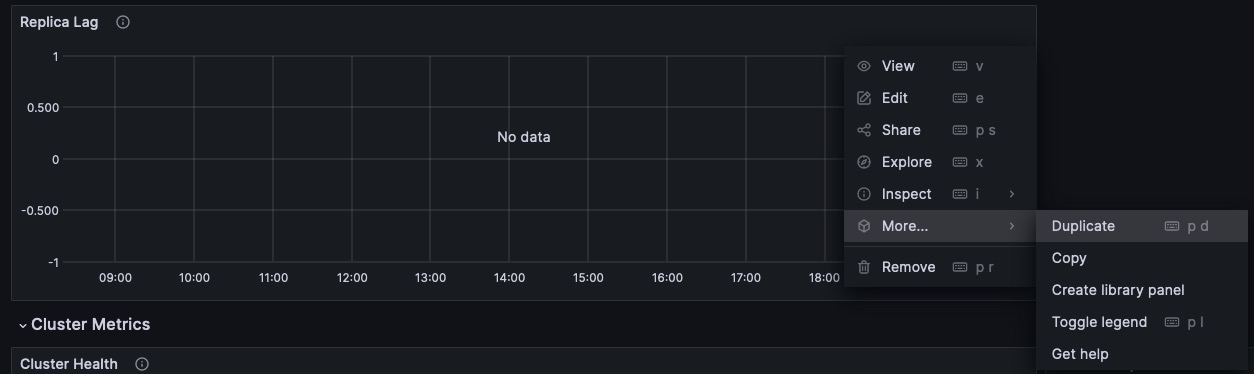
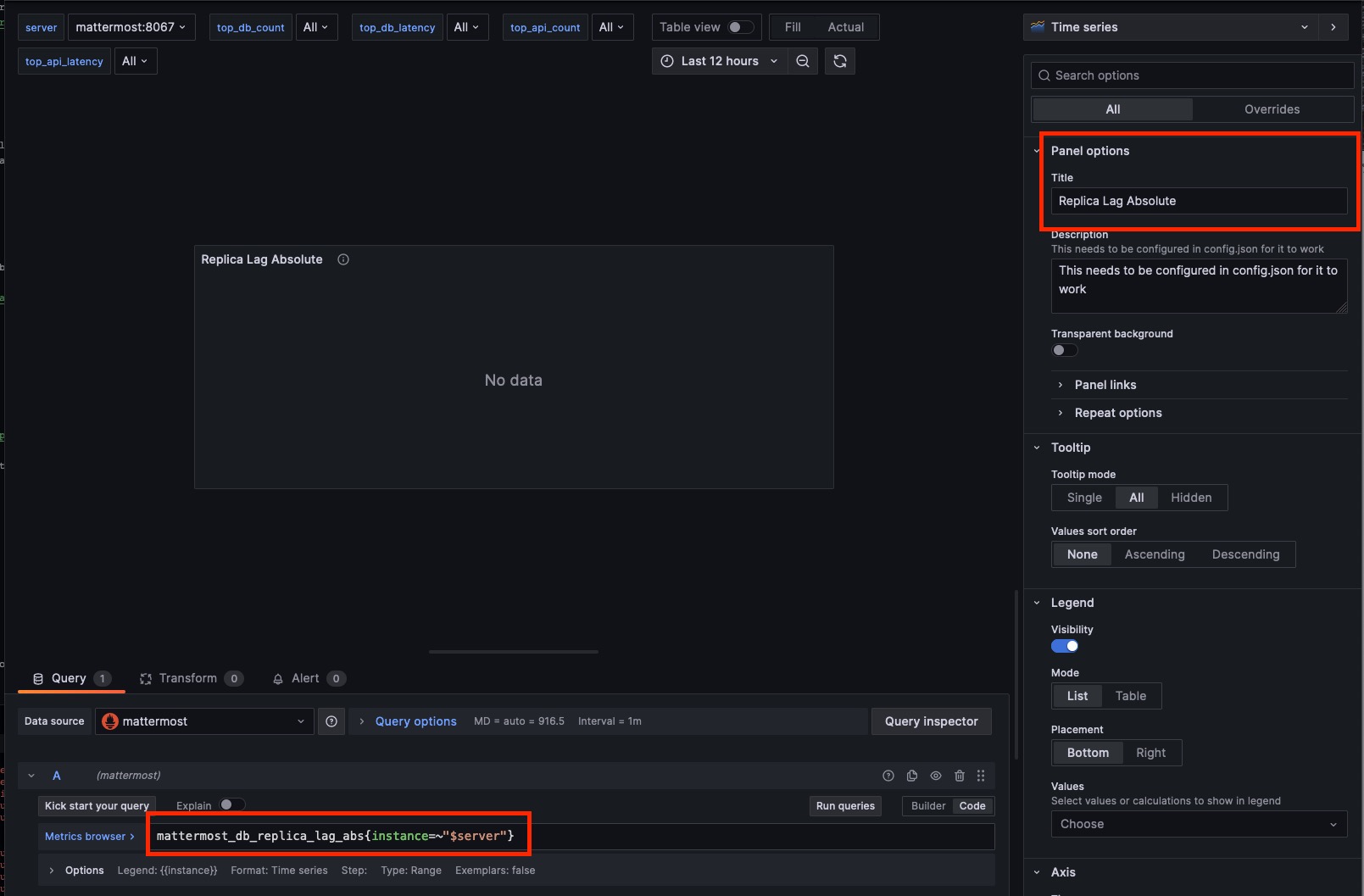
The QueryTimeLag chart is already setup for you utilizing the existing Replica Lag chart. If using QueryAbsoluteLag metric clone the Replica Lag chart and edit the query to use the below absolute lag metrics and modify the title to be Replica Lag Absolute.
Core database search happens in a relational database and is intended for deployments under about 2–3 million posts and file entries. Beyond that scale, enabling enterprise search with Elasticsearch or AWS OpenSearch is highly recommended for optimum search performance before reaching 3 million posts.
For self-hosted deployments with over 3 million posts, Elasticsearch or AWS OpenSearch is required to avoid significant performance issues, such as timeouts, with message searches and @mentions.
You can configure Mattermost enterprise search by going to System Console > Environment > Elasticsearch. The following configuration settings apply to both Elasticsearch and AWS OpenSearch. You can also edit the config.json file as described in the following tables. Changes to configuration settings in this section require a server restart before taking effect.
Both Elasticsearch and AWS OpenSearch provide enterprise-scale deployments with optimized search performance and prevents performance degradation and timeouts. Learn more about enterprise search in our product documentation.
Purge the channels index adn re-index all channels in the database, from oldest to newest.
System Config path: Environment > Elasticsearch
config.json setting: N/A
Environment variable: N/A
Select the Rebuild Channels Index button in the System Console to purge the channels index. Ensure no other indexing jobs are in progress via the Bulk Indexing table before starting this process. During indexing, channel auto-complete is available, but search results may be incomplete until the indexing job is complete.
Select the Purge Indexes button in the System Console to purge the index. After purging the index, create a new index by selecting the Index Now button.
Configure Mattermost to use Elasticsearch or AWS OpenSearch for all search queries using the latest index.
true: Elasticsearch or AWS OpenSearch is used for all search queries using the latest index. Search results may be incomplete until a bulk index of the existing message database is completed.
false: (Default) Database search is used for search queries.
Autocompletion results may be incomplete until a bulk index of the existing users and channels database is finished.
Allow searching public channels without membership
Allow users to search for messages in public channels they have not joined.
When enabled for the first time, existing posts are updated in the background with channel type information. This backfill process is throttled to ~10,000 posts per second to avoid impacting search performance.
true: Users can find messages in public channels they haven't joined, scoped to teams they belong to.
false: (Default) Users can only search messages in channels they are a member of.
Configure whether Mattermost indexes file attachments in Elasticsearch or AWS OpenSearch.
true: (Default) New and updated file attachments are indexed, and bulk indexing jobs include files.
false: New or updated file attachments aren't indexed, and bulk indexing jobs skip files. File search continues to return previously indexed files, and files deleted from Mattermost are still removed from the index.
Files uploaded while this setting is false don't appear in file search results. After setting it back to true, run a bulk index from System Console > Environment > Elasticsearch to make those files searchable.
Enable global search across multiple Elasticsearch indices with the same index prefix.
This is helpful for setups with multiple data centers where Elasticsearch instances share data using cross-cluster replication. It allows for easier and unified searching across distributed indices.
The number of new posts needed before those posts are added to the Elasticsearch or AWS OpenSearch index. Once added to the index, the post becomes searchable.
On servers with more than 1 post per second, we suggest setting this value to the average number of posts over a 20 second period of time.
Numerical input. Default is 1. Every post is indexed synchronously as they are created.
The primary impact is that a post will be indexed into Elasticsearch or AWS OpenSearch after the threshold of posts is met, which then makes the posts searchable within Mattermost. So, if you set this based on recommendations for larger servers, and you make a post, you cannot find it via search for ~10–20 seconds, on average. Realistically, no users should see or feel this impact due to the limited number of users who are actively searching for a post this quickly. You can set this value to a lower or higher average depending on your Elasticsearch or AWS OpenSearch server specifications.
During busy periods, this delay will be faster as more traffic is occurring, causing more posts and a quicker time to hit the index number. During slower periods, expect the reverse.
How to find the right number for your server
You must understand how many posts your server makes every minute. Run the query below to calculate your server's average posts per minute.
Note that this query can be heavy, so we recommend that you run it during non-peak hours. Additionally, you can adjust the WHERE clause to see the posts per minute over a different time period. Right now 31536000000 represents the number of milliseconds in a year.
SELECT
AVG(postsPerMinute)as averagePostsPerMinute
FROM(
SELECT
count(*)as postsPerMinute,
date_trunc('minute', to_timestamp(createat/1000))
FROM posts
WHERE createAt >((extract(epoch fromnow())*1000)-31536000000)
Decide the acceptable index window for your environment, and divide your average posts per minute by that. We suggest 10-20 seconds. Assuming you have 600 posts per minute on average, and you want to index every 20 seconds (60 seconds / 20 seconds = 3) you would calculate 600 / 3 to come to the number 200`. After 200 posts, Mattermost will index the posts into Elasticsearch or AWS OpenSearch. So, on average, there would be a 20-second delay in searchability.
Edit the config.json or run mmctl to modify the LiveIndexingBatchSize setting
In the ``config.json``
{
"ElasticsearchSettings": {
"LiveIndexingBatchSize":200
}
}
Via mmctl
mmctl config set ElasticsearchSettings.LiveIndexingBatchSize 200
Options for printing Elasticsearch or AWS OpenSearch trace errors.
error: Creates the error trace when initializing the Elasticsearch or AWS OpenSearch client and prints any template creation or search query that returns an error as part of the error message.
all: Creates the three traces (error, trace and info) for the driver and doesn’t print the queries because they will be part of the trace log level of the driver.
not specified: (Default) No error trace is created.
When enabled, Mattermost uses language-specific analyzer plugins to improve search results for Korean, Japanese, and Chinese content. The required analyzer plugins must be installed on the Elasticsearch or AWS OpenSearch server before enabling this setting.
Supported plugins:
analysis-nori (Korean)
analysis-kuromoji (Japanese)
analysis-smartcn (Chinese)
true: CJK language-specific analyzers are enabled.
With self-hosted deployments, you can configure file storage settings by going to System Console > Environment > File Storage, or by editing the config.json file as described in the following tables.
The type of file storage system used. Can be Local File System, Amazon S3, or Azure Blob Storage.
local: (Default) Files and images are stored in the specified local file directory.
amazons3: Files and images are stored on Amazon S3 based on the access key, bucket, and region fields provided. The driver is compatible with other S3-compatible services, such as Digital Ocean Spaces.
azureblob: Files and images are stored on Azure Blob Storage based on the storage account name, shared key, and container fields provided.
The local directory to which files are written when the File storage system is set to local. Can be any directory writable by the user Mattermost is running as, and is relative to the directory where Mattermost is installed.
Defaults to ./data/.
System Config path: Environment > File Storage
config.json setting: FileSettings > Directory
Environment variable: MM_FILESETTINGS_DIRECTORY
When File storage system is set to amazons3, this setting has no effect.
The maximum file size for message attachments and plugin uploads. This value must be specified in mebibytes in the System Console, and in bytes in the config.json file.
Enable searching content of documents within ZIP files
Enables users to search the contents of compressed ZIP files attached to messages.
true: Contents of documents within ZIP files are returned in search results. This may have an impact on server performance for large files. the specified local file directory.
false: (Default) The contents of documents within ZIP files aren’t returned in search results.
The AWS region you selected when creating your Amazon S3 bucket in AWS.
A string with the AWS region containing the bucket. If no region is set, Mattermost attempts to get the appropriate region from AWS, and sets it to us-east-1 if none found.
Some Amazon S3-compatible storage solutions require the storage class parameter to be present in upload requests, otherwise they will be rejected. Configure this storage class as the storage class required by your S3-compatible solution.
The storage class to use for uploads to S3-compatible storage solutions.
String input. Default is an empty string "". Select Test Connection to test the configured connection.
Selects how Mattermost authenticates to the Azure Storage account.
shared_key: (Default) Mattermost signs requests with the Storage Account access key in FileSettings.AzureAccessKey. Works for any deployment (on-premises, non-Azure cloud, local development).
default_credential: Mattermost obtains an Entra ID token via the Azure SDK's DefaultAzureCredential chain (managed identity, workload identity, service-principal environment variables, or az login — in that order) and signs requests with it. FileSettings.AzureAccessKey is ignored. Recommended for deployments on Azure where the host already provides a managed identity.
The identity the SDK selects must hold Storage Blob Data Contributor (or equivalent) on the storage account or container.
The shared key for your Azure Storage account. Used only when FileSettings.AzureAuthMode is shared_key. Find this value in the Azure portal under your storage account's Security + networking > Access keys blade.
Selects which Azure cloud Mattermost connects to. The choice determines which host the Azure SDK signs requests against.
commercial: (Default) Vhost-style against {account}.blob.core.windows.net. Only the storage account name is required.
government: Vhost-style against {account}.blob.core.usgovcloudapi.net (Azure Government). Only the storage account name is required.
custom: Mattermost uses the value of FileSettings.AzureEndpoint as the full Blob service URL. Use this for Azurite, reverse proxies, Azure China, or any other Azure cloud that doesn't have a built-in preset.
Full Blob service URL, including scheme and storage account. Used only when FileSettings.AzureCloud is custom; ignored for the commercial and government clouds (which derive the URL from the storage account name).
Mattermost passes this URL to the Azure SDK unchanged, so the storage account must already be embedded in the hostname (vhost-style, for example https://acmemattermost.blob.core.chinacloudapi.cn/) or in the path (path-style, for example http://localhost:10000/devstoreaccount1/ for Azurite). Shared-key auth signs against the host this URL points at, so make sure it actually serves the storage account configured in FileSettings.AzureStorageAccount.
With self-hosted deployments, an image proxy can be used by Mattermost apps to prevent them from connecting directly to remote self-hosted servers. Configure an image proxy by going to System Console > Environment > Image Proxy, or by editing the config.json file as described in the following tables.
local: (Default) The Mattermost server itself acts as the image proxy.
From Mattermost v12.0, atmos/camo is no longer supported. If this setting is set to atmos/camo, the server automatically changes it to local on startup and logs a warning.
With self-hosted deployments, you can configure SMTP email server settings by going to System Console > Environment > SMTP, or by editing the config.json file as described in the following tables.
With self-hosted deployments, you can configure mobile push notifications for Mattermost by going to System Console > Environment > Push Notification Server, or by editing the config.json file as described in the following tables. Changes to configuration settings in this section require a server restart before taking effect.
Enable or disable Mattermost push notifications.
Do not send push notifications: Mobile push notifications are disabled.
Use HPNS connection with uptime SLA to send notifications to iOS and Android apps: (Default) Use Mattermost's hosted push notification service.
Use TPNS connection to send notifications to iOS and Android apps: Use Mattermost's test push notification service.
Manually enter Push Notification Service location: When building your own custom mobile apps, you must host your own mobile push proxy service, and specify that URL in the Push Notification Server field.
System Config path: Environment > Push Notification Server
Admins can enable mobile notifications to be fully private to protect a Mattermost customer against breaches in iOS and Android notification infrastructure by limiting the data sent to Apple and Google through a Mattermost configuration setting.
The standard way to send notifications to iOS and Android applications requires sending clear text messages to Apple or Google so they can be forwarded to a user’s phone and displayed on iOS or Android. While Apple or Google assure the data is not collected or stored, should the organizations be breached or coerced, all standard mobile notifications on the platform could be compromised.
To avoid this risk, Mattermost can be configured to replace mobile notification text with message ID numbers that pass no information to Apple of Google. When received by the Mattermost mobile application on a user’s phone, the message IDs are used to privately communicate with their Mattermost server and to retrieve mobile notification messages over an encrypted channel. This means that, at no time, is the message text visible to Apple or Google’s message relay system. The contents of the message also won't reach Mattermost.
See our configuration settings documentation to learn more about the ID-only push notifications configuration setting. See our Mobile Apps FAQ documentation for details on using ID-only push notifications for data privacy.
Push notification server location
The region of the Mattermost Hosted Push Notification Service (HPNS) server.
Select a region to automatically populate the Push Notification Server field with the corresponding URL:
The maximum total number of users in a channel before @all, @here, and @channel no longer send desktop, email, or mobile push notifications to maximize performance.
Numerical input. Default is 1000.
System Config path: Environment > Push Notification Server
With self-hosted deployments, you can configure Mattermost as a high availability cluster-based deployment by going to System Console > Environment > High Availability, or by editing the config.json file as described in the following tables. Changes to configuration settings in this section require a server restart before taking effect.
When a Mattermost high availability cluster-based deployment uses config.json for configuration, the System Console is set to read-only by default, and settings can only be changed by editing the config.json file directly. However, to test a high availability cluster-based environment, you can disable ClusterSettings.ReadOnlyConfig in the config.json file by setting it to false. This allows changes applied using the System Console to be saved back to the configuration file. When configuration is stored in the database, ClusterSettings.ReadOnlyConfig is ignored and the System Console remains fully editable. See Store configuration in your database for details.
true: The Mattermost server will attempt inter-node communication with the other servers in the cluster that have the same cluster name. This sets the System Console to read-only mode to keep the servers' config.json files in sync.
false: (Default) Mattermost high availability mode is disabled.
System Config path: Environment > High Availability
We recommend that you disable this configuration setting for better performance.
true: (Default for self-hosted deployments) All communication through the cluster uses gossip compression. This setting is enabled by default to maintain compatibility with older servers.
false: (Default for Cloud deployments) All communication using the gossip protocol remains uncompressed.
System Config path: Environment > High Availability
An IP address used to bind cluster traffic to a specific network device.
This setting is used primarily for servers with multiple network devices or different Bind Address and Advertise Address like in deployments that involve NAT (Network Address Translation).
The IP address used to access the server from other nodes. This settings is used primary when cluster nodes are not in the same network and involve NAT (Network Address Translation).
With self-hosted deployments, rate limiting prevents your Mattermost server from being overloaded with too many requests, and decreases the risk and impact of third-party applications or malicious attacks on your server.
Configure rate limiting settings by going to System Console > Environment > Rate Limiting, or by editing the config.json file as described in the following tables. Changes to configuration settings in this section require a server restart before taking effect.
Enable or disable rate limiting to throttle APIs to a specified number of requests per second.
The maximum number of user sessions connected to the system as determined by vary rate limit settings when rate limiting is enabled.
Numerical input. Default is 10000. Typically set to the number of users in the system.
We recommend setting this value to the expected number of users. A higher value may result in underutilized resources, and a lower value may result in user sessions/tokens expiring too frequently.
Mattermost provides 3 independent logging systems for self-hosted deployments that can be configured separately with separate log files and rotation policies to meet different operational and compliance needs:
By default, all Mattermost editions write logs to both the console and to the mattermost.log file in a machine-readable JSON format. Mattermost Enterprise and Professional customers can additionally log directly to syslog and TCP socket destination targets.
Configure general logging by going to System Console > Environment > Logging, or by editing the config.json file as described in the following tables. Changes to configuration settings in this section require a server restart before taking effect.
Configure Mattermost to output general logs to the console.
true: (Default) Output log messages are written to the console based on the console log level configuration. The server writes messages to the standard output stream (stdout).
false: Output log messages aren’t written to the console.
Configure Mattermost to output general console logs to a file.
true: (Default) Logged events are written based on the file log level configuration to a mattermost.log file located in the directory configured via file location.
Configure Mattermost to allow any combination of console, local file, syslog, and TCP socket targets, and send general log records to multiple targets.
String input can contain a filespec to another configuration file, a database DSN, or JSON.
The following configuration settings apply only to Mattermost server versions prior to v11.0.
You can configure logging specifically for Mattermost notifications by editing the config.json file as described in the following tables. These settings operate independently from the main LogSettings and allow you to customize logging behavior specifically for the notification subsystem. Changes to these configuration settings require a server restart before taking effect.
Configure Mattermost to output notification logs to the console.
true: (Default) Output log messages are written to the console based on the console log level configuration. The server writes messages to the standard output stream (stdout).
false: Output log messages aren't written to the console.
Configure Mattermost to output notification console logs to a file.
true: (Default) Logged events are written based on the file log level configuration to a notifications.log file located in the directory configured via file location.
Configure Mattermost to allow any combination of console, local file, syslog, and TCP socket targets, and send notification log records to multiple targets.
String input can contain a filespec to another configuration file, a database DSN, or JSON.
Configure audit logging by going to System Console > Compliance > Audit Logging, or by editing the config.json file as described in the following tables. These settings operate independently from the main LogSettings and allow you to customize logging behavior specifically for the audit subsystem. Changes to these configuration settings require a server restart before taking effect.
With self-hosted deployments, user sessions are cleared when a user tries to log in, and sessions are cleared every 24 hours from the sessions database table. Configure session lengths by going to System Console > Environment > Session Lengths, or by editing the config.json file as described in the following tables. Changes to configuration settings in this section require a server restart before taking effect.
Improves the user experience by extending sessions and keeping users logged in if they are active in their Mattermost apps.
true: (Default) Sessions are automatically extended when users are active in their Mattermost client. User sessions only expire when users aren’t active in their Mattermost client for the entire duration of the session lengths defined.
false: Sessions won't extend with activity in Mattermost. User sessions immediately expire at the end of the session length or based on the session idle timeout configured.
Enable or disable session revocation when a user's password changes.
true: (Default for new deployments) Session revocation is enabled. All sessions of a user expire if their password is changed (by themselves or by a system admin). If the password change is initiated by the user, their current session isn't terminated.
false: (Default for existing deployments) Session revocation is disabled. When users change their password, only the user's current session is revoked. When a system admin changes the user's password, none of the user's sessions are revoked.
Set the number of hours counted from the last time a user entered their credentials into the web app or the desktop app to the expiry of the user’s session on email and AD/LDAP authentication.
Set the number of hours from the last time a user entered their SSO credentials to the expiry of the user’s session. This setting defines the session length for SSO authentication, such as SAML, GitLab, and OAuth 2.0.
Numerical input in hours. Default is 720 hours. Numbers as decimals are also valid values for this configuration setting.
The number of minutes from the last time a user was active on the system to the expiry of the user’s session. Once expired, the user will need to log in to continue.
Numerical input in minutes. Default is 43200 (30 days). Minimum value is 5 minutes, and a value of 0 sets the time as unlimited.
With self-hosted deployments, you can configure performance monitoring by going to System Console > Environment > Performance Monitoring, or by editing the config.json file as described in the following tables.
{
"MetricsSettings":{
"Enable":false,
"BlockProfileRate":0,
"ListenAddress"::8067,
"EnableClientMetrics":false,
"EnableNotificationMetrics":true,
"ClientSideUserIds":""
}
}
Changes to configuration settings in this section require a server restart before taking effect.
See the performance monitoring documentation to learn more about setting up performance monitoring with Prometheus and Grafana. See the collect performance metrics documentation to learn more about using the Mattermost Metrics plugin.
Control how often Mattermost collects data about delays caused by blocking operations within Mattermost (such as when one part of the program has to wait for another). Default is 0 (profiling is disabled).
The profiler aims to sample an average of one blocking event per rate nanoseconds spent blocked.
With self-hosted deployments, you can configure developer mode by going to System Console > Environment > Developer, or by editing the config.json file as described in the following tables. Changes to configuration settings in this section require a server restart before taking effect.
true: (Default) The /test slash command is enabled to load test accounts and test data. Use this setting only in isolated non-production environments and never in production.
Limit the ability for the Mattermost server to make untrusted requests within its local network. A request is considered “untrusted” when it’s made on behalf of a client.
This setting is a whitelist of local network addresses that can be requested by the Mattermost server. It’s configured as a whitespace-separated list of hostnames, IP addresses, and CIDR ranges that can be accessed.
Requests that can only be configured by system admins are considered trusted and won't be affected by this setting. Trusted URLs include ones used for OAuth login or for sending push notifications.
The following features make untrusted requests and are affected by this setting:
Integrations using webhooks, slash commands, or message actions. This prevents them from requesting endpoints within the local network.
Link previews. When a link to a local network address is posted in a chat message, this prevents a link preview from being displayed.
The local image proxy. If the local image proxy is enabled, images located on the local network cannot be used by integrations or posted in chat messages.
Some examples of when you may want to modify this setting include:
When installing a plugin that includes its own images, such as Matterpoll, you'll need to add the Mattermost server’s domain name to this list.
When running a bot or webhook-based integration on your local network, you’ll need to add the hostname of the bot/integration to this list.
If your network is configured in such a way that publicly-accessible web pages or images are accessed by the Mattermost server using their internal IP address, the hostnames for those servers must be added to this list.
From Mattermost v10.7 and mobile app v2.27, you can configure biometric authentication, prevent Mattermost use on jailbroken or rooted devices, and can block screen captures without relying on an EMM Provider. Configure these options by going to System Console > Environment > Mobile Security, or by editing the config.json file as described in the following tables. Changes to configuration settings in this section require a server restart and require users to restart their mobile app or log out and back in before taking effect.
Enforce biometric authentication, with PIN/passcode fallback, before accessing the app. Users will be prompted based on session activity and server switching rules.
true: Biometric authentication is enabled.
false: (Default) Biometric authentication is disabled.
Prevent access to the app on devices detected as jailbroken or rooted. If a device fails the security check, users will be denied access or prompted to switch to a compliant server.
true: Jailbreak/Root protection is enabled.
false: (Default) Jailbreak/Root protection is disabled.
Block screenshots and screen recordings when using the mobile app. Screenshots will appear blank, and screen recordings will blur (iOS) or show a black screen (Android). Also applies when switching apps.
true: Screen capture blocking is enabled.
false: (Default) Screen capture blocking is disabled.
These settings apply globally to all mobile users. Changes are delivered to connected devices in real time; offline devices continue operating under their last-known configuration until they reconnect. Timer state persists across app and device restarts.
When a timer expires, active cached content such as posts and file previews is purged, and the app notifies the user that data was removed due to policy enforcement. After a purge, users re-sync from the server on reconnection — server URLs are recoverable from keychain entries so server access is not lost.
Grace period in seconds after the WebSocket drops before the device is considered offline. Once elapsed, the Offline Persistence Timer begins counting down.
Numerical input in seconds. Default is 60. Values below 5 are not recommended.
This setting improves an organization's mobile security posture by restricting file access while still allowing essential file viewing capabilities.
true: Prevents file downloads, previews, and sharing for most file types, | - System Config path: Site Configuration > File sharing and downloads | even when the | - config.json setting: FileSettings > MobileEnableSecureFilePreview > false | Allow file downloads on mobile | - Environment variable: MM_FILESETTINGS_MOBILEENABLESECUREFILEPREVIEW configuration setting is enabled. Allows in-app previews for PDFs, | | videos, and images only. Files are stored temporarily in the app's cache and cannot be exported or shared. | |
false: (Default) Secure file preview mode is disabled. | |
true: (Default) Enables tapping links inside PDFs on mobile when Secure File Preview Mode is active. Links will open in the device browser or supported app.
false: Disables link navigation in PDFs when Secure File Preview Mode is active.
System Config path: Site Configuration > File sharing and downloads
true: (Default) Server-side requests made to the customer portal are disabled.
false: Server-side requests made to the Mattermost Customer Portal are enabled, but will always fail in air-gapped and restricted deployment environments.
true: Team and system admins (or users with appropriate permissions) can call api/v4/teams/{teamid}?permanent=true or use mmctl team delete to permanently delete a team.
false: (Default) Endpoint not available; api/v4/teams/{teamid} still soft deletes a team.
true: System admins (or users with appropriate permissions) can call api/v4/users/{userid}?permanent=true or use mmctl user delete to permanently delete a user.
false: (Default) Endpoint not available; api/v4/users/{userid} still soft deletes a user.
true: System admins (or users with appropriate permissions) can call api/v4/channels/{channelid}?permanent=true or use mmctl channel delete to permanently delete a channel.
false: (Default) Endpoint not available; api/v4/channels/{channelid} still soft deletes a channel.
From Desktop App v5.10, this setting enables developer debugging options available by going to the View > Developer Tools menu in the Mattermost desktop app.
This setting isn't available in the System Console and can only be enabled in config.json by setting the environment variable MM_DESKTOP_DEVELOPER_MODE to true. This setting is disabled by default.
True: Unlocks the following options in the Desktop App for the purposes of troubleshooting and debugging. You should only enable this setting if instructed to by a Mattermost developer:
Browser Mode Only: Completely disables the preload script and stops web app components from knowing they're in the desktop app. This option should be the best indicator of whether a web app component is causing performance and/or memory retention issues. This option disables notifications, cross-tab navigation, unread/mentions badges, the calls widget, and breaks resizing on macOS.
Disable Notification Storage: Turns off maps that hold references to unread notifications until they've been selected & read. This option is good for debugging in cases where Mattermost is holding onto too many references to unused notifications.
Disable User Activity Monitor: Turns off the interval that checks whether the user is away or not. This option is good for debugging whether a user's availability status is causing unexpected desktop app behavior.
Disable Context Menu: Turns off the context menu attached to the BrowserViews. This option is good as a library santity check.
Force Legacy Messaging API: Forces the app to revert back to the old messaging API instead of the newer contextBridge API. This option is a good santity check to confirm whether the new API is responsible for holding onto memory.
Force New Messaging API: Forces the app to use the contextBridge API and completely disables the legacy one. This option forces off listeners for the legacy API.
False: (Default) Developer debugging options are locked and unavailable in the Desktop App.
From Mattermost v10.4, Mattermost Enterprise customers with self-hosted deployments can configure Redis (Remote Dictionary Server) as an alternative cache backend. Redis is an open-source, in-memory data structure store that can be used as a database, cache, and message broker. It supports various data structures and is a top choice for its performance because its able to store data in memory and provide very quick data access.
Using Redis as a caching solution can help ensure that Mattermost for enterprise-level deployments with high concurrency and large user bases remains performant and efficient, even under heavy usage.
Configure a Redis cache by editing the config.json file as described in the following tables. Changes to configuration settings in this section require a server restart before taking effect.
 menu, selecting System Console, and then selecting Environment: