Mattermost supports up to 4 distinct, concurrent methods of user authentication:
An OpenID provider
A SAML provider
An LDAP instance (e.g., Active Directory, OpenLDAP)
Email and Password
Review and manage the following authentication configuration options in the System Console by selecting the Product menu, selecting System Console, and then selecting Authentication:
true: (Default) Anyone can sign up for a user account on this server without needing to be invited. Applies to email-based signups only.
false: The ability to create accounts is disabled. Selecting Create Account displays an error. Applies to email, OpenID Connect, and OAuth 2.0 user account authentication.
Restrict account creation to specified email domains
This setting limits the email address domains that can be used to create a new account or team. | - System Config path: Authentication > Signup | You must set Require Email Verification | - config.json setting: TeamSettings > RestrictCreationToDomains to true for the restriction to function. This setting only affects email login. | - Environment variable: MM_TEAMSETTINGS_RESTRICTCREATIONTODOMAINS |
true: (Default) Allows users to sign-in with email and password.
false: Disables authentication with email and password, and removes the option from the login screen. Use this option to limit authentication to single sign-on services.
true: (Default) Allows authentication with a username and password for accounts created with an email address. This setting does not affect AD/LDAP sign-in.
false: Disables authenticaton with a username and removes the sign in option from. from the login screen.
This setting determines the minimum number of characters in passwords. It must be a whole number greater than or equal to 5 and less than or equal to 72.
This setting determines the number of failed sign-in attempts a user can make before being locked out and required to go through a password reset by email.
Access the following configuration settings in the System Console by going to Authentication > MFA.
We recommend deploying Mattermost within your own private network, and using VPN clients for mobile access, so that Mattermost is secured with your existing protocols. If you choose to run Mattermost outside your private network, bypassing your existing security protocols, we recommend adding a multi-factor authentication service specifically for accessing Mattermost.
true: Users who sign-in with AD/LDAP or an email address have the option to add | - System Config path: Authentication > MFA | multi-factor authentication to their accounts. | - config.json setting: ServiceSettings > EnableMultifactorAuthentication > false
for users who sign-in with AD/LDAP or an email address. | - Environment variable: MM_SERVICESETTINGS_ENFORCEMULTIFACTORAUTHENTICATION | New users must set up MFA. Logged in users are redirected to the MFA | | setup page until configuration is complete. | |
Access the following configuration settings in the System Console by going to Authentication > AD/LDAP. This opens the AD/LDAP setup wizard with step-by-step sections and testing to help configure each setting.
The wizard is organized into the following sections:
Configure your AD/LDAP server connection and basic authentication settings. Use the Test Connection button in this section to verify your server connection before proceeding to other configuration steps.
This setting will display placeholder text in the login field of the sign-in page. This text can remind users to sign-in with their AD/LDAP credentials.
This setting controls the type of security Mattermost uses to connect to the AD/LDAP server, with these options:
None: (Default for self-hosted deployments) No encryption. With this option, it is highly recommended that the connection be secured outside of Mattermost, such as by a stunnel proxy. config.json option: ""
TLS: (Default for Cloud deployments) Encrypts communication with TLS. config.json option: "TLS"
STARTTLS: Attempts to upgrade an existing insecure connection to a secure connection with TLS. config.json option: "STARTTLS"
true: Disables the certificate verification step for TLS and STARTTLS connections. Use this option for testing. Do not use this option when TLS is required in production.
Use this setting to upload the private key file from your LDAP authentication provider, if TLS client certificates are the primary authentication mechanism.
Use this setting to upload the public TLS certificate from your LDAP authentication provider, if TLS client certificates are the primary authentication mechanism.
This setting determines the number of failed sign-in attempts a user can make before being locked out and required to go through a password reset by email.
You can unlock the account in System Console on the users page. Setting this value lower than your LDAP maximum login attempts ensures that the users won't be locked out of your LDAP server because of failed login attempts in Mattermost.
Define how Mattermost identifies and filters users and groups from your AD/LDAP directory. Use the Test Filters button in this section to verify your filters work correctly before proceeding to other configuration steps.
This setting accepts a general syntax AD/LDAP filter that is applied when searching for user objects. Only the users selected by the query can access Mattermost. For example, to filter out disabled users, the filter is: (&(objectCategory=Person)(!(UserAccountControl:1.2.840.113556.1.4.803:=2))).
To filter by group membership, determine the distinguishedName of the group, then use group membership general syntax to format the filter. For example, if the security group distinguishedName is CN=group1,OU=groups,DC=example,DC=com, then the filter is: (memberOf=CN=group1,OU=groups,DC=example,DC=com). The user must explicitly belong to this group for the filter to apply.
This setting accepts a general syntax AD/LDAP filter that is applied when searching for group objects. Only the groups selected by the query can access Mattermost.
String input. Default is (|(objectClass=group)(objectClass=groupOfNames)(objectClass=groupOfUniqueNames)).
This setting accepts an AD/LDAP filter that designates the selected users as system admins. Users are promoted to this role on their next AD/LDAP sign-in. This filter isn't evaluated during scheduled AD/LDAP synchronization, and it doesn't apply to users who authenticate with SAML, even when Enable Synchronizing SAML Accounts With AD/LDAP is enabled. Use the SAML Admin Attribute setting to designate system admins for SAML-authenticated users.
If the Admin Filter is removed, users who are currently logged in retain their Admin role until their next sign-in.
This setting accepts an AD/LDAP filter to apply when searching for external users with Guest Access to Mattermost. Only users selected by the query can access Mattermost as Guests. | - System Config path: Authentication > AD/LDAP |
Map AD/LDAP user attributes to Mattermost user profile fields. Use the Test Attributes button in this section to verify correct attribute mapping and data synchronization before proceeding to other configuration steps.
This is the attribute in the AD/LDAP server that is serves as a unique user identifier in Mattermost.
The attribute should have a unique value that does not change, such as objectGUID or entryUUID. Confirm that these attributes are available in your environment before making any changes.
This is the attribute in the AD/LDAP server that is used for signing-in to Mattermost. This is normally the same as the Username Attribute.
If your team uses domain\username to sign-in to other services with AD/LDAP, you may enter domain\username in this field to maintain consistency between sites.
This is the attribute in the AD/LDAP server that populates the username field in Mattermost.
This attribute identifies users in the UI. For example, if a Username Attribute is set to john.smith, typing @john will show @john.smith as an auto-complete option, and posting a message with @john.smith will send a notification to that user.
This is normally the same as the Login ID Attribute, but it can be mapped to a different attribute.
Configure group mapping for AD/LDAP group synchronization. Use the Test Group Attributes button in this section to verify proper group attribute mapping before proceeding to other configuration steps.
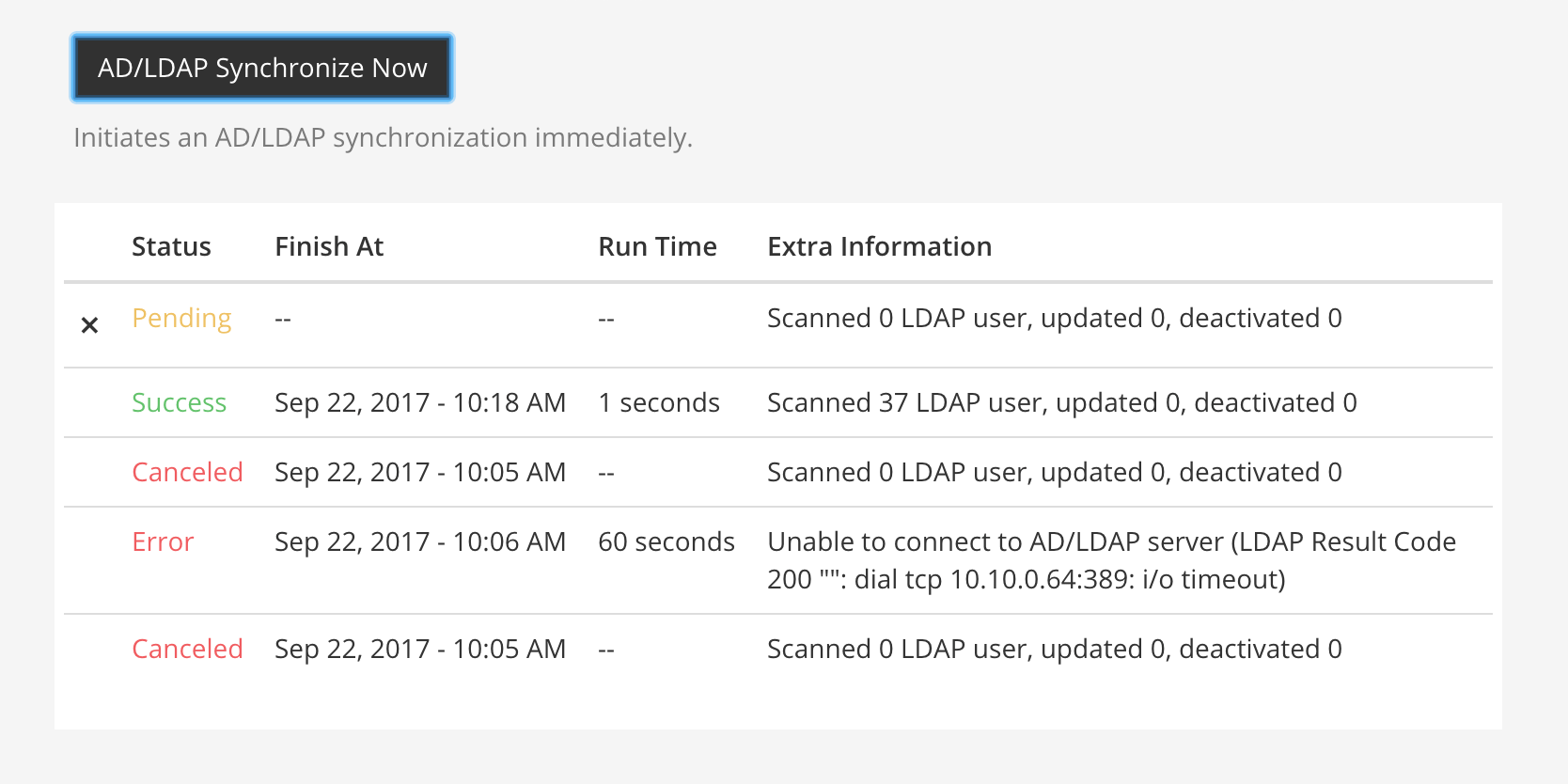
View synchronization status and manually trigger AD/LDAP synchronization. This section includes the AD/LDAP Synchronize Now button for immediate synchronization.
Use this button to immediately sync with the AD/LDAP server.
The status of the sync is displayed in the table underneath the button (see the figure below).
Following a manual sync, the next sync will occur after the time set in the Synchronization Interval.
System Config path: Authentication > AD/LDAP
config.json setting: N/A
Environment variable: N/A
Config settings not available in the AD/LDAP Wizard
The following AD/LDAP configuration settings are available in the config.json file only and aren't available via the AD/LDAP wizard interface in the System Console.
Enable this setting to re-add members of the LDAP group that were previously removed from group-synchronized teams or channels during LDAP synchronization.
true: Members of the LDAP group who were previously removed are re-added to group-synchronized teams or channels during LDAP synchronization.
false: (Default) Members of the LDAP group who were previously removed are not re-added to group-synchronized teams or channels during LDAP synchronization.
true: Mattermost updates configured Mattermost user attributes (ex. FirstName, Position, Email) with their values from AD/LDAP. From v10.9, Mattermost checks whether a user exists on the connected LDAP server during login. If the user doesn't exist on the LDAP server, login fails.
false: (Default) Disables syncing of SAML-authenticated Mattermost users with AD/LDAP. From Mattermost v10.9, Mattermost doesn't check whether a user exists on the connected LDAP server during login.
Ignore guest users when synchronizing with AD/LDAP
true: When syncing with the AD/LDAP server, Mattermost does not sync any information about SAML-authenticated Guest Users from the AD/LDAP server. Manage guest deactivation manually via System Console > Users.
false: (Default) Syncing Mattermost with the AD/LDAP server updates Guest User attributes and deactivates and removes SAML-authenticated accounts for Guest Users that are no longer active on the AD/LDAP server.
true: If the SAML ID attribute is configured, Mattermost overrides the SAML ID attribute with the AD/LDAP ID attribute. If the SAML ID attribute is not present, Mattermost overrides the SAML Email attribute with the AD/LDAP Email attribute.
false: (Default) Mattermost uses the email attribute to bind users to SAML.
This setting is only available when SAML authentication is enabled and AD/LDAP synchronization is enabled.
This setting is the unique identifier for the Service Provider, which in most cases is the same as the Service Provider Login URL. In ADFS, this must match the Relying Party Identifier.
This setting stores the certificate file used to sign a SAML request to the Identity Provider for a SAML login when Mattermost is initiating the login as the Service Provider.
This setting determines the attribute from the SAML Assertion that populates the user email address field in Mattermost.
Notifications are sent to this email address. This email address may be visible to other users, depending on how the system admin has set-up user privacy.
This setting determines the SAML Assertion attribute that populates the username field in the Mattermost UI.
This attribute identifies users in the UI. For example, if a username is set to john.smith, typing @john will show @john.smith as an auto-complete option, and posting a message with @john.smith will send a notification to that user.
(Optional) This setting determines the SAML Assertion attribute used to apply a Guest role to users in Mattermost. | - System Config path: Authentication > SAML 2.0 |
Access the following configuration settings in the System Console by going to Authentication > OAuth 2.0. Settings for GitLab OAuth authentication can also be accessed under Authentication > GitLab in self-hosted deployments.
Use these settings to configure OAuth 2.0 for account creation and login.
This setting holds the OAuth Application Secret Key from GitLab. The key is generated at the same time as the Application ID (see GitLab OAuth 2.0 Application ID).
Enter the key provided by GitLab in the Mattermost System Console field, config.json setting, or Environment variable.
String input.
System Config path: Authentication > OAuth 2.0 (or GitLab)
This setting holds the URL of your GitLab User API endpoint, e.g. https://<your-gitlab-url>/api/v3/user. Use http:// if SSL is not enabled on your GitLab instance.
Enter the URL in the Mattermost System Console field, config.json setting, or Environment variable.
String input.
System Config path: Authentication > OAuth 2.0 (or GitLab)
This setting holds the URL of your GitLab Auth endpoint, e.g. https://<your-gitlab-url>/oauth/authorize. Use http:// if SSL is not enabled on your GitLab instance.
Enter the URL in the Mattermost System Console field, config.json setting, or Environment variable.
String input.
System Config path: Authentication > OAuth 2.0 (or GitLab)
This setting holds the URL of your GitLab OAuth Token endpoint, e.g. https://<your-gitlab-url>/oauth/token. Use http:// if SSL is not enabled on your GitLab instance.
Enter the URL in the Mattermost System Console field, config.json setting, or Environment variable.
String input.
System Config path: Authentication > OAuth 2.0 (or GitLab)
true: Allows team and account creation using Google OAuth authentication. Input the Client ID and Client Secret credentials to configure. | - System Config path: Authentication > OAuth 2.0 |
This setting stores the OAuth Client ID from Google. Generate the ID by going to the Credentials section of the Google Cloud Platform APIs & Services menu and selecting Create Credentials > OAuth client ID. | - System Config path: Authentication > OAuth 2.0 |
- config.json setting: GoogleSettings > Id|
See Google Single Sign-On for instructions that can be used to implement Google OAuth or OpenID authentication. | - Environment variable: MM_GOOGLESETTINGS_ID
We recommend https://accounts.google.com/o/oauth2/v2/auth as the Auth Endpoint. Otherwise, enter a custom endpoint in config.json with HTTP, or HTTPS, if available on the server.
We recommend https://www.googleapis.com/oauth2/v4/token as the Token Endpoint. Otherwise, enter a custom endpoint in config.json with HTTP, or HTTPS, if available on the server.
We recommend https://graph.microsoft.com/v1.0/me as the User API Endpoint. Otherwise, enter a custom endpoint in config.json with http, or https, if available on the server.
true: Mattermost uses the preferred_username claim from the GitLab OpenID token as the Mattermost | - System Config path: Authentication > OpenID Connect | username. | - config.json setting: GitLabSettings > UsePreferredUsername > false
false: (Default) Mattermost does not use the preferred_username claim for username assignment. | - Environment variable: MM_GITLABSETTINGS_USEPREFERREDUSERNAME
true: Mattermost uses the preferred_username claim from the Google OpenID token as the Mattermost | - System Config path: Authentication > OpenID Connect | username. | - config.json setting: GoogleSettings > UsePreferredUsername > false
false: (Default) Mattermost does not use the preferred_username claim for username assignment. | - Environment variable: MM_GOOGLESETTINGS_USEPREFERREDUSERNAME
This setting holds the Directory (tenant) ID set for Mattermost through the Microsoft Azure Portal. | - System Config path: Authentication > OpenID Connect |
This setting stores the Application (client) ID generated through the Microsoft Azure Portal. | - System Config path: Authentication > OpenID Connect |
- config.json setting: Office365Settings > Id |
See Entra ID Single Sign-On implementation instructions. | - Environment variable: MM_OFFICE365SETTINGS_ID
true: Mattermost uses the preferred_username claim from the Entra ID OpenID token as the Mattermost username. | - System Config path: Authentication > OpenID Connect |
false: (Default) Mattermost does not use the preferred_username claim for username assignment. | - config.json setting: Office365Settings > UsePreferredUsername > false
This setting stores the Discovery Endpoint URL from the OpenID provider. | - System Config path: Authentication > OpenID Connect | The URL should be in the format of https://myopenid.provider.com/{my_organization}/ | -config.jsonsetting:OpenIdSettings>DiscoveryEndpoint| .well-known/openid-configuration. | - Environment variable: MM_OPENIDSETTINGS_DISCOVERYENDPOINT | | | See OpenID Connect Single Sign-On | implementation instructions. | | | | String input. | |
 menu, selecting System Console, and then selecting Authentication: